Voluum Integration
To integrate ZM apps with Voluum, follow these steps:
- Go to Traffic sources ➜ Create ➜ Create custom traffic source.
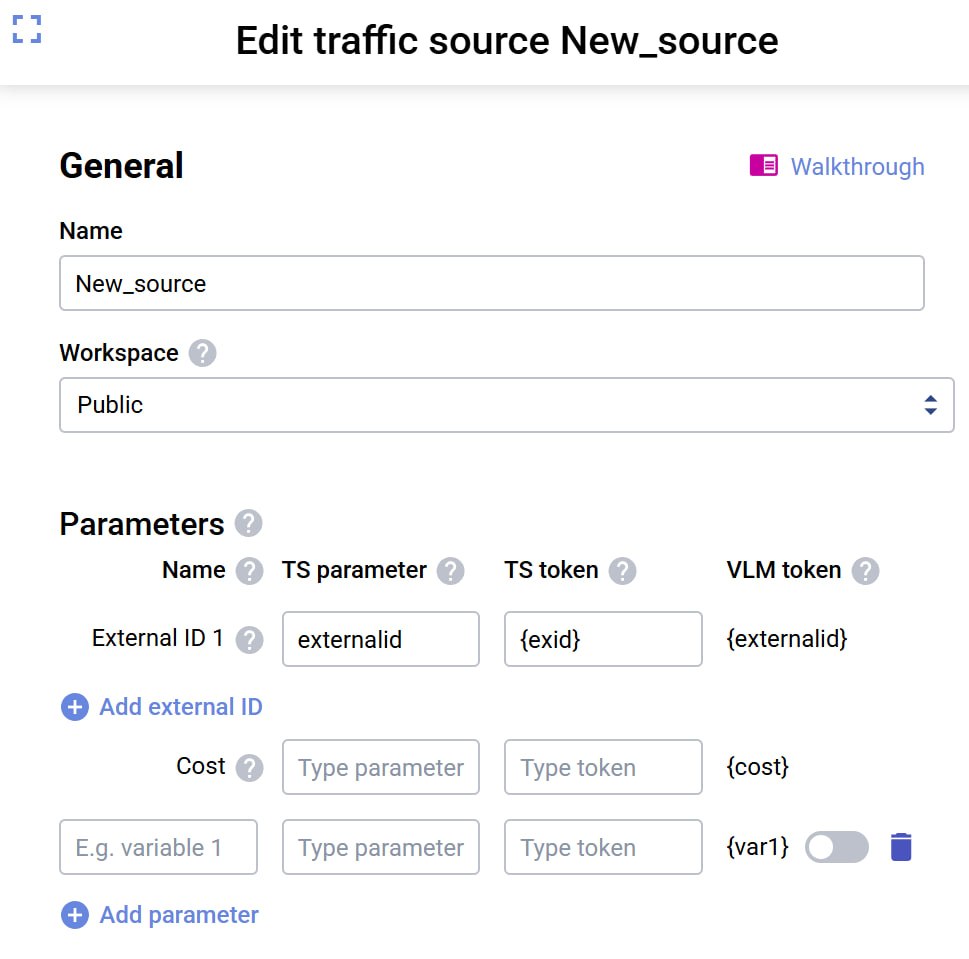
- Configure data tracking:
-
For the External ID parameter, set:
- TS parameter —
externalid - TS token —
{exid}
This parameter is required for proper conversion tracking in ZM apps.
- TS parameter —
-
Optionally, you can add extra parameters (
{var1},{var2}, etc.) to pass additional data.
-
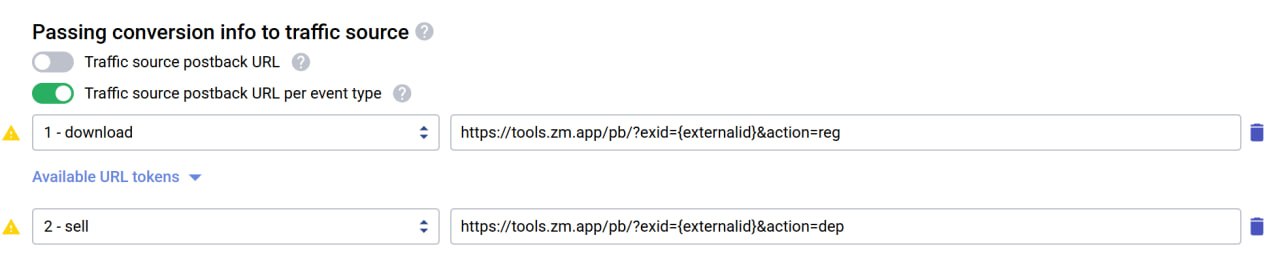
- Open the Passing conversion info to traffic source section and select Traffic source postback URL per event type.
- Configure postbacks for conversion events:
-
For registrations, select download:
https://tools.zm.app/pb/?exid={externalid}&action=reg -
For deposits, select sell:
https://tools.zm.app/pb/?exid={externalid}&action=dep
-
- Create a campaign in the Campaigns section and open the Tracking block.
- Copy the Voluum Campaign URL value.
- Paste the generated link into your ZM apps flow settings.
That’s it — Voluum will now send data to ZM apps and track conversions correctly. Before launching traffic, make sure to test the integration and verify that all parameters are being passed properly.
For more accurate analytics, you can also pass the deposit amount and transaction currency.
Parameters:
- payout – payout amount
- currency – transaction currency (USD, EUR, etc.)
Example postback with payout and currency:
https://tools.zm.app/pb/?exid=abc12345&action=dep&payout=1.05¤cy=EUR