Dolphin Cloud and Keitaro Integration
This article explains how to set up data exchange between Keitaro and Dolphin Cloud in a simple way.
Preparing data in Keitaro
To connect Keitaro, you need an Admin API key (API access in Keitaro is available starting from the Expert plan).
How to get an API key:
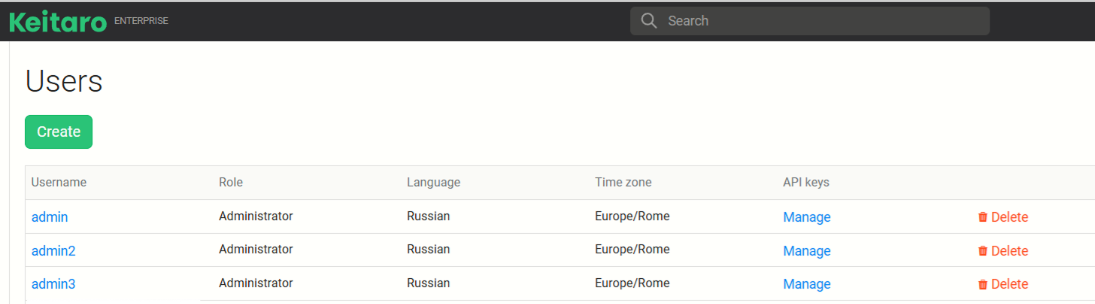
- Go to Keitaro → Maintenance → Users.
- Click Manage next to the required user.
- In the opened window, select Create new key.
- Copy your API key.
Connecting Keitaro in Dolphin Cloud
- Open Dolphin Cloud.
- Go to Settings → Data Import.
- In the tracker integration block, select Keitaro.
- Fill in the fields:
- Keitaro link (URL of your tracker)
- API key — your access token
- Ad ID parameter — one of the subs, for example
Sub id 4
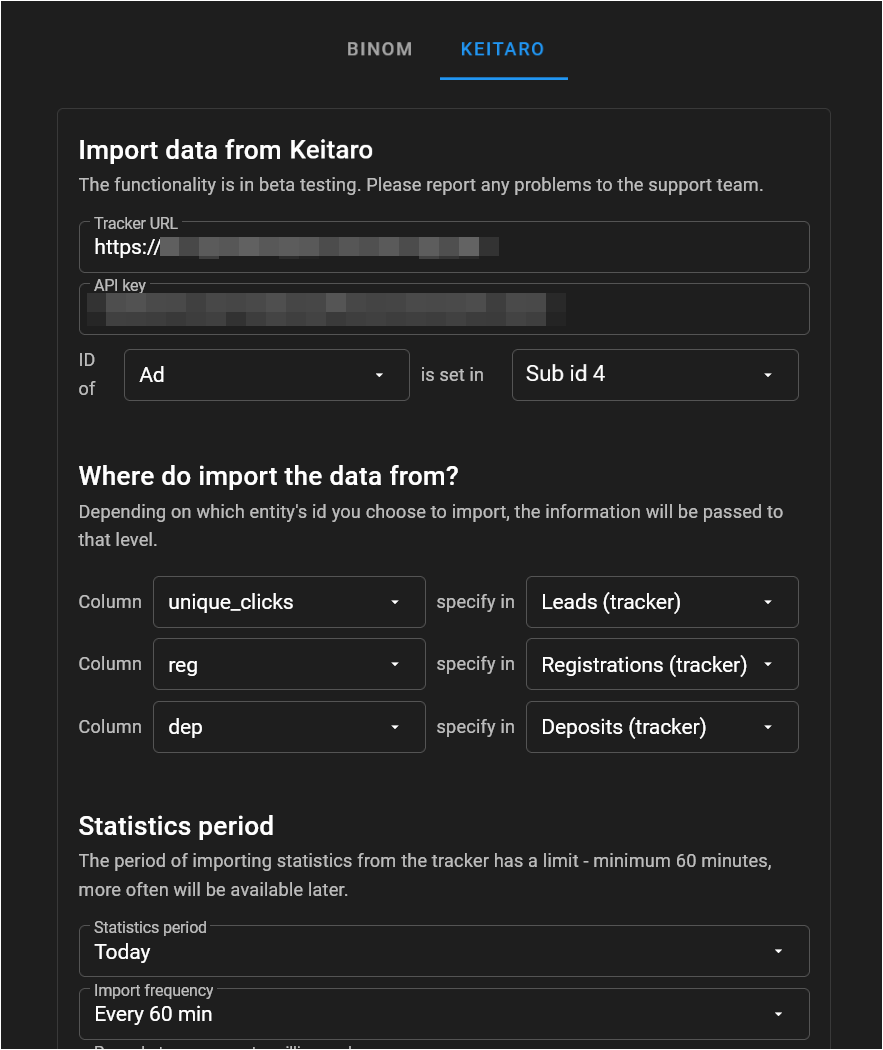
- Press Enter in the URL field.
After this, Dolphin Cloud sends a request to Keitaro and starts loading available columns.
Wait a few seconds — the list of Keitaro columns will load automatically and become available for selection.
After the columns are loaded, you need to correctly match Keitaro data with Dolphin Cloud fields.
Checking columns and the ad_id parameter
After setting up data import, make sure that tracker columns are shown in campaigns.
- Go to the Campaigns section.
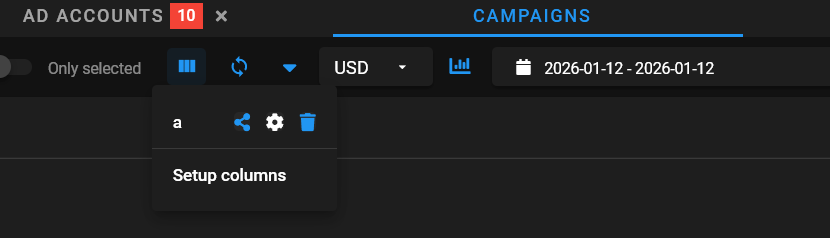
- In the top panel, click Setup columns (column settings icon).
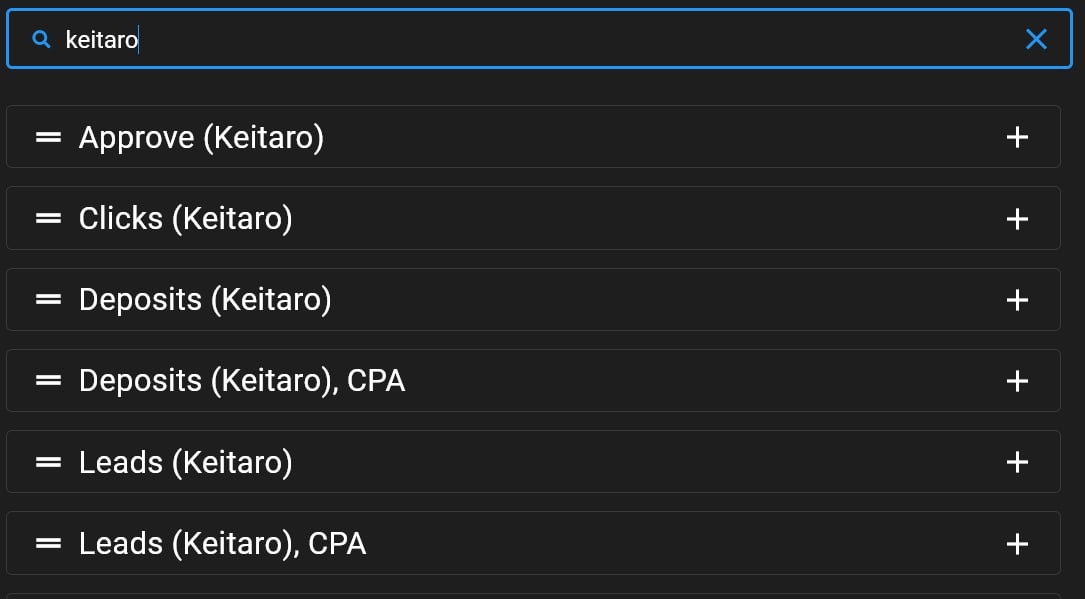
- In the list of columns, find and add:
- Registrations (tracker)
- Leads (tracker)
- Deposits (tracker)
After saving the settings, the selected columns will appear in the campaigns table, and Keitaro statistics will be available for viewing and analysis.
When copying a campaign link from Dolphin Cloud, it must contain the {{ad.id}} macro.
Make sure that:
- All service and tracker links are updated and include the
{{ad.id}}macro. - The
{{ad.id}}macro is passed in the same parameter that is specified in the Dolphin Cloud data import settings.
If the {{ad.id}} macro is missing, you need to add it to the Keitaro campaign link exactly in the sub-parameter that is specified in the Dolphin Cloud integration, in the Traffic Source section or in the Parameters section of the campaign.
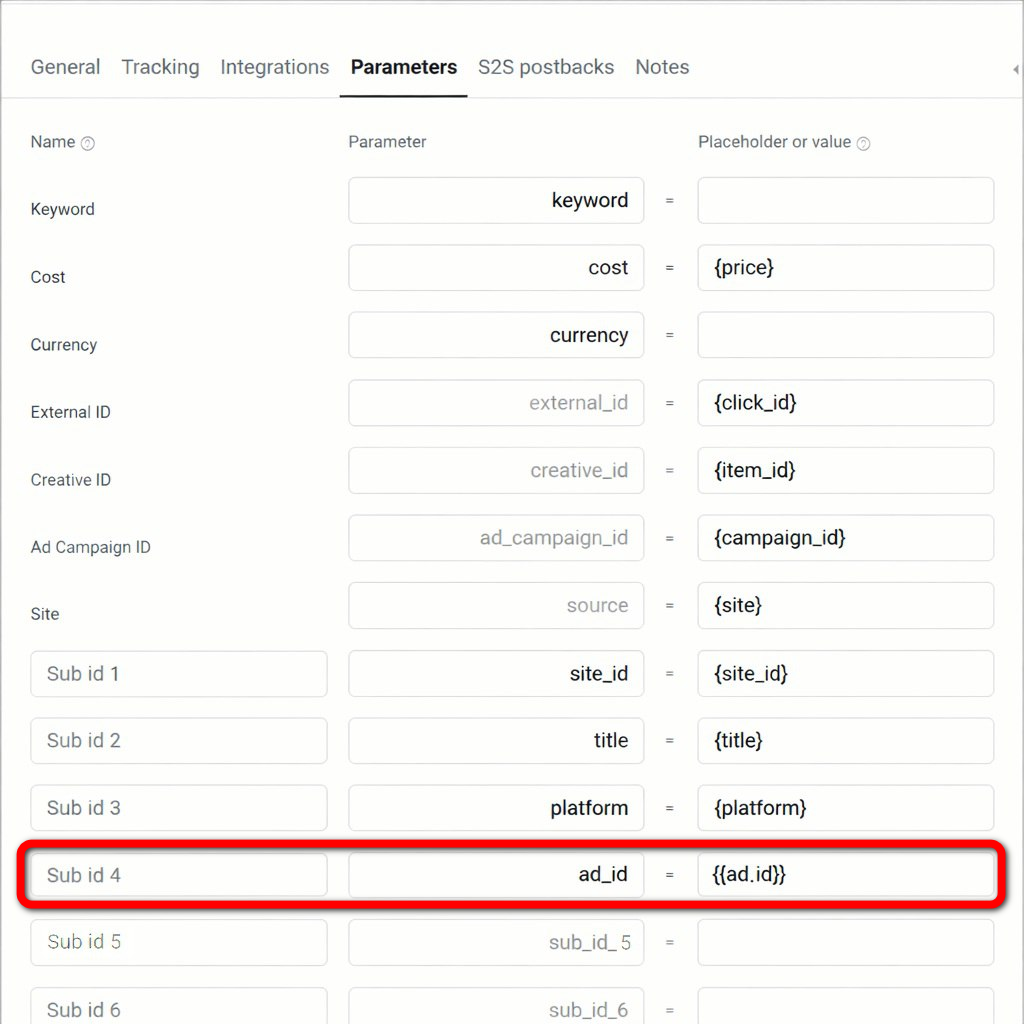
After completing all steps, the Keitaro and Dolphin Cloud integration will be fully set up.
Tracker statistics will start appearing automatically in the campaigns section.
- regularly check that the Keitaro API key is still valid;
- make sure the
{{ad.id}}macro is passed in all service and tracker links; - after changing tracker settings, recheck that columns are displayed correctly in campaigns.