Pixels
Pixels are used to send event data and enable integrations with advertising platforms. The following pixel types are currently supported:
Facebook Pixel
TikTok Pixel
Snapchat Pixel
In the Pixels section of your account, you can add new pixels, manage existing ones, and edit their settings.
All your pixels are displayed in a single list. Use filters by date, Pixel ID, comment, or owner to quickly find the pixel you need.

Adding a Pixel
- Click Create to add a new pixel.

- Enter the Pixel ID.
If you're not sure where to find the Pixel ID, check out our guide:
- Enter the Business Manager Access Token.

- Add a comment to the pixel to help you keep track of it when setting up flows.
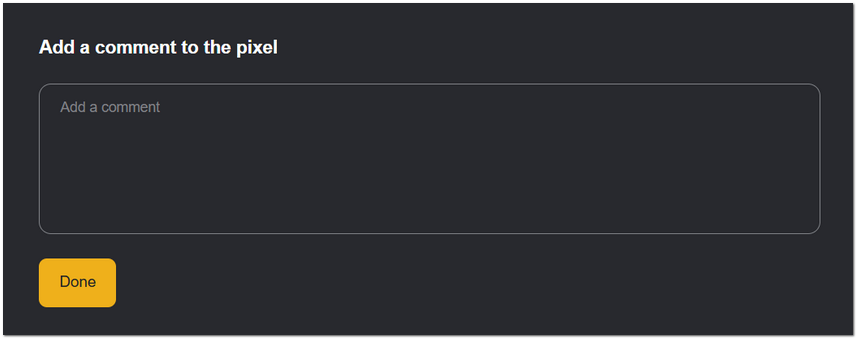
Before saving, the system automatically checks whether the Pixel ID and token are valid.
If the data is incorrect or invalid, you’ll see an error message – this helps prevent issues when setting up flows.
- Click Done. The pixel shall be added to the list. You may now use it to configure flows.
When creating a flow, the selected pixel is automatically added to the final link’s parameters.
If you need to manually add an extra Facebook or Tiktok pixel, follow these steps:
- Make sure the needed pixel is saved in the My Pixels section.
- Add this parameter to the final link:
&pixel_fb=ID of the required pixel(same macro for FB and TT)
Example:
https://example.com/?sub1={sub1}&pixel_fb=12344321234
To ensure accurate attribution, you must also pass the advertising platform's Click ID.
The following parameters are supported:
| Platform | Supported parameters |
|---|---|
| fbclid | |
| TikTok | ttclid |
| Snapchat | ScCid, sccid, sc_cid, sc_click_id |
For Snapchat, the system automatically converts any supported variant into the sc_click_id parameter.
The setup process for Facebook, TikTok, and Snapchat is exactly the same. The only difference is the advertising platform's Click ID, which must be passed in the URL to ensure accurate attribution.
Pixel List
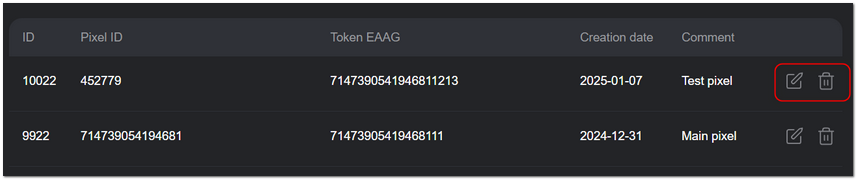
For each pixel in the list, you'll see the following details:
- ID – unique ZM apps pixel identifier.
- Pixel ID – identifier used for flow configuration.
- Access Token – token required to work with the pixel.
- Creation Date – the date the pixel was created.
- Comment – e.g., the pixel’s purpose or campaign name.
Editing a Pixel
You can edit any of the pixel fields or delete pixels from the list.
-
Click Edit to change the ID, Token, or comment for the selected pixel.
-
Click Delete if the pixel is no longer needed.