Test PWA Installation
It's important to test how your PWA app works before starting the traffic. This helps to make sure everything looks correct and the installation works without errors. The test only takes a few minutes.
During the whole installation process:
- Do not change your IP address or VPN.
- Do not switch between mobile data and Wi-Fi.
If the network changes, the installation tracking will break.
1. Copy the link to your flow.
You can find it in your dashboard or in the Telegram bot.
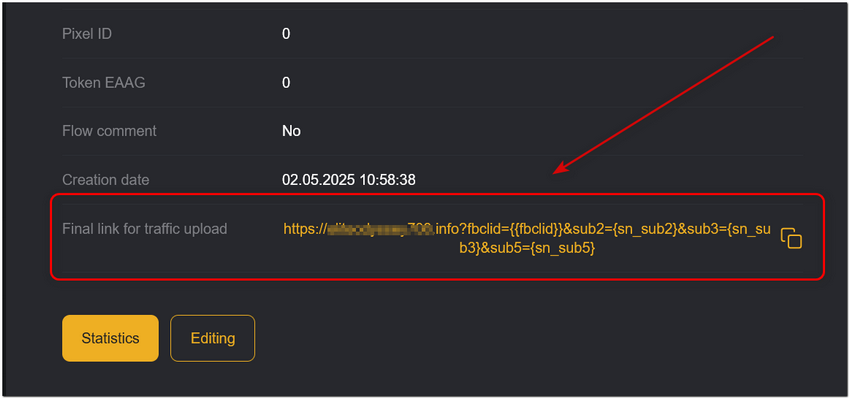
See our guide
2. Open this link on an Android device using the Google Chrome browser.
You will see a prompt to install the app.
PWAs can't be installed in Incognito Mode. Pressing the button will not install the app.
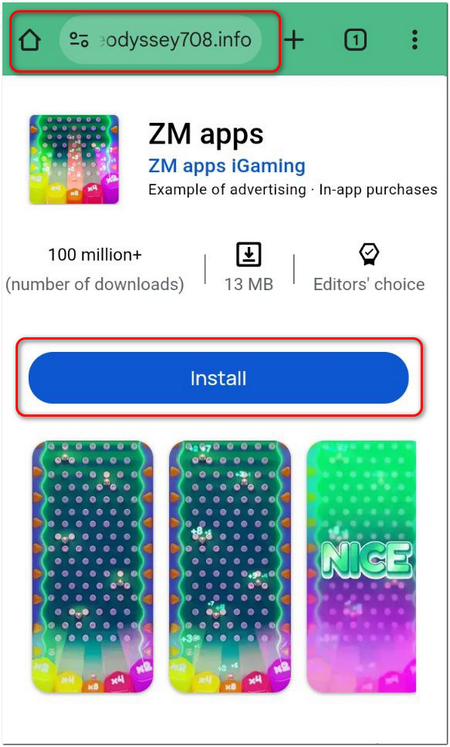
3. Tap Install.
After installation, the icon of your PWA will appear on the device’s home screen.
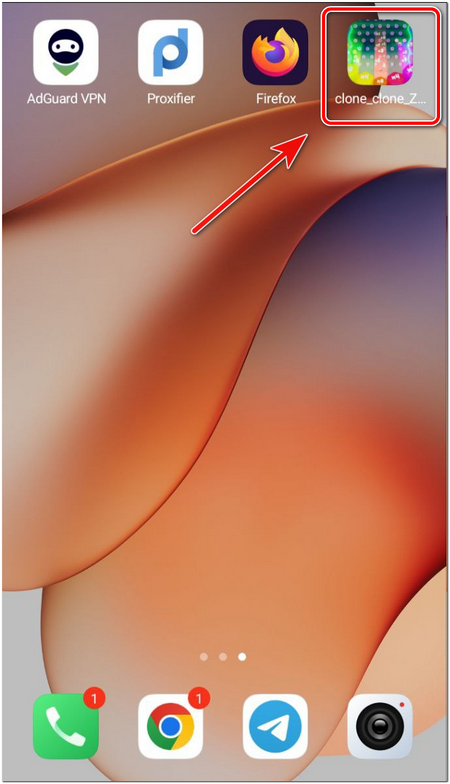
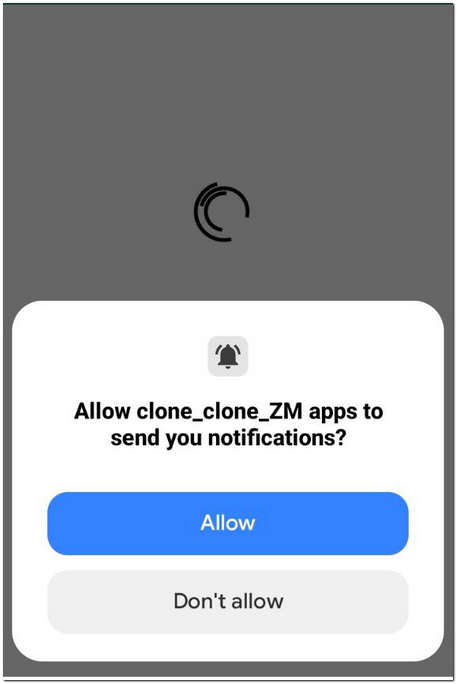
4. Open the PWA app.
The first time you open it, there will be a request to allow push notifications. Tap Allow. The browser will show your offer.
5. Make sure everything looks correct and you can track the view in your campaign and offer after installation.
That’s it! Now your PWA flow is ready for work.
PWA applications work best in the Google Chrome browser.
If a user follows a link from third-party apps (such as Telegram, Facebook, etc.), it may open in an in-app browser where PWA installation might not work correctly or may be unavailable.
If needed, you can set up a redirect to open the link in the default browser — please contact our support team for assistance.