What is a flow
A flow is a set of traffic settings that defines what happens after someone clicks your ad link: where the user goes and which rules apply along the way.
A flow is created in the ZM apps dashboard. You choose which offer to send the user to, when to show a white page, and how to split traffic between apps. After setup, you get a final link — this is the link you use in your ad campaign.
Why you need a flow
A flow solves three key tasks:
-
Control. Flow settings define where the user goes, what they see, and which restrictions apply.
-
Testing and scaling. A flow lets you test ideas quickly. You change parts of the setup inside the flow instead of rebuilding everything from scratch.
-
Tracking. A flow connects the click with the user’s later actions. This data is then shown in ZM apps stats, in your tracker, and in the ad source.
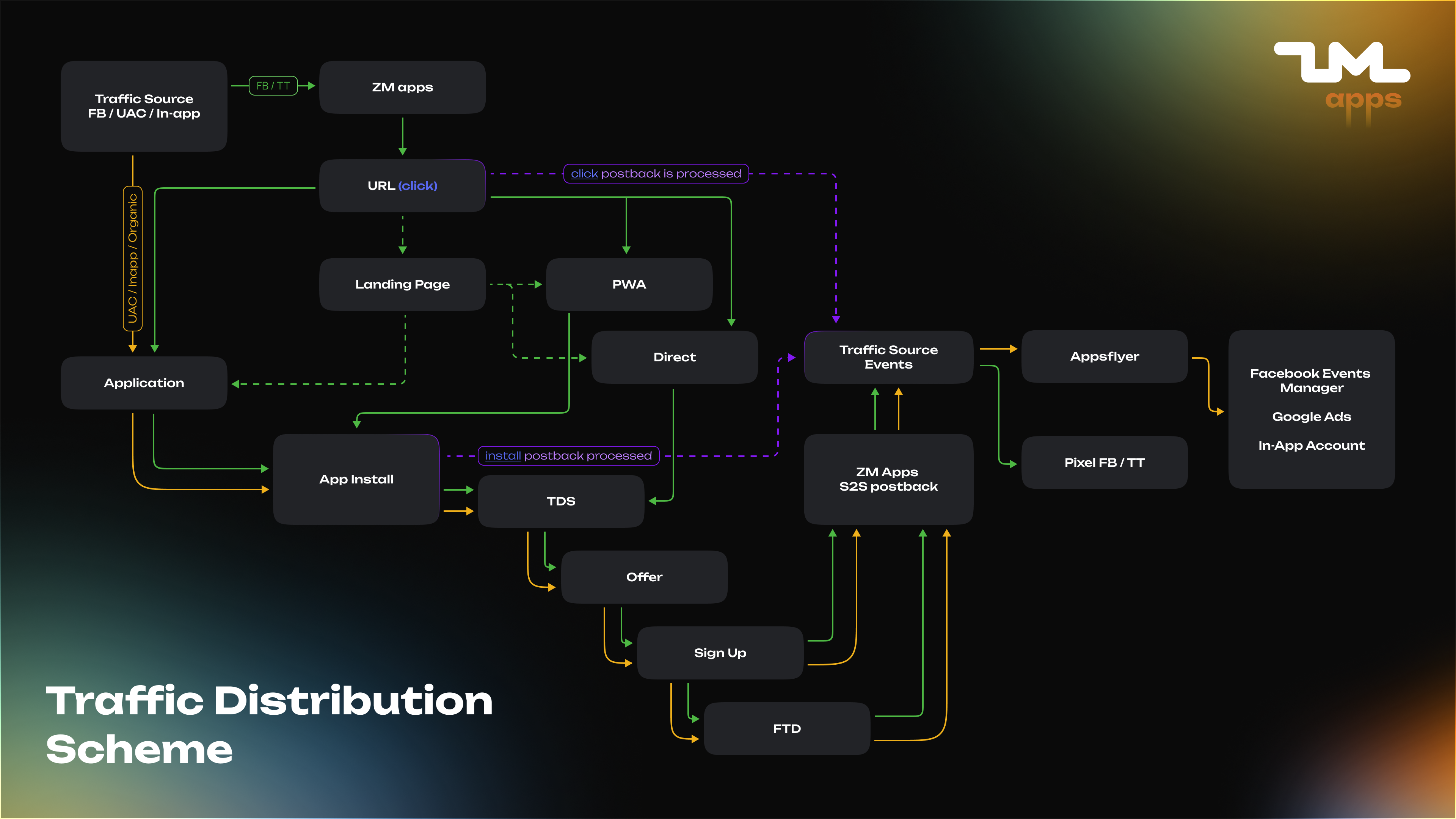
The diagram below shows how traffic goes through ZM apps, from click to install and event tracking.
How to work with a flow
-
You create a flow for a specific goal. You set: the source (FB, TikTok, etc.), platform (iOS, Android, PWA), GEO, and offer.
-
ZM apps generates the final flow link. You put this link into your ad campaign.
-
A user clicks the ad. ZM apps sends the user to an app, PWA, prelanding, or directly to the offer.
-
If needed, you update the setup inside the flow while the campaign is running.
You can add apps and change the traffic split between them, replace prelandings, and do all of this without changing the link in the ad campaign. -
The system records installs and events. Data is saved in ZM apps and sent to external services.
You are running Facebook traffic to an Android app:
- Create a flow: choose the type, app, domain, and GEO.
- Connect the Facebook pixel.
- Add a prelanding.
- Get the flow link and place it in the ad campaign.
If you want to test a second app, you add it to the flow and set the traffic split. Usually, you don’t need to change the link in the ad.
Flow types in ZM apps
In ZM apps, a flow is always created for a specific traffic type and scenario.
The flow type determines where the user goes after the click.
| Flow type | What it does |
|---|---|
| iOS/Android flow | Sends users to the selected app in the App Store or Google Play. |
| PWA flow | Opens a PWA app. Used instead of a store app. |
| Smartlink+ | A universal flow for iOS and Android. Lets you work with both iOS and Android users in one flow. |
| Offer link (no app) | Sends traffic directly to the offer. |
| Split flow | An advanced flow that distributes traffic across multiple scenarios. Split flows give more control and options, but require more careful setup and a clear understanding of the traffic distribution logic. |
Each flow type and its settings are explained in detail in the relevant documentation sections.
We prepared a step-by-step guide showing how to set everything up for:
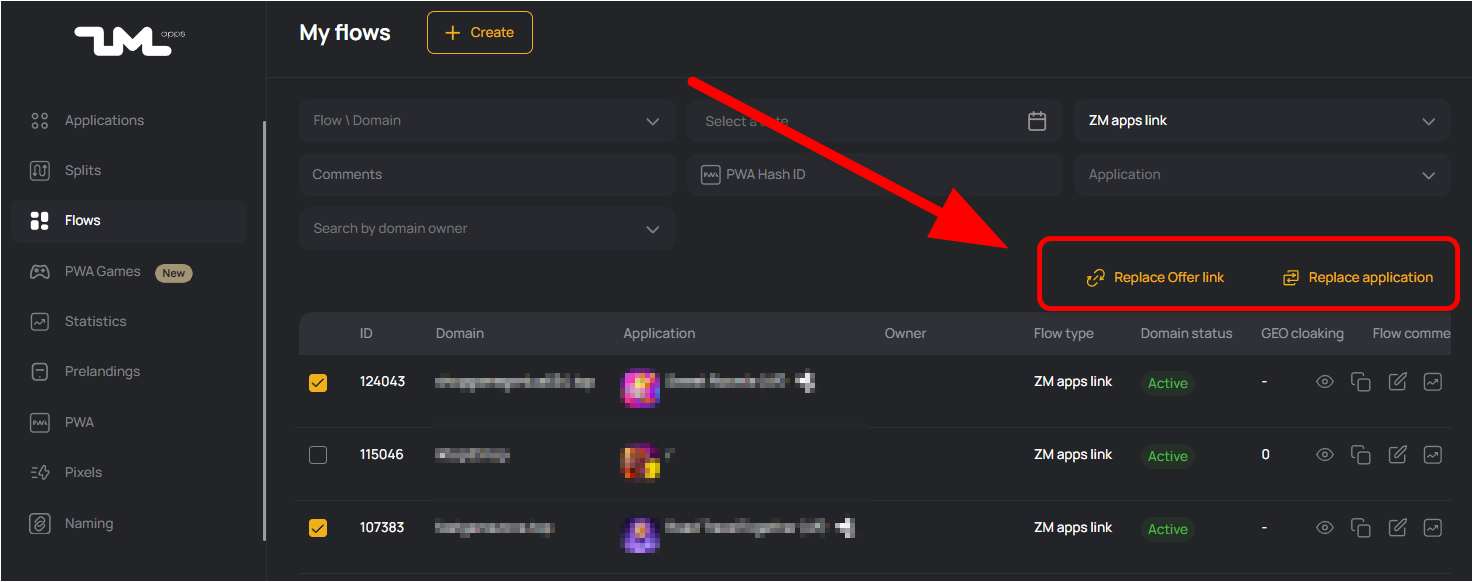
If you need to make changes to multiple flows at once, you can select them in the list and replace the application or offer link in bulk.
- Go to the flows list.
- Select the required flows.
- Choose Replace application or Replace Offer link.
- Apply the changes.