Statistics
The Statistics section helps you track user activity at every stage of your Flow. You can check key metrics, filter data, and download reports in CSV format.
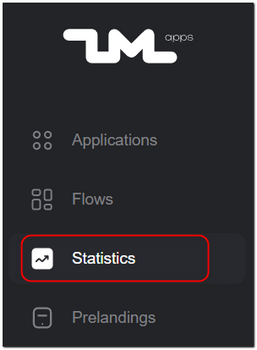
How to Use Statistics
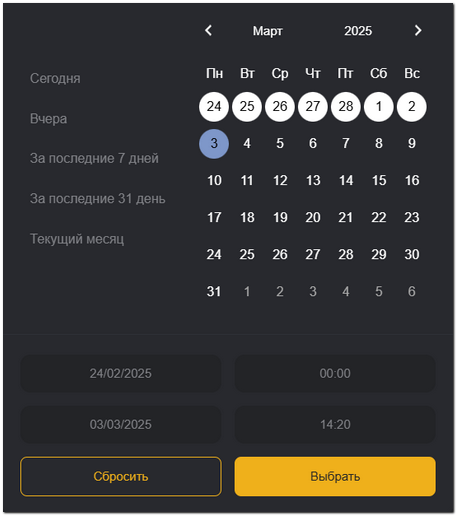
Period Selection
Set the date range by choosing one of the options:
- Day
- Week
- Month
- Custom dates and time
Click Select to save the filter.
Column Settings
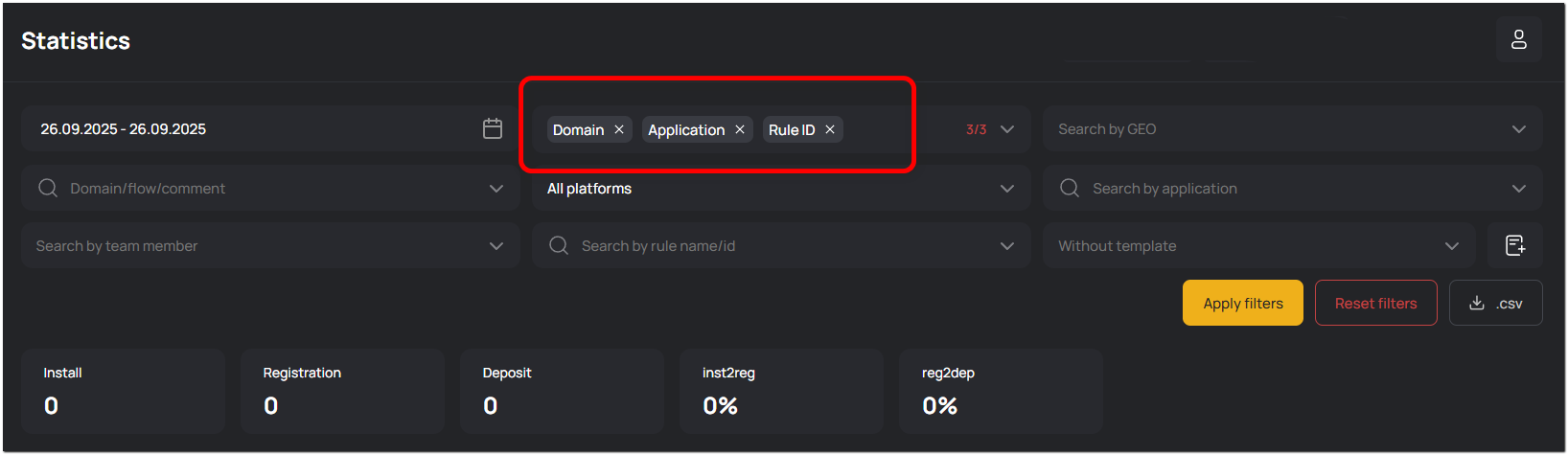
To make table analysis easier, you can customize it to fit your needs. Choose any three columns from the list:
- Domain – the domain name of the flow.
- Application – the name of the application related to the flow.
- IP – user IP addresses.
- Date – the date and time of the action.
- UUID – the unique identifier of the user.
- GEO – user geographic location.
- Rule ID – the identifier of the rule from split flows.
After selecting the desired columns, click Apply Filters to update the table.
The order of columns in the table depends on the order in which you added the filters.
To view split flow statistics, you must select three values in the filters:
- Domain
- Application
- Rule ID
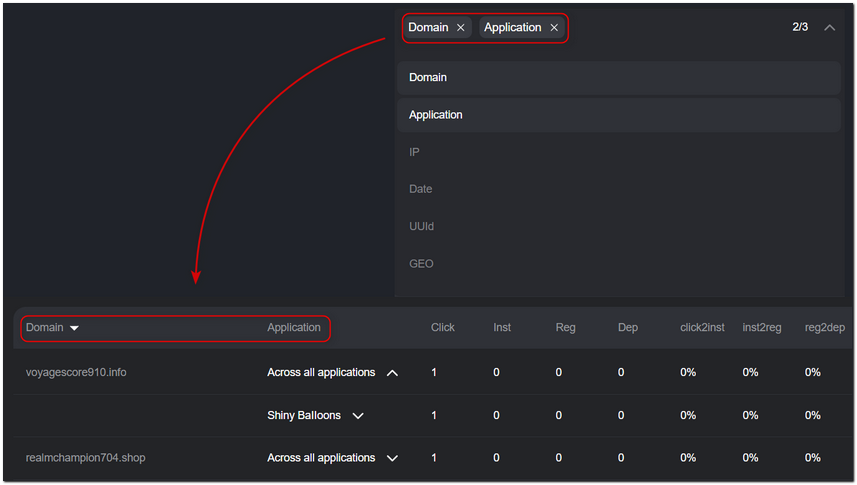
To view detailed statistics for a specific rule:
- In the Application column, select “All applications” for the domain you are interested in.
- In the Rule ID column, click “All rule IDs” and select the desired rule.
To refine your analysis, use extra filters:
- Domain, Flow name, or Comment – helpful if you manage multiple Flows and need to focus on one.
- Platform – see traffic by platform. Options:
- All platforms – shows stats for all Flow types.
- PWA.
- iOS | Android link.
- Smartlink+.
- Android naming.
- Application – view stats for a specific app.

- Search by team member – view statistics for a specific user.

To reset everything, click Reset Filters.
Saving Filters
To save your filter settings, click + and name the template.
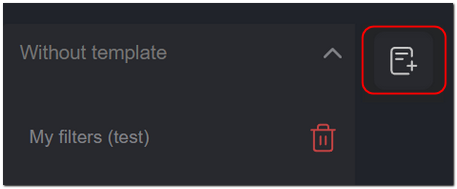
Later, you can quickly apply saved filter combinations.
Exporting Data
Click .CSV to download the statistics.
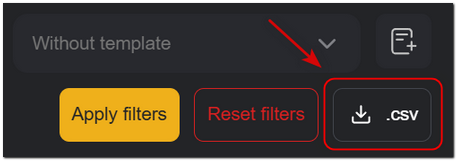
Table Overview
The statistics table includes key metrics:
- Click – number of clicks.
- Inst – number of installs.
- Reg – number of registrations.
- Dep – number of users who entered payment details.
- click2inst – installs per click.
- inst2reg – registrations per install.
- reg2dep – deposits per registration.
If your Flow includes multiple apps, you can track clicks, installs, registrations, and deposits for each one. Just enable the Application column in the filters.
