PWA Builder
Introduction
PWA Builder is a tool for creating Progressive Web Applications (PWAs). Before you start building a new PWA, note some important features.
What you need to know before you begin:
-
AI Generation – A feature that automatically creates text or avatars. Fields with this feature have a button to activate it.

-
Auto-translation – A feature that automatically translates the app text to the browser language. All fields that support auto-translation are marked with a special icon and a note under the field.

Auto-translation works only if the field is left empty. To disable this feature, toggle the Auto-translate switch.

Creating a PWA
-
Click the Create button to start working on a new PWA application. A window with creation options will appear:
-
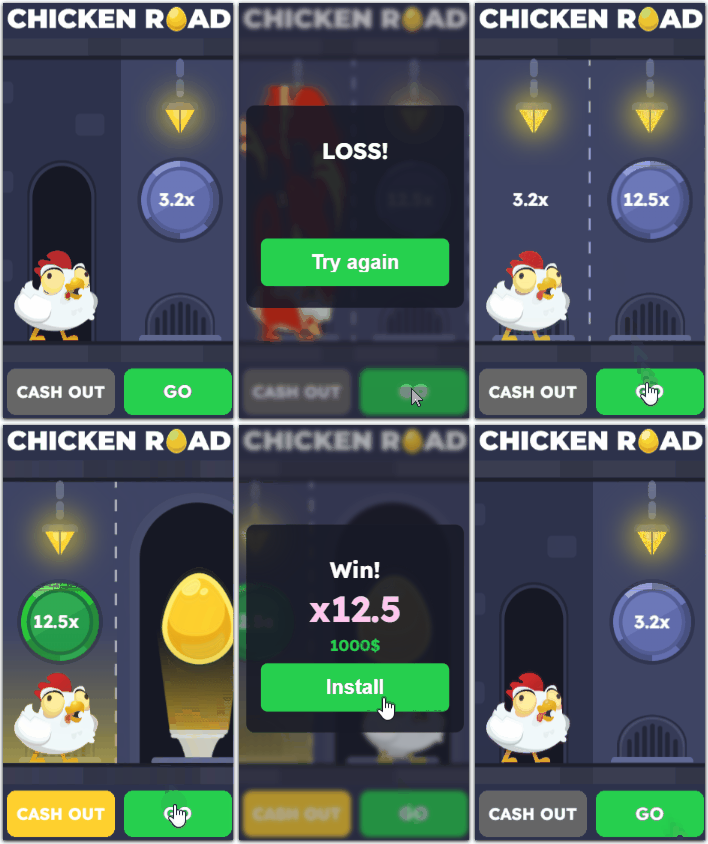
PWA games – templates with interactive game elements.
-
PWA templates – ready-made store layout options for PWA.
-
Create manually – an empty template with default values.
-
Copy by Hash ID / by domain – create an app based on an existing one in our service.
-

-
Type the name of your PWA. This name will not show in the app, but it will appear in the list of your projects in ZM apps.

-
Choose the language for the AI-generated descriptions, comments, and tags.

App Design
The PWA builder has a live preview that shows any changes you make in your future app.
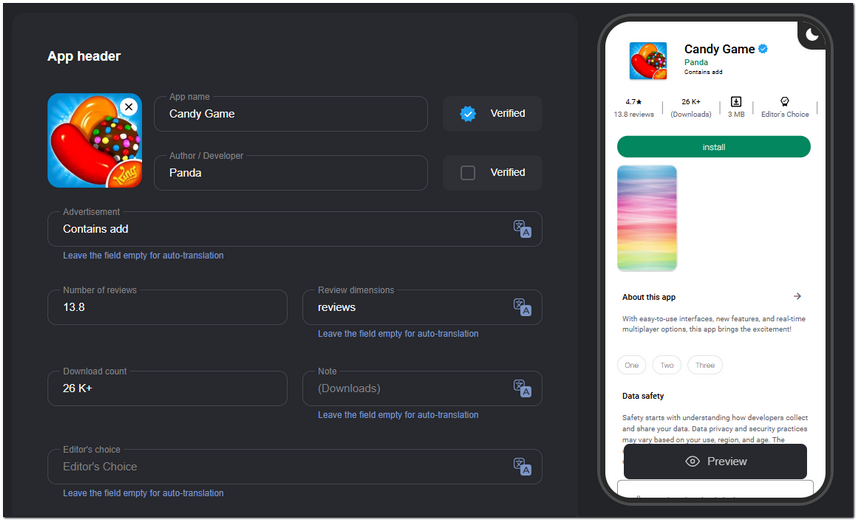
App Header
Fill in the following fields:
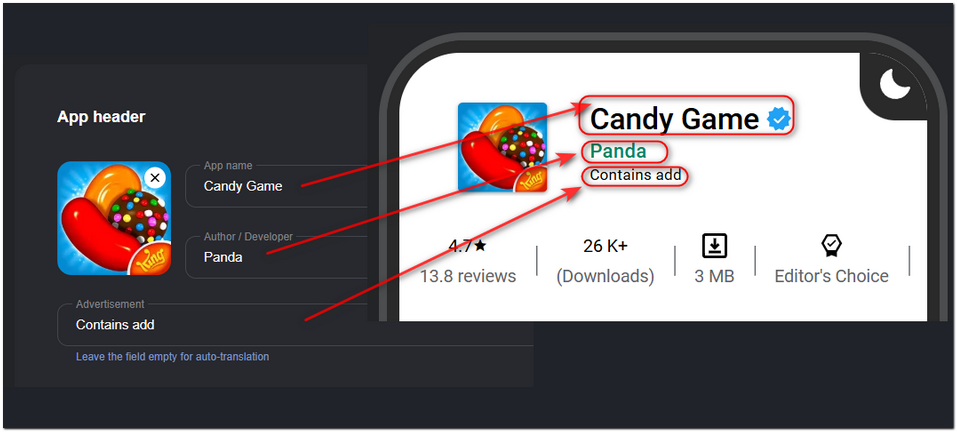
- App Name – Enter the name of your app.
- Author / Developer – Add the developer’s name or company name.
- Advertisement – Indicate whether the app contains ads.
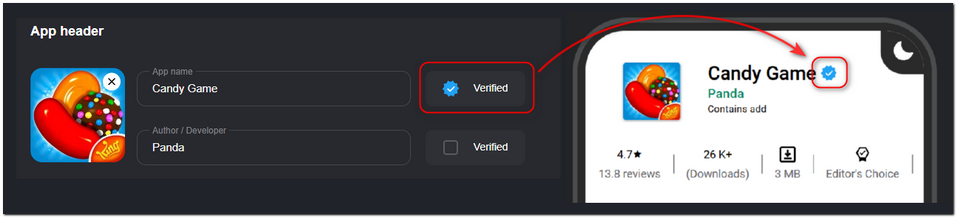
- Verified checkmark – Confirmation of authenticity next to the app or developer’s name.
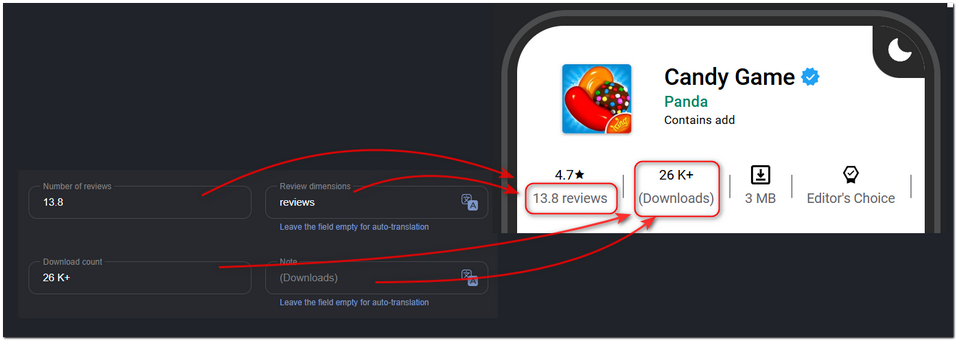
- Number of Reviews – Specify the total number of reviews.
- Review dimensions – A letter indicator for the number of reviews, such as K, M, etc.
- Download Count – Specify the number of downloads.
- Note – Additional information about the app.
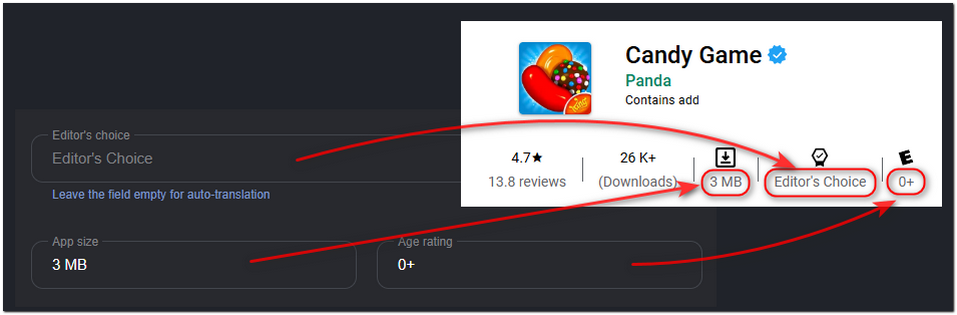
- Editor's Choice – Mark the app as recommended.
- App Size – Size in megabytes.
- Age Rating – The minimum age for users.
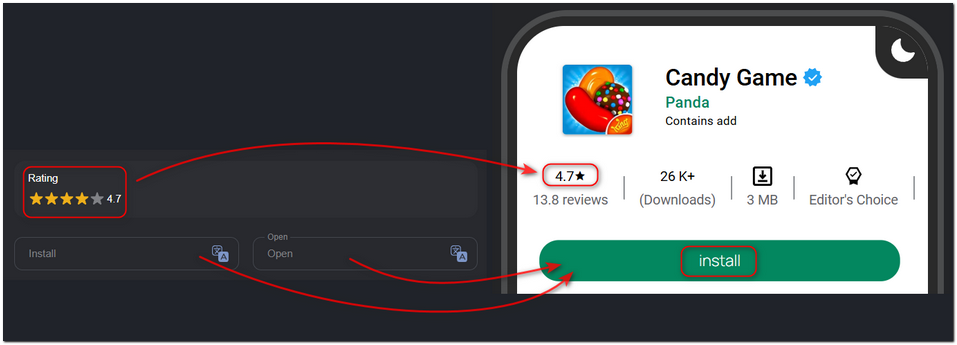
- Rating – Overall rating based on reviews.
- Install or Open – Buttons to download or launch the app.
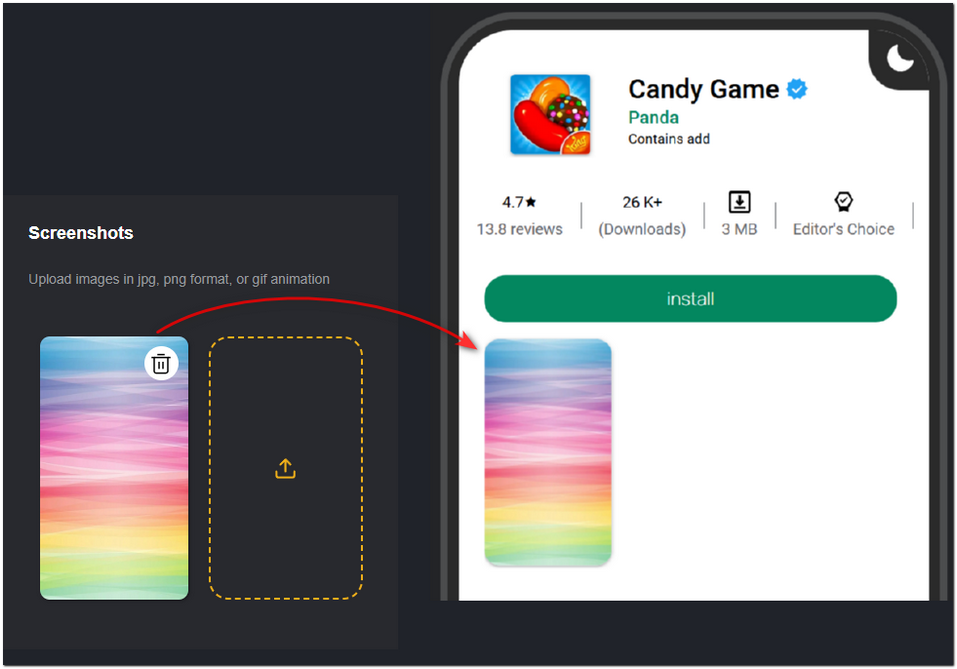
Screenshots
- Upload images and GIFs to make your app interface more appealing.
App Description
Fill in the description fields:
- Title – A short name for the section.
- Description – The main text with information about the app.
- Tags – Keywords for quick search.
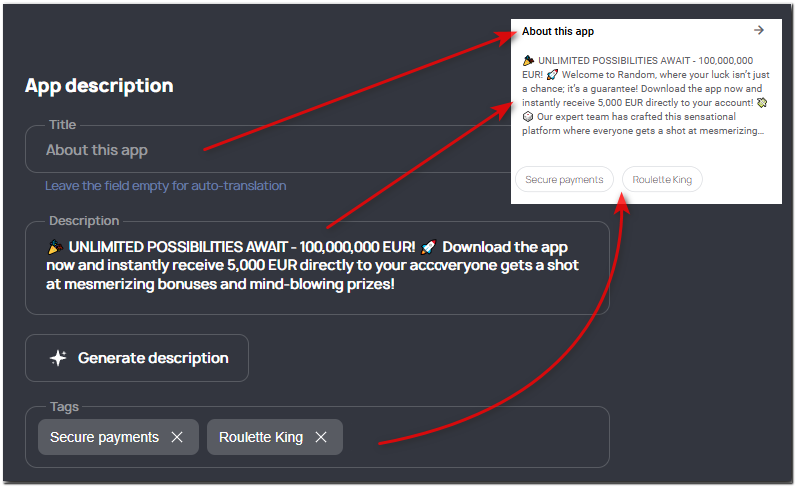
Use the Generate Description and Generate Tags buttons to automatically generate text for these fields.
Data Security
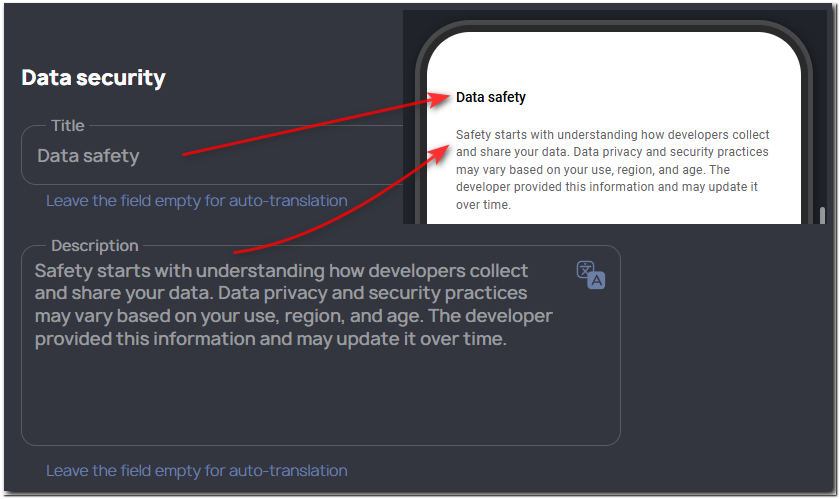
Data Security section has default values, but you can edit them depending on your app's specifics:
- Title – The section title for data handling.
- Description – Information about data collection, transfer, and protection.
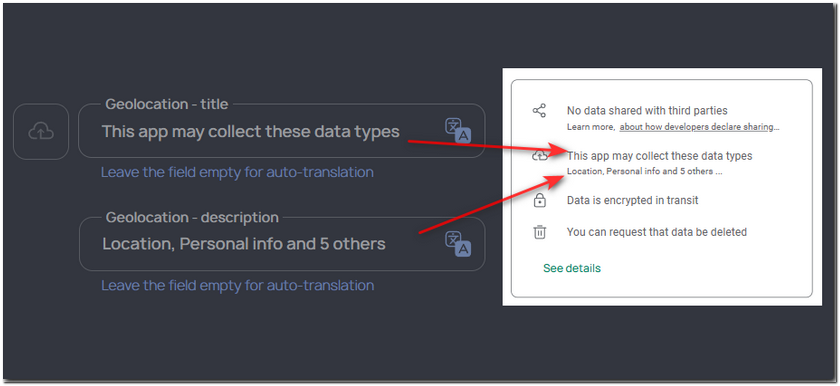
- Sharing – Data that the app shares with third parties.
- Geolocation – Information that the app uses the user’s location data.
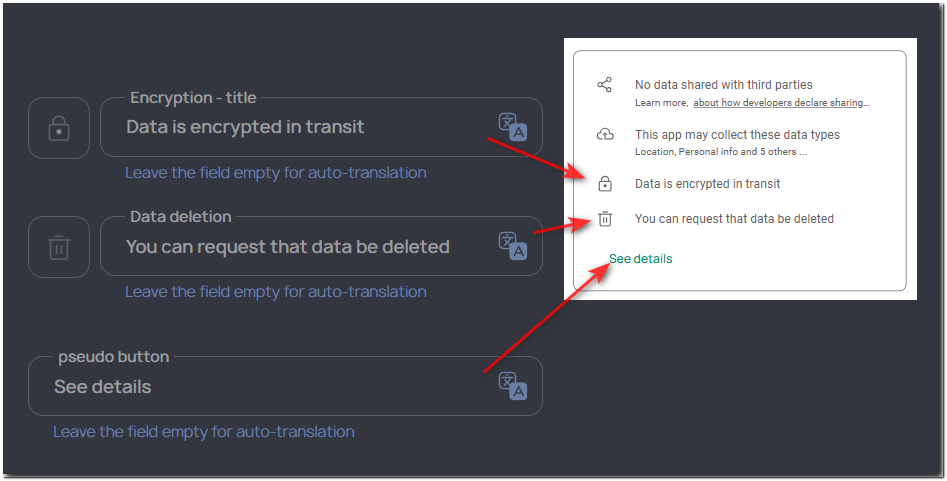
- Encryption – Mark that data is protected by encryption.
- Data Deletion – Information that data can be deleted.
- Pseudo-button – View details.
Ratings and Reviews
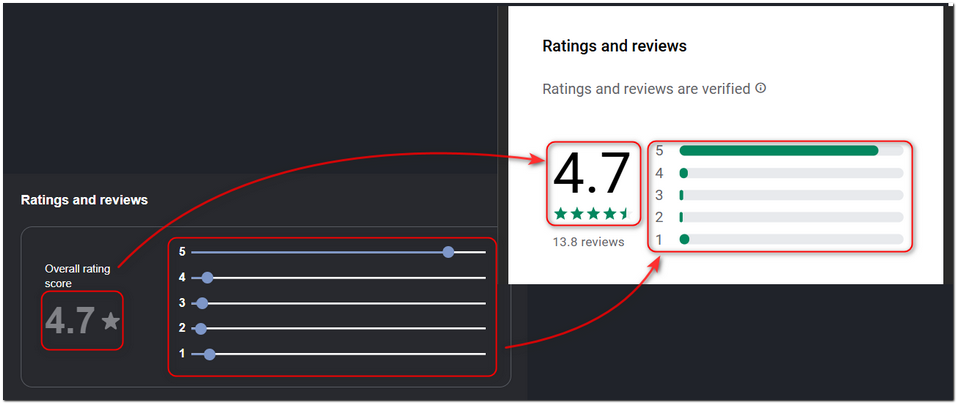
In the Ratings and Reviews section, you can set the rating values for your app:
- Overall Rating – To change the value, move the rating sliders.
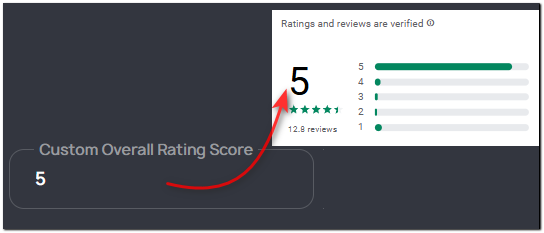
- If needed, set a custom rating value.
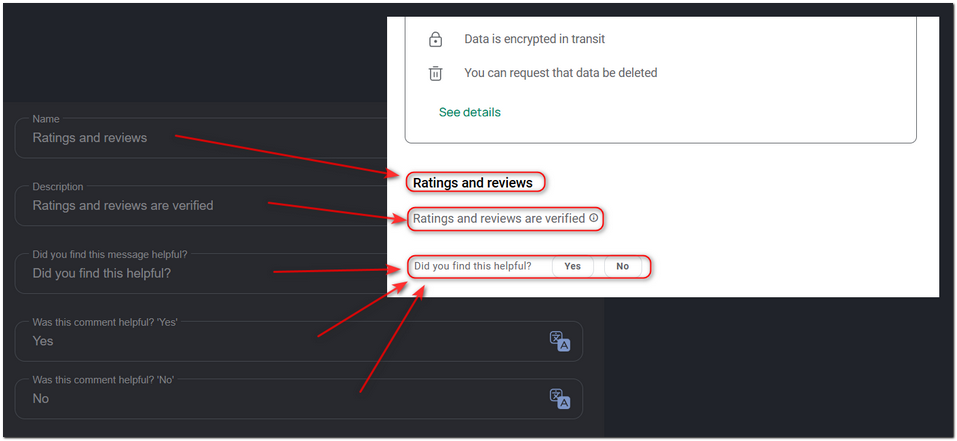
- Name, Description, Did you find this message helpful? – Default values. Edit them if needed.
Comments
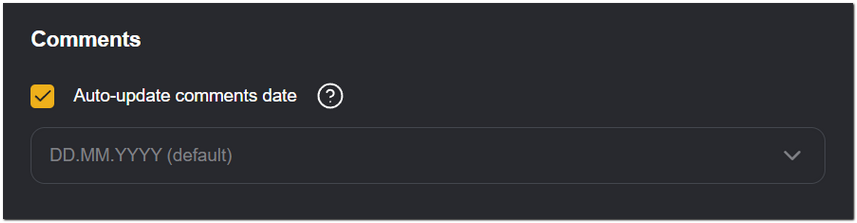
The Comments section allows you to add both AI-generated and manually created reviews. The date updates automatically. You can choose the date format or disable the comment date update.
- Click Generate Comment to add an AI comment. All fields in the section will be automatically filled.
- Click Add Comment to create a new comment manually. If necessary, edit:
- Author – Name and avatar.
- Rating – Star rating.
- Creation Date – Specify the date or leave it empty.
- Comment – The review text.
- Helpfulness – How many users marked the review as helpful.
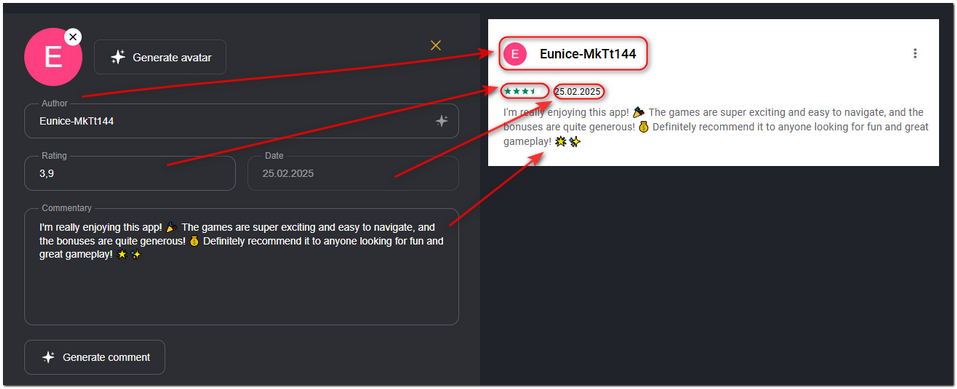
Use the Generate Avatar and Generate Comment buttons to automatically fill in the fields.
- Add a Developer Response to reply to comments. Fill in the name, date, and response text manually, or click Generate Response.
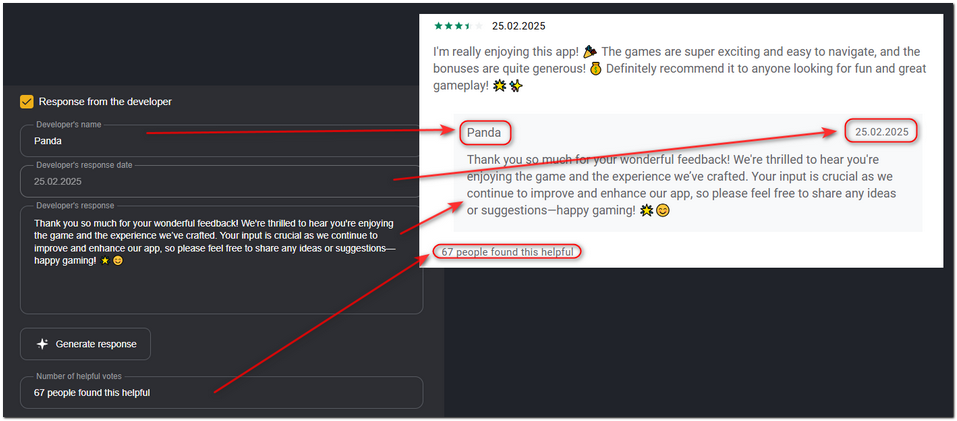
- Click Save changes to complete the setup.
Additional Settings
The Additional Settings section is located at the top of the PWA Builder. Here you can adjust the color scheme, app installation format, and additional fields. Go to the section by clicking the Additional Settings button.
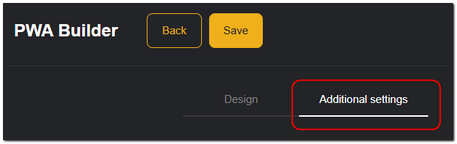
- Customize the Install button color. Choose from the options provided or set your custom color.
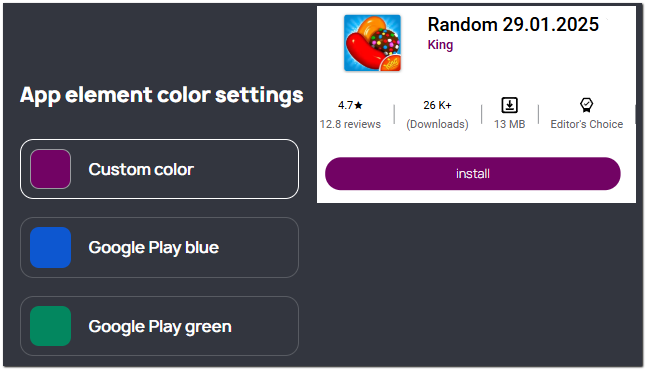
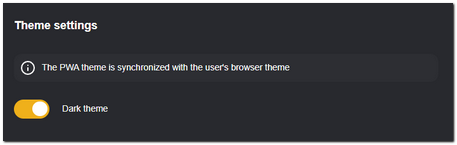
- Customize the app theme
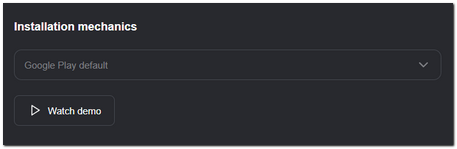
- Choose how the app installation process will look. Click View Demo to see the selected settings on the screen.
- Customize the Additional Fields to change the app download interface. You can modify:
- Button names: Delete, Download, Cancel.
- Text fields in the installation menu: Additional subtitle, Hint, Preposition, Installing.
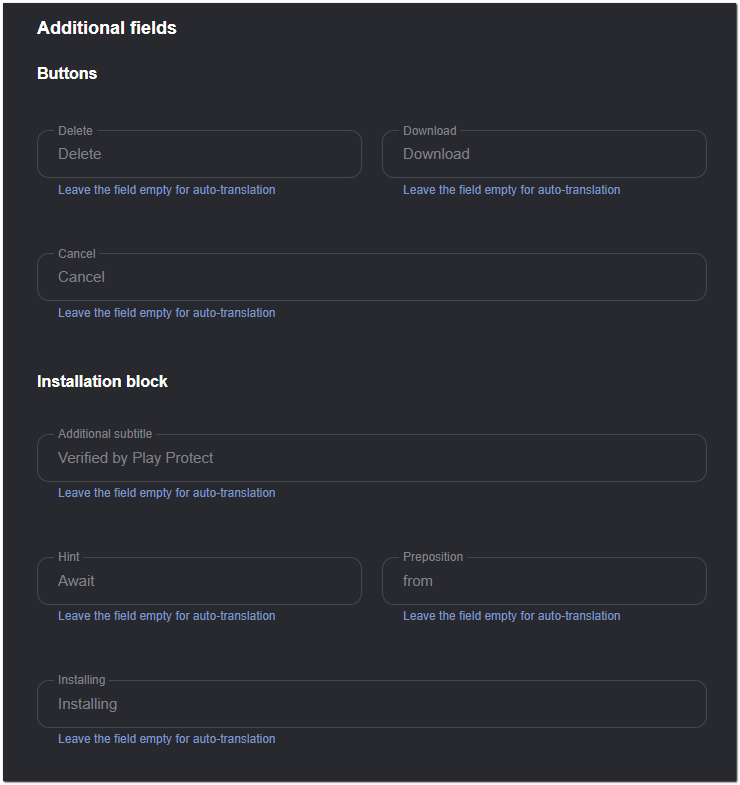
If you leave these fields empty, the values will be automatically translated into the user browser language.
PWA applications work best in the Google Chrome browser.
If a user follows a link from third-party apps (such as Telegram, Facebook, etc.), it may open in an in-app browser where PWA installation might not work correctly or may be unavailable.
If needed, you can set up a redirect to open the link in the default browser — please contact our support team for assistance.