Saving User Path in Trackers
If your campaign involves splitting traffic across multiple offers, you will need to configure your tracker so that when a user returns, they are directed to the same offer they saw during their first app visit.
Most popular trackers support this functionality. For more details, you can reach out to your tracker's technical support.
If you want to turn off an offer, do not delete it from the campaign. Just set its "Weight" to 0 in the flow settings. With offer binding turned on, users who’ve already seen the offer will keep getting the same one even if its weight is 0. New users will be sent to the other offers that still have a non-zero weight.
Here is how to configure this feature in a few popular trackers.
Keitaro
In the campaign settings, configure the following:
- Flow rotation – By weight.
- Bind to – Flows, landing pages, and offers.

Note: These settings are applied at the campaign level, not the tracker level. You will need to configure them for each campaign individually.
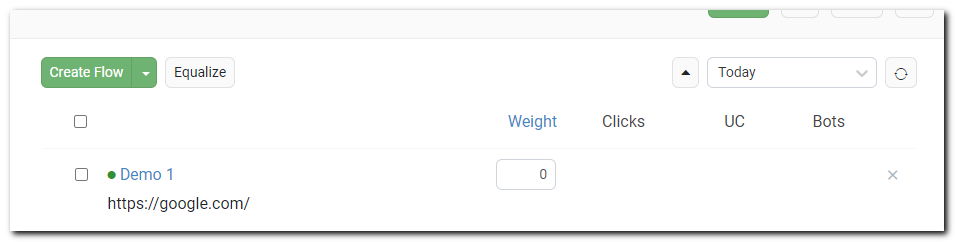
Important! If you need to disable an offer, don’t delete it from the campaign settings. Instead, set the Weight parameter to 0 in the flow settings. This way:
- Returning users will still see the same offer they saw before, even if its weight is set to 0.
- New clicks will be split across the remaining offers.
To ensure the integration works correctly, it is recommended to use Keitaro version 11 or higher. Earlier versions may not support some of the functionality described in this guide.
Binom
In the campaign settings, specify:
- Type of split – Fix on Paths & LPs & Offers.

Note: This setting is applied at the campaign level, not the tracker level. You will need to configure it for each campaign individually.