Integration with AIO
AIO supports quick integration with ZM apps using a ready-made template.
In AIO, the ZMapps PWA source and ZM apps advertiser are already available. You can select them when generating a link and setting up a destination.
If something is missing in your tenant, you can request it through support chat: https://t.me/aio_customerservice
To launch a campaign with PWA, please follow these steps:
1. Check the Source, Advertiser, and Flow for PWA
-
Make sure the source ZMapps PWA is added.
For ERP: Tracker → Sources
For MTK: Sources
It is important that the{exid}parameter is passed intopwa_click_id.The final PWA link must contain:
pwa_click_id={exid}
-
Make sure the advertiser ZM apps is added under Settings → Advertisers.
The Parameters URL should be:
sub1={{aio.visit.fields.free_param_1}}&sub2={{aio.visit.fields.free_param_2}}&sub3={{aio.visit.fields.free_param_3}}&sub4={{aio.visit.fields.free_param_4}}&sub5={{aio.visit.uuid}}&sub6={{aio.visit.session}}&pixel_fb={{aio.visit.fields.fb_pixel}}&fbclid={{aio.visit.fields.fbclid}}&hess={{aio.visit.session}}
- Make sure a PWA-related flow (e.g. PWA/OneLink) is added:
For ERP: Tracker → Flows
For MTK: Campaigns → +Campaign → Flow
2. Add a Destination for ZM apps
- Go to the Destinations list:
ERP: Tracker → Destinations
MTK: Destinations
Click on +Destination. - Select the Type: By Advertiser → ZM apps
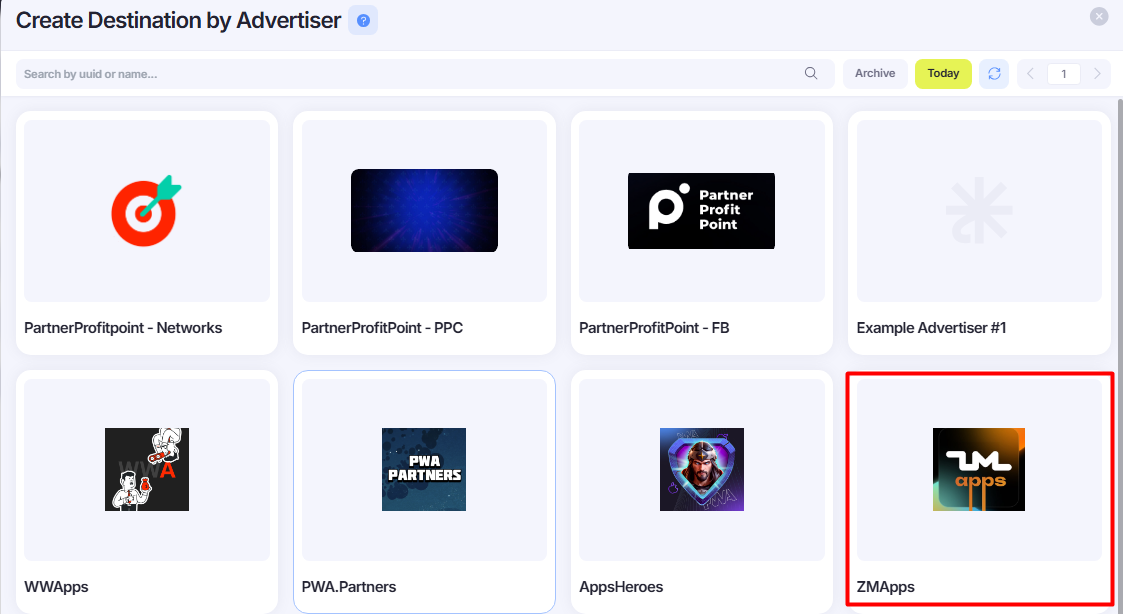
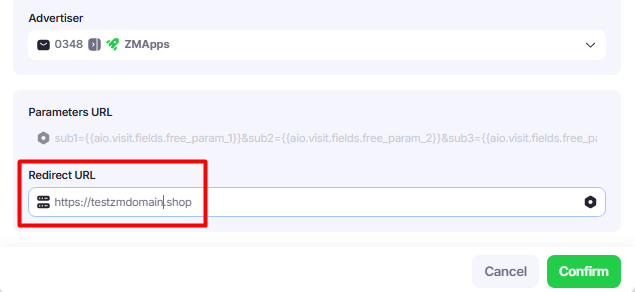
- Enter your domain from ZM apps into the Redirect URL field.
You do not need to add parameters — they will be included automatically using the ZM apps template from Advertisers.
3. Set Up the ZM apps Postback
- Open the postbacks list:
ERP: Tracker → Trackers
MTK: Settings → Trackers - Click +Tracker → HTTP Get → choose source ZMapps PWA.
- In the URL field, paste the postback link from ZM apps, using the macro
{{aio.visit.fields.pwa_click_id}}to pass theexid.
Examples of AIO → ZM apps postbacks:
Registration postback:
https://tools.zm.app/pb/?exid={{aio.visit.fields.pwa_click_id}}&action=reg
Deposit postback:
https://tools.zm.app/pb/?exid={{aio.visit.fields.pwa_click_id}}&action=dep
4. Create a Campaign
-
Go to the campaign list:
ERP: Tracker → Campaigns
MTK: Campaigns -
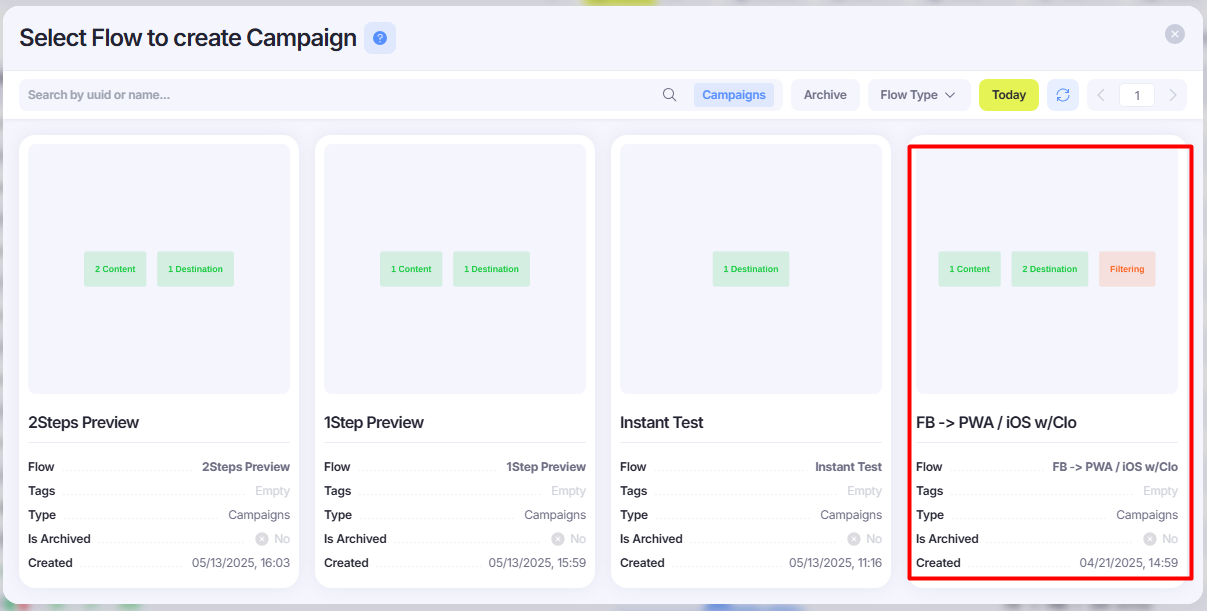
Click on +Campaign and select the flow for PWA (e.g. PWA/OneLink)
-
Fill in the campaign settings:
- In the PWA step, select the destination for ZM apps
- In the Offer step, select the destination where the user will be redirected after installing the PWA
-
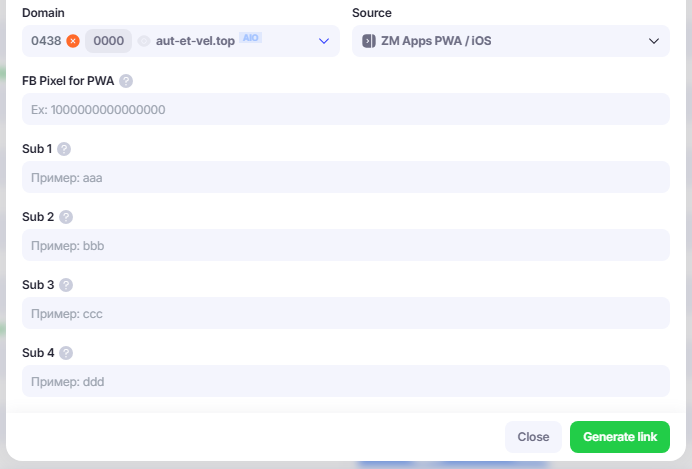
Open the Link Generator and choose the source ZMapps PWA
- If the source is used for Facebook, enter the FB Pixel in the FB Pixel for PWA field
- Fill in the
subfields if needed
-
Click Generate Link
-
After generation, you will receive two links:
- FB Link – to be used in Facebook
- PWA Link – to be used in ZM apps as the offer link
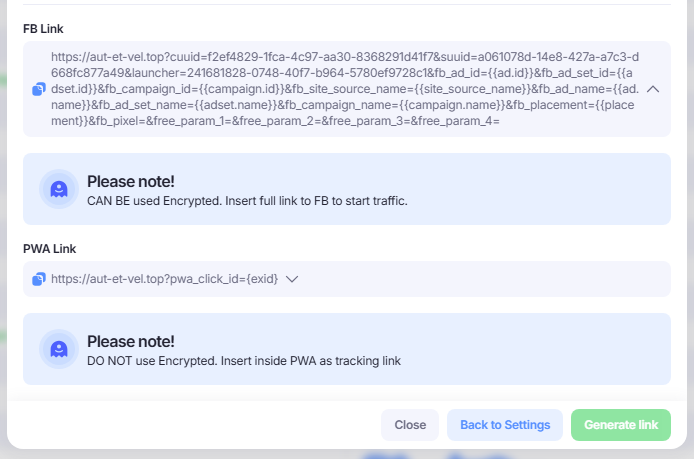
Now AIO will send data and conversions to ZM apps.
Please make sure all parameters are passed correctly by testing the campaign before launch.