BeMob Integration
This guide explains how to integrate the BeMob tracker with ZM apps: create a traffic source, configure parameter tracking, set up a postback, and create a campaign.
Creating a Traffic Source
- Go to Traffic Sources → New and create a new traffic source.
- Fill in the basic settings.
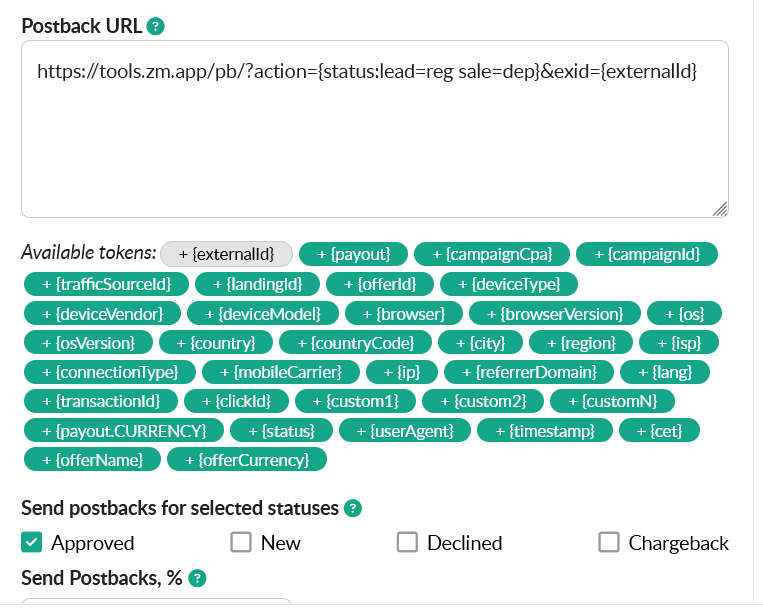
- In the Postback URL field, paste the following postback URL:
https://tools.zm.app/pb/?action={status:lead=reg sale=dep}&exid={externalId}
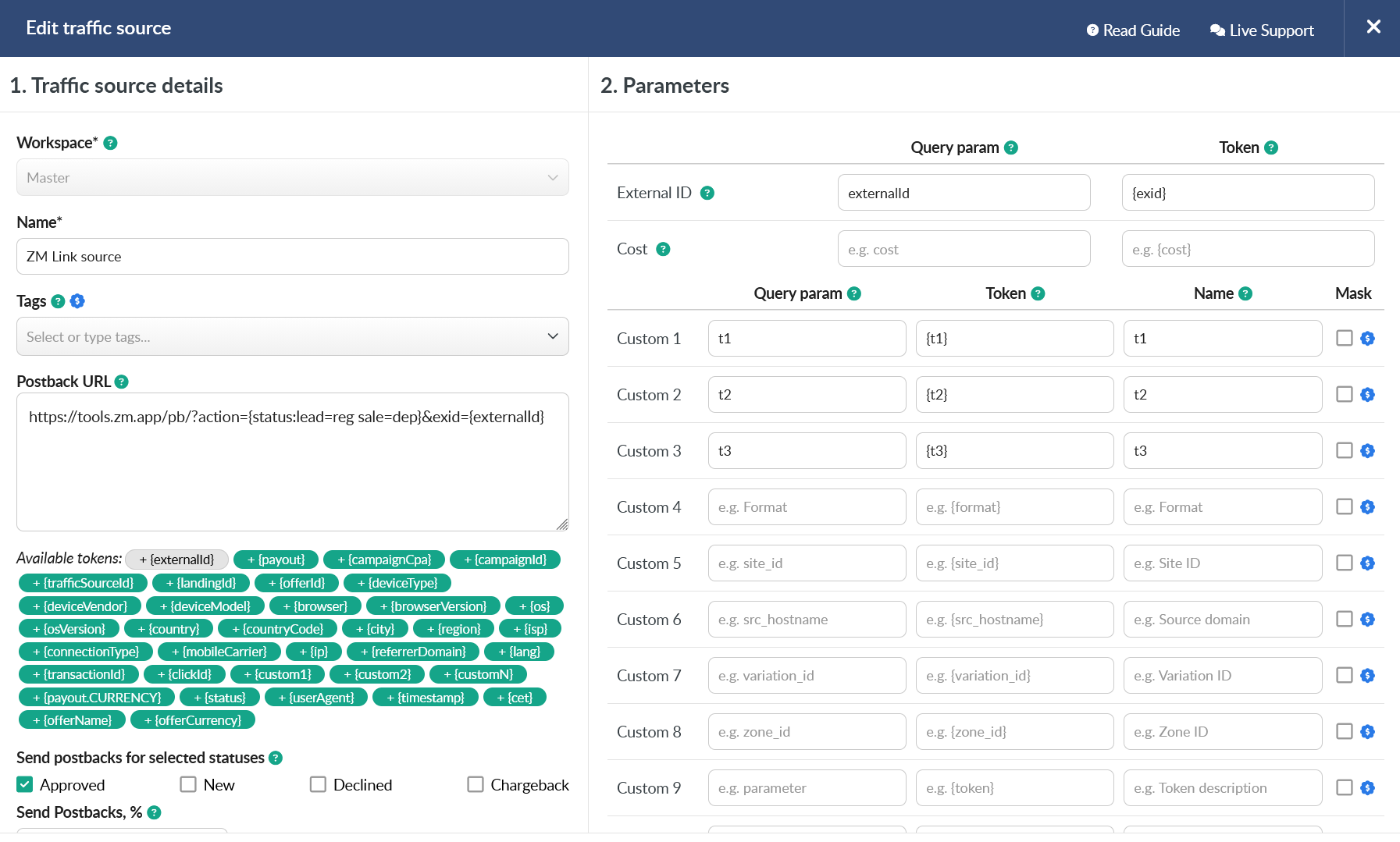
If your conversion statuses are different from lead and sale, replace them in the postback URL with the statuses used in your account.
- In the Send postbacks for selected statuses section, enable the Approved status.
-
In the Parameters section, configure data tracking:
-
For the External ID parameter, set:
- Query param —
externalId - Token —
{exid}
This parameter is required for proper conversion tracking in ZM apps.
- Query param —
-
Optionally, you can pass additional parameters using subs:
t1,t2,t3.
-
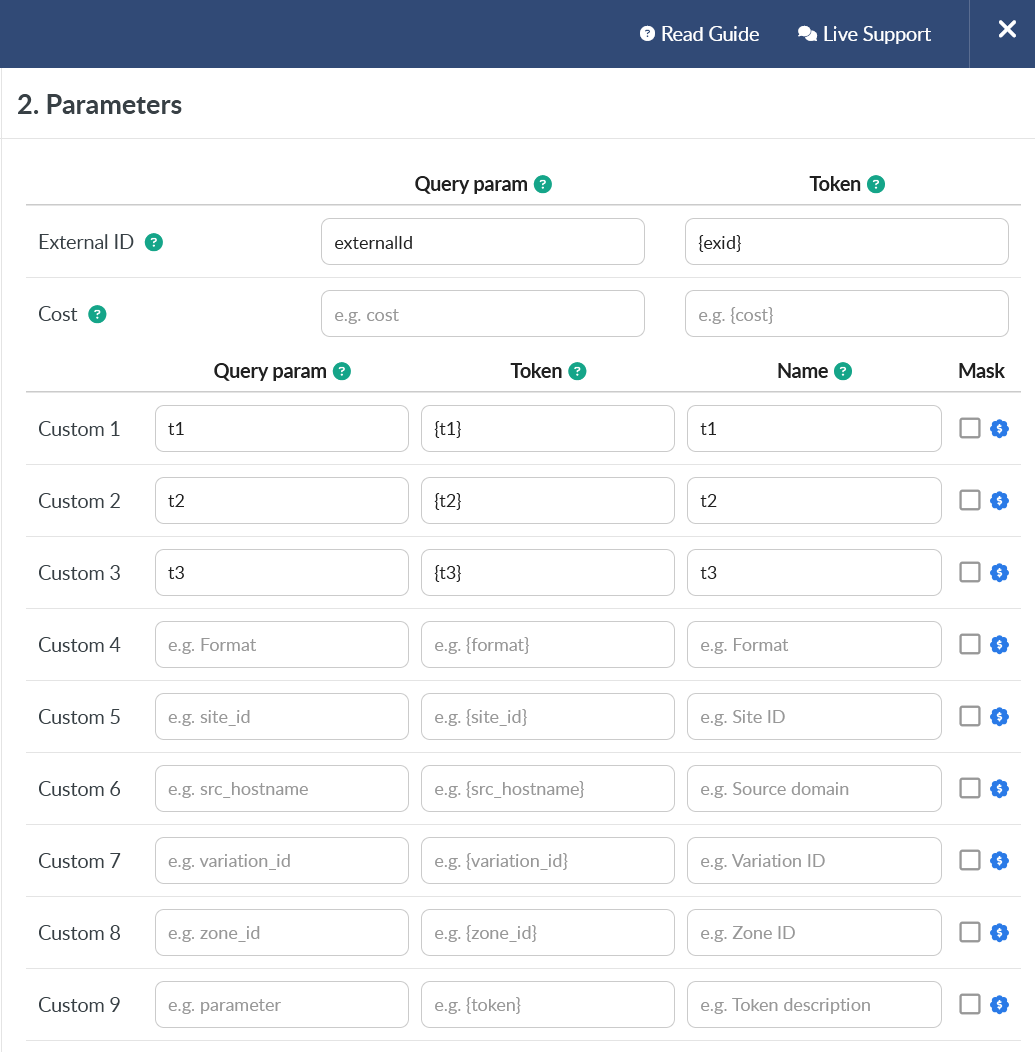
Save the traffic source after setup.
For more accurate analytics, you can also pass the deposit amount and transaction currency.
Parameters:
- payout – payout amount
- currency – transaction currency (USD, EUR, etc.)
Example postback with payout and currency:
https://tools.zm.app/pb/?exid=abc12345&action=dep&payout=1.05¤cy=EUR
Creating a Campaign and Flow
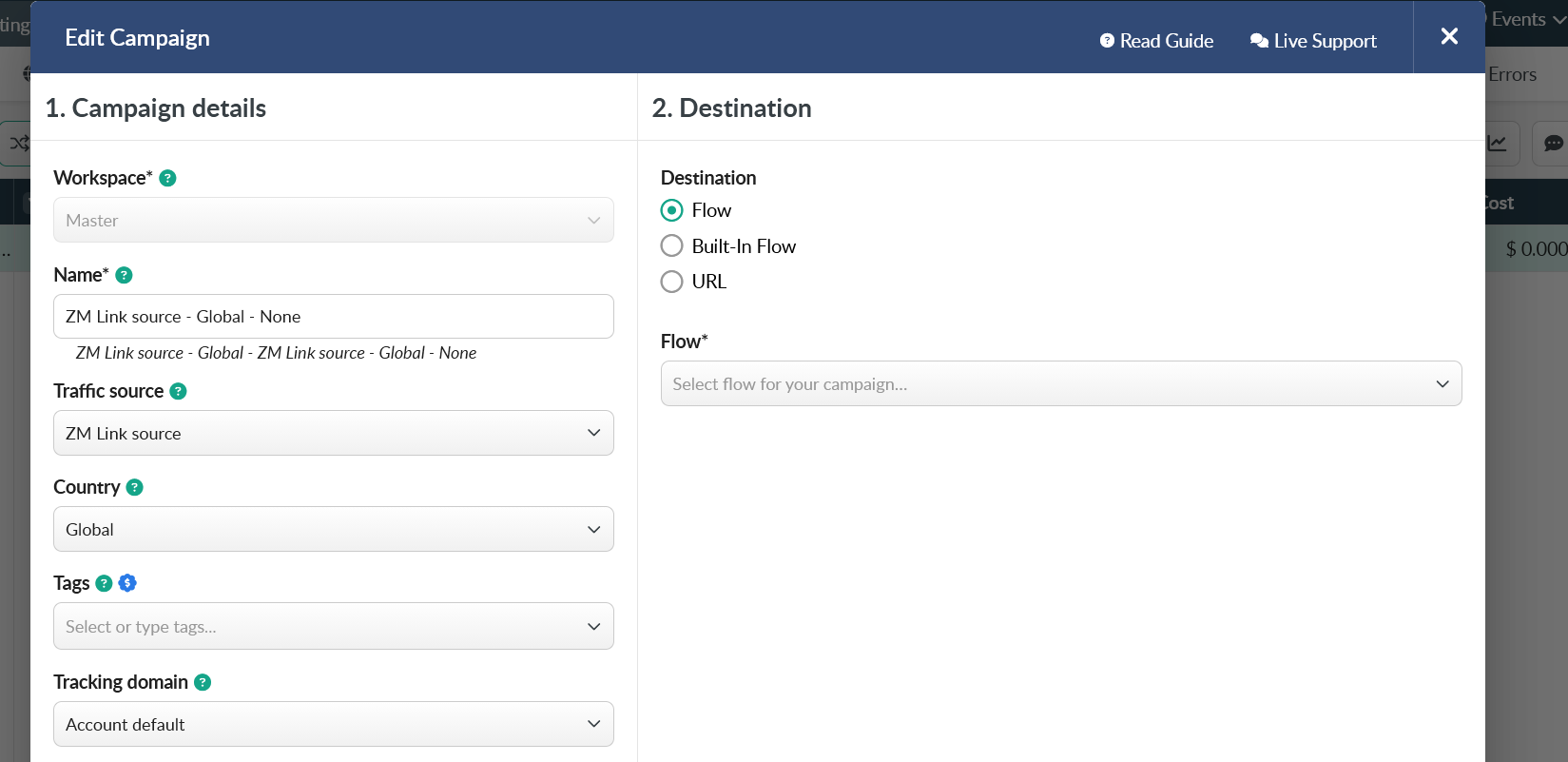
- Go to Campaigns → New and create a new campaign.
- In the Traffic source field, select the traffic source you created earlier.
- In the Destination section, choose Flow and select the required Flow from the list.
At this step, you can temporarily choose URL and use a placeholder link. Once your Flow is ready, return to the campaign settings and update the Destination.
- Set Uniqueness period (hours) to
8000.

The maximum available value for Uniqueness period depends on your BeMob plan. Check your account limits in BeMob settings.
Getting the Campaign URL
After creating the campaign, open the campaign menu and click Copy URL.
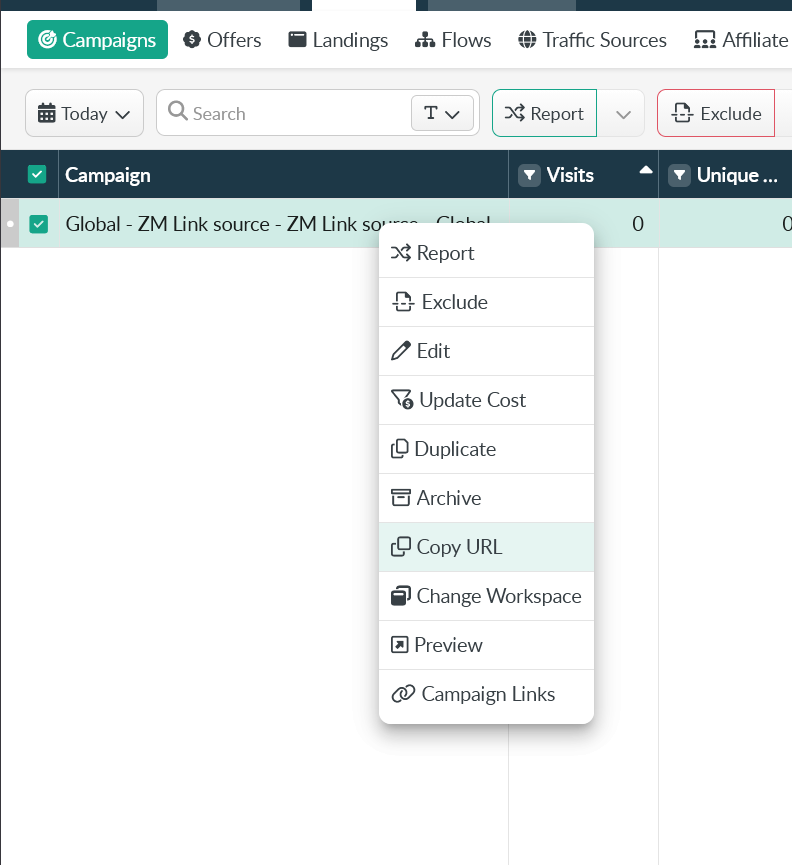
https://YOUR-DOMAIN.bemobtrcks.com/go/CAMPAIGN-ID?externalId={exid}&t1={t1}&t2={t2}&t3={t3}
Paste this URL into your ZM apps flow settings.
That’s it — BeMob will now send data to ZM apps and track conversions correctly. Before launching traffic, make sure to test the integration and verify that all parameters are being passed properly.