Launching TikTok Ads in-app campaigns
To connect a mobile app to the TikTok Ads platform and launch a campaign, follow these steps:
1. Generate a naming
- Go to the Naming section in the ZM apps menu.
- Add a tracking link and click Create naming.
- Naming generation takes only a few seconds — the system will automatically link the URL to your account and generate the required format.
- The naming must be specified in the TikTok Ads campaign name.
Learn more about naming creation — in our guide.
2. Select the app and copy the store link
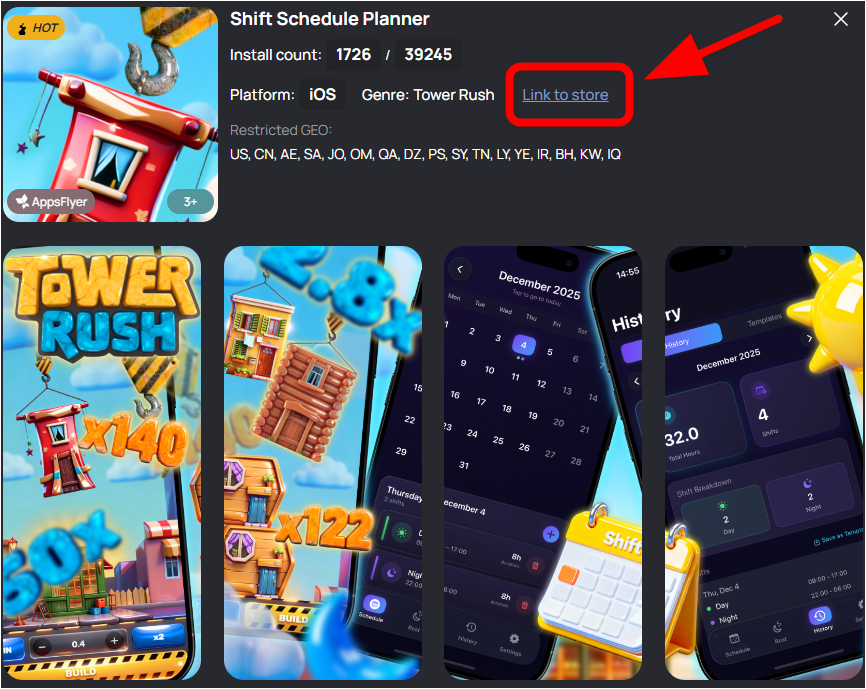
When copying the app link from the store, you must use the full URL, including all parameters at the end (the “tail”).
For example:
https://apps.apple.com/app/id1234567890?platform=iphone&ppid=abcd1234
If you copy only id1234567890, the app will not be recognized.
3. Add the app to TikTok Ads Manager
- In TikTok Ads Manager, go to Events Manager → Tools.
- Click Create App.
- Add the app link from ZM apps.
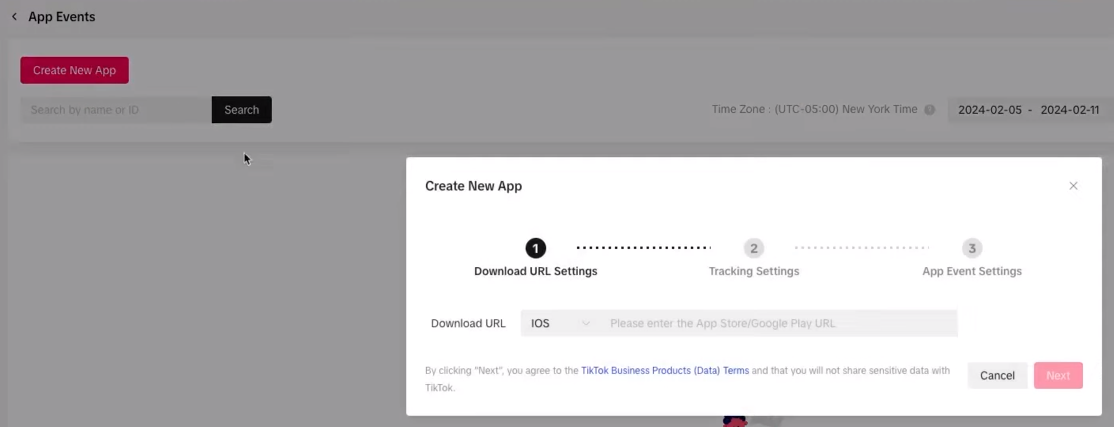
- MMP — select AppsFlyer.
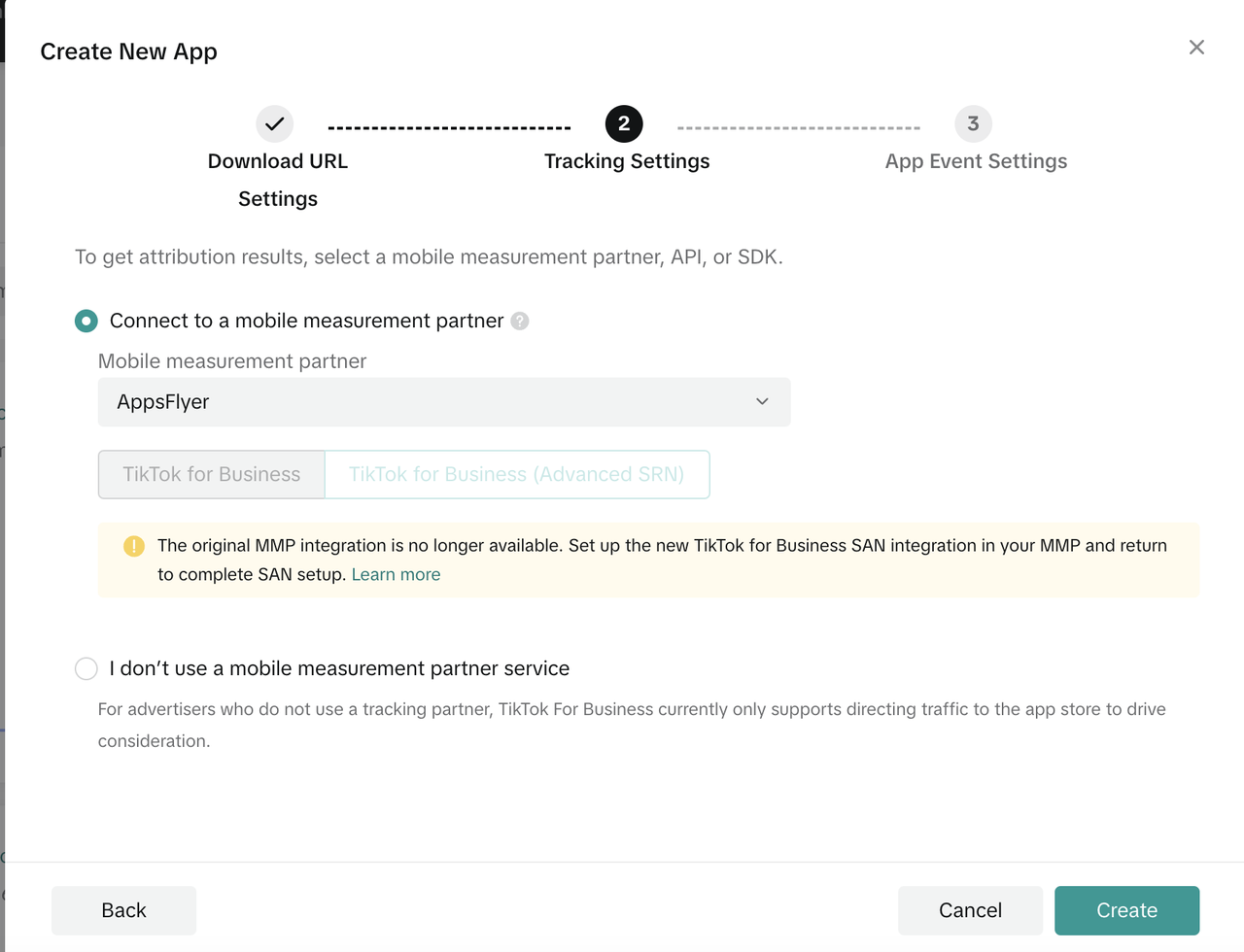
- Click Create and save the app.
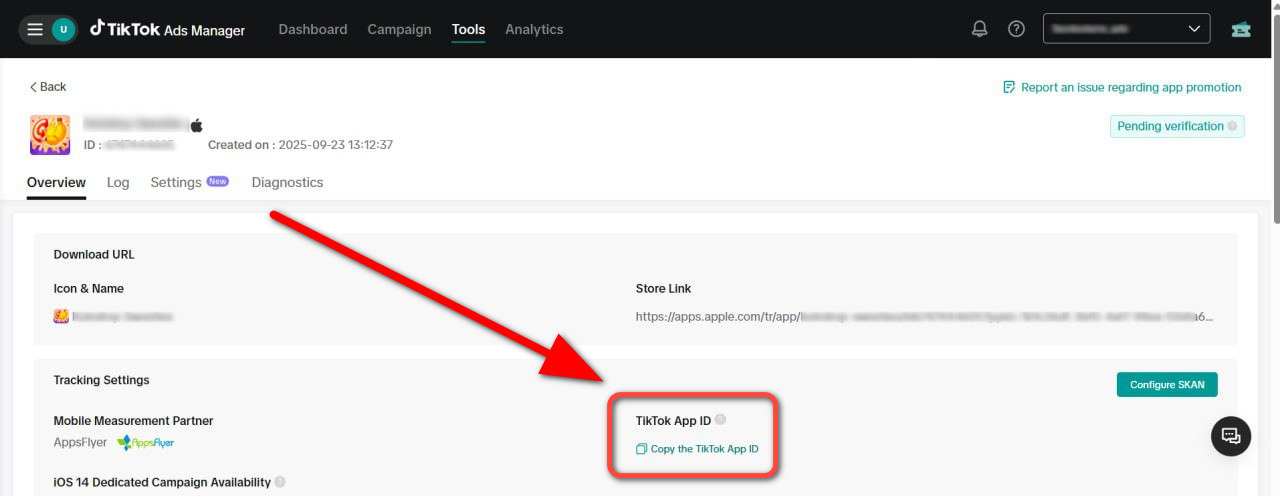
4. Get your TikTok App ID
- Select the added app.
- Go to Tracking Settings.
- Copy the TikTok App ID.
5. Send the data to our support team
- Your TikTok App ID.
- The app you want to integrate.
We will share the app and configure the integration.
6. Set up and launch the campaign
After the integration is completed, you can proceed to creating an ad campaign in TikTok Ads Manager.
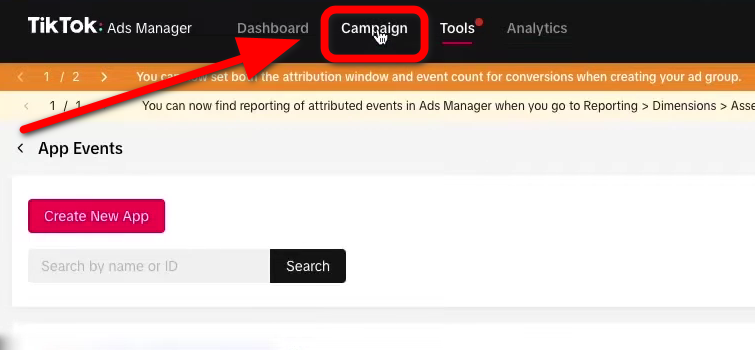
- Go to the Campaign section.
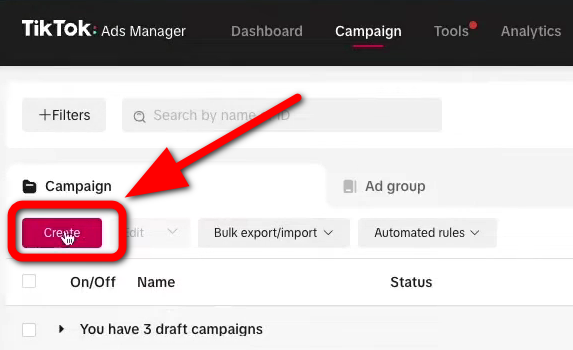
- Click Create.
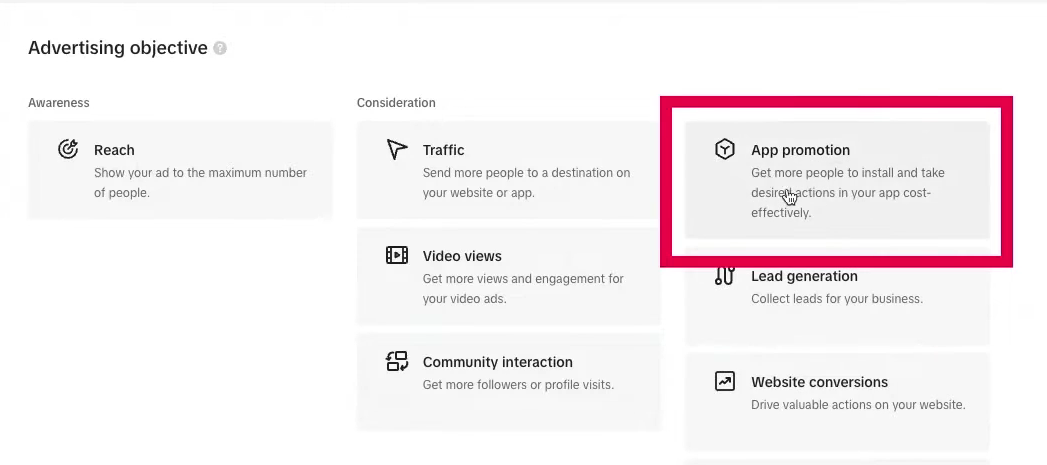
- Choose the campaign objective — App promotion.
- In the campaign name, specify the naming generated in ZM apps. Use only the naming, without any additional words, labels, or comments.
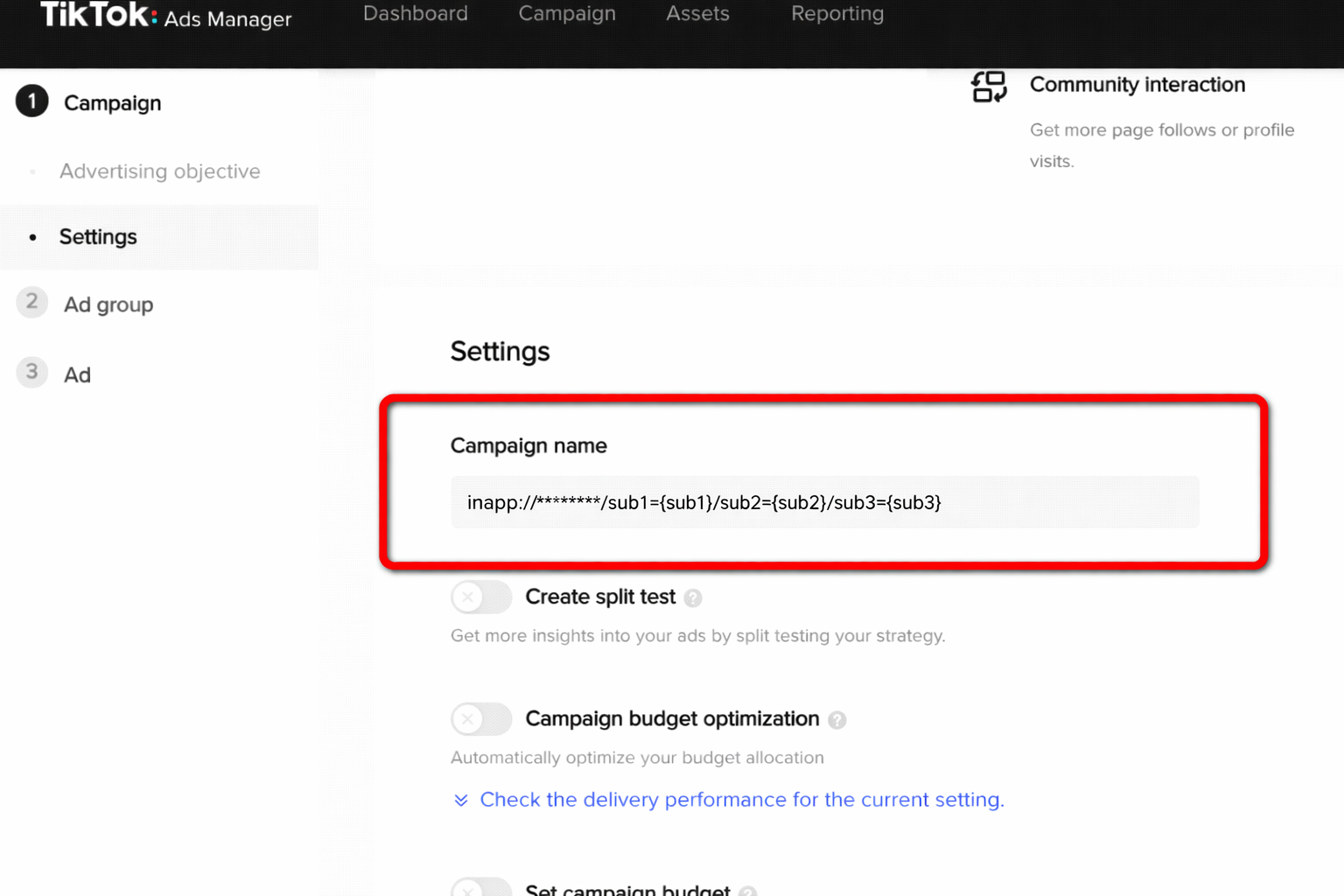
You can use any naming prefix: rent://, inapp://, or uac:// — they all work the same way.
If you want to see separate statistics by traffic source, use different prefixes for each channel.
Learn more about naming creation — in our guide.
- Select the app you added earlier from the list.

- Set the audience, budget, and other campaign settings according to your goals.
Done! Setup is complete.
The app is successfully connected, the campaign is created, and ready to launch.