Setting up integration with NewsBreak Ads
1. Get your naming
- Go to the Naming section in the ZM apps menu.
- Add your tracker link and click Create naming.
- Naming generation takes just a few seconds – the system will automatically link the tracker to your account and generate the correct format.
2. Send data to ZM apps support
Please send us the following information:
-
Naming in the format
rent://... -
App name or bundle ID
-
The name of the integrated service – NewsBreak
-
Event names. Standard event values in NewsBreak:
- Registration —
app_registration - App launch —
app_launch_app - Deposit —
app_purchase
- Registration —
💡 If you haven’t changed these event names in your NewsBreak account, just send them in their standard form as listed above.
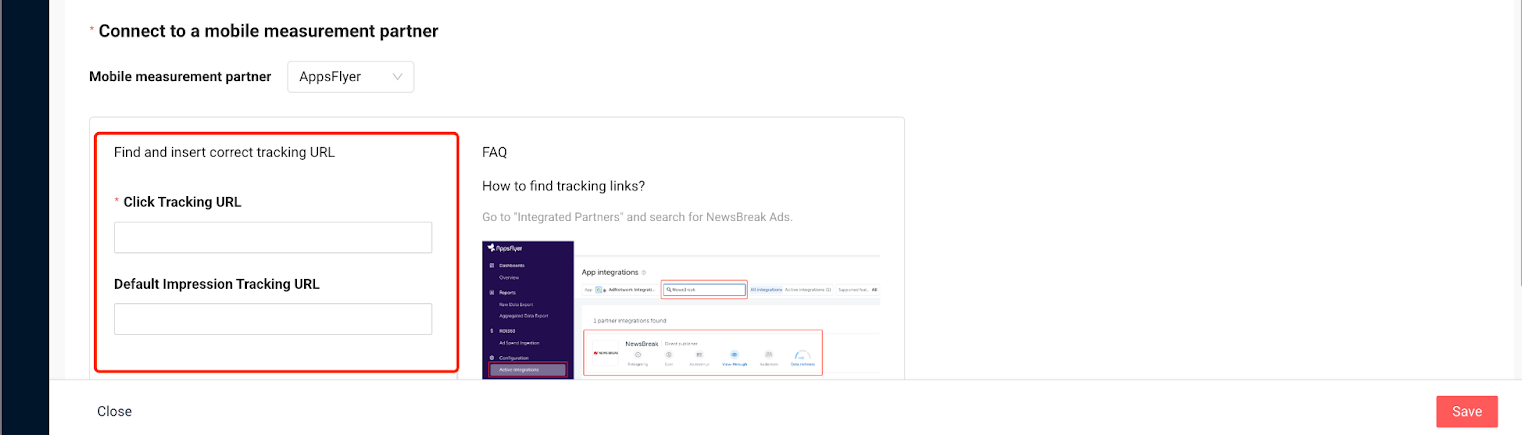
After integration setup in Appsflyer, we’ll send you the Click and Impression tracking links.
3. Add Click and Impression links in NewsBreak
- Log in to your NewsBreak Ads account.
- Open Event management → Create app event.
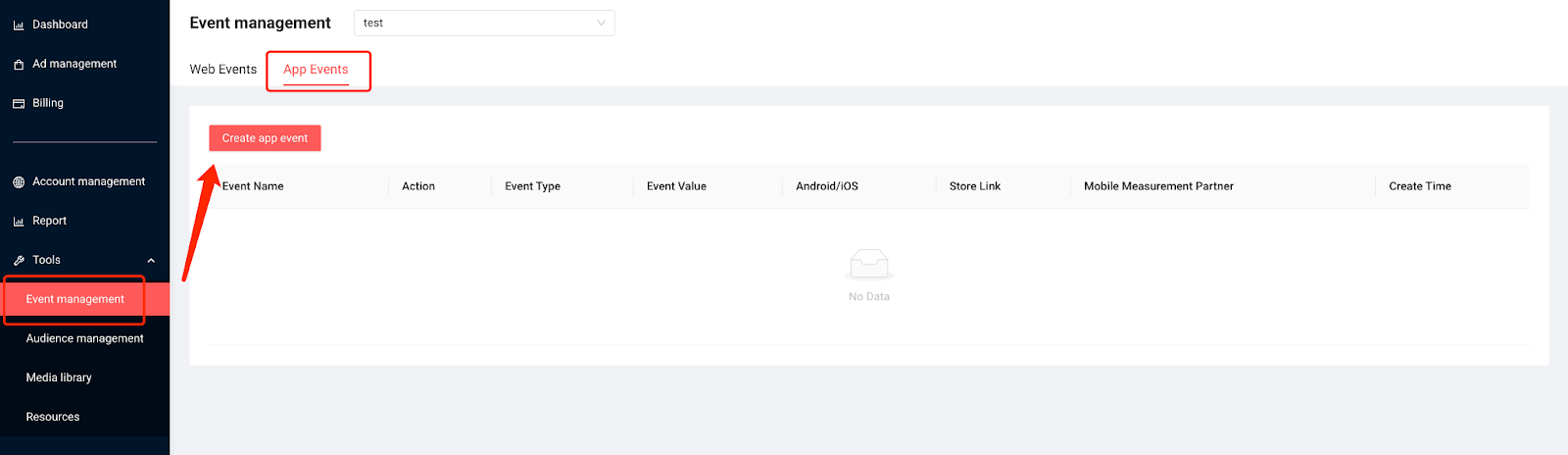
- Create 4 events:
- Install
- App Launch
- Registration
- Deposit
Each event is created separately. For each one, you need to specify:
- App store link (App Store / Google Play)
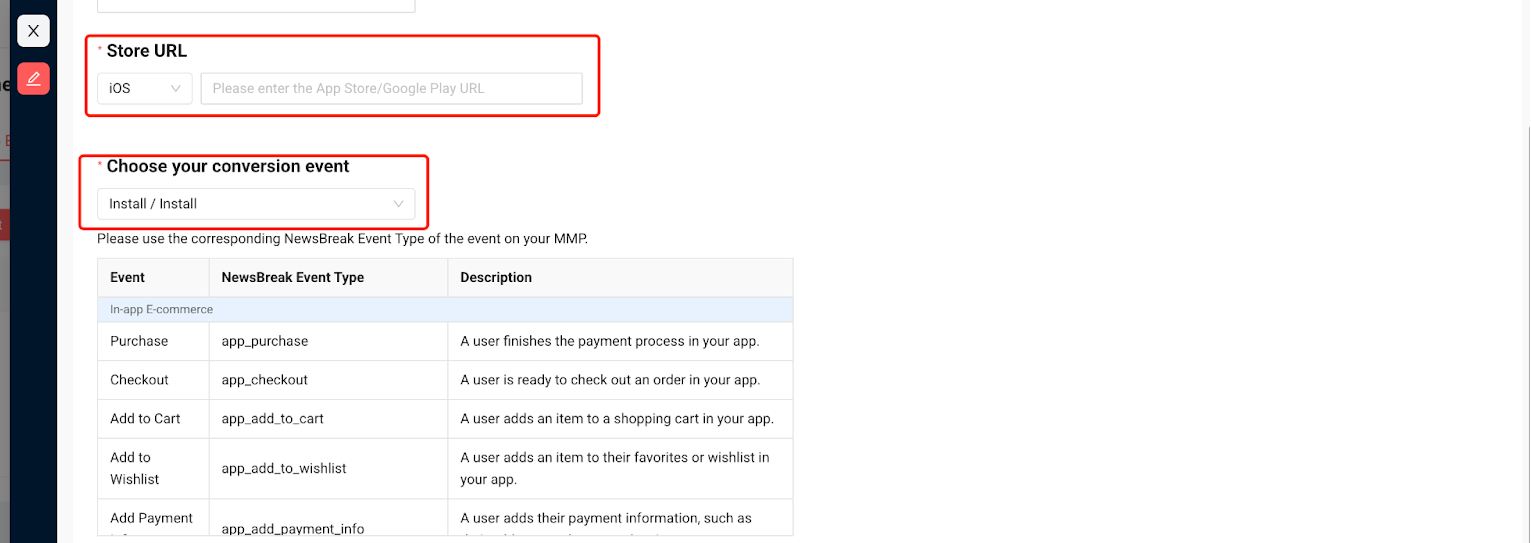
⚠️ Make sure to include the full app store URL, including all parameters after
?, if any.
- Click and Impression tracking links
- MMP tracker: Appsflyer
4. Set up your campaign
- Create a new campaign in NewsBreak Ads.
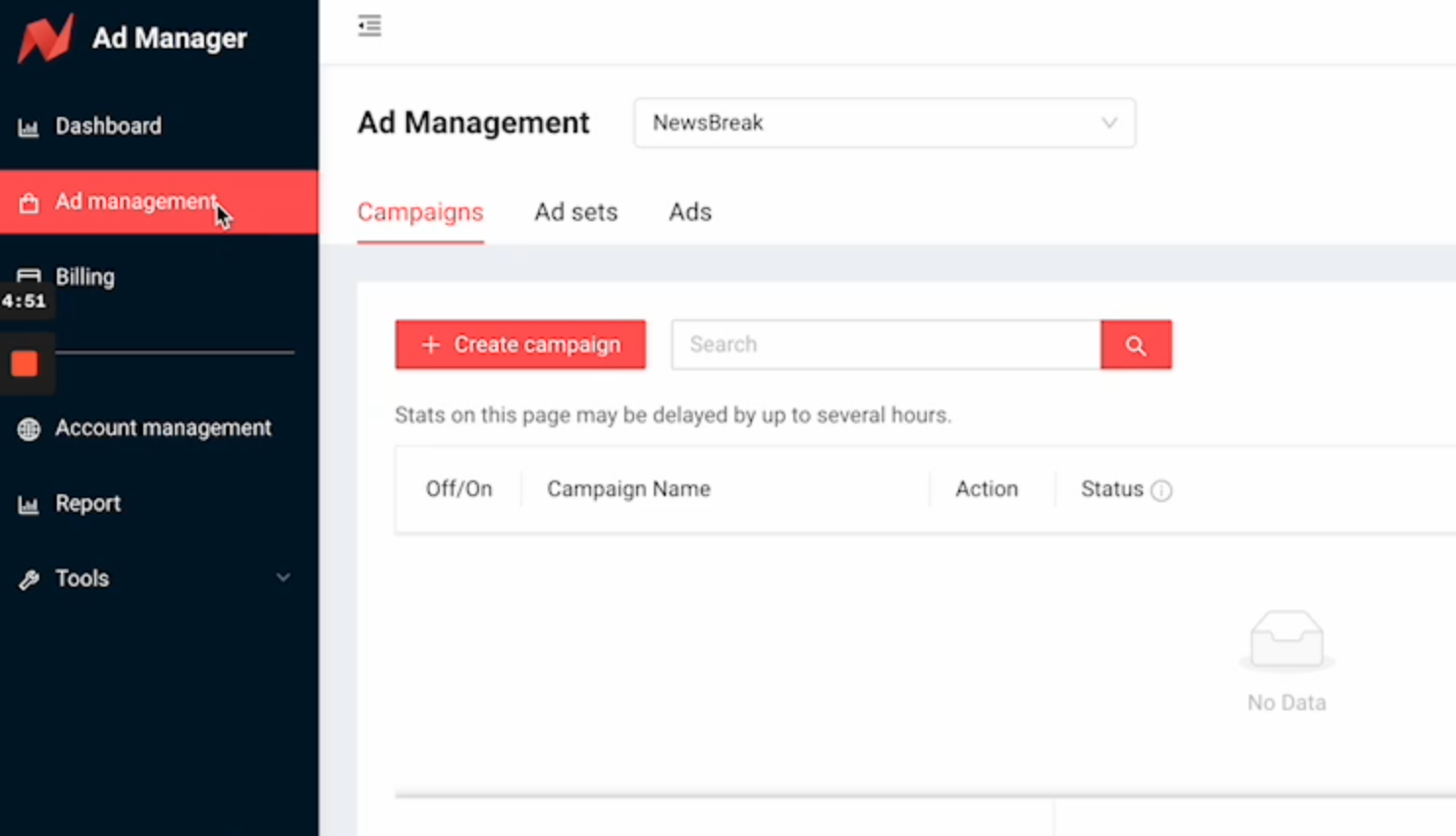
- In the Campaign Name field, insert your naming from ZM apps.
⚠️ The campaign name must contain only the naming value.
Do not add extra words, dates, or comments — this will break data tracking.
- Configure other campaign settings according to your goals.
- Save and launch the campaign.
After adding the tracking links and creating the campaign, check the campaign status and test clicks/impressions to ensure that events are successfully transmitted to ZM apps.