How to set up integration with ironSource Ads
1. Generate naming
- Go to the Naming section in the ZM apps menu.
- Add a tracker link and click create naming.
- Creating naming takes just a few seconds – the system will automatically link the tracker to your account and generate the correct format.
2. Copy Advertiser ID and Password
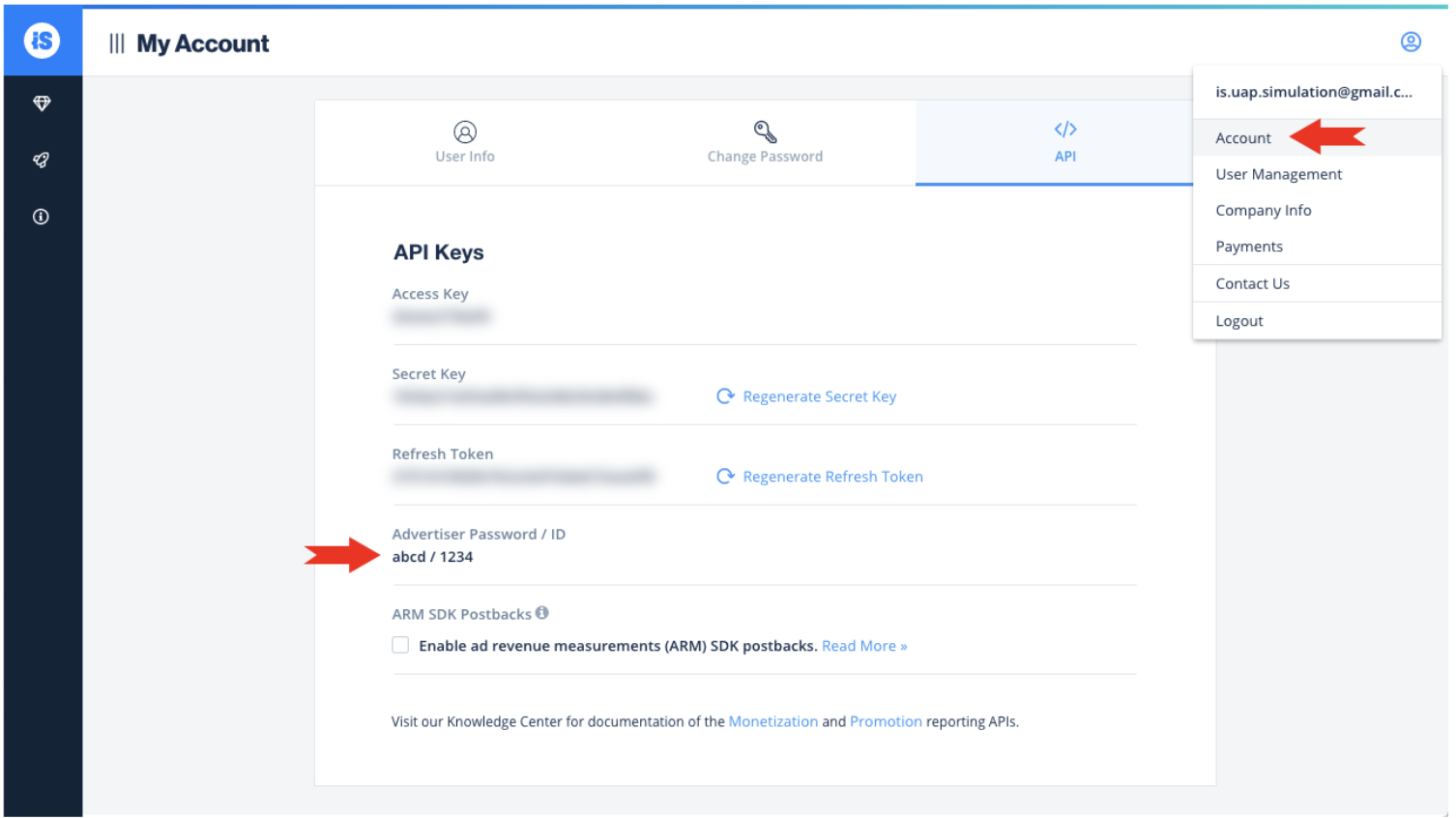
- Go to the Account section in the top-right corner of the screen.
- Copy your Advertiser ID and Password.
3. Send data to ZM apps support
Send us:
- Naming in the format
rent://.... - App with a link to the store.
- Name of the integrated service – ironSource.
- Advertiser ID and Password.
You will get two links – Click and Impr. You will need to add them to your campaign settings in ironSource Ads.
4. Create a campaign
- Go to User Acquisition and click Add Campaign.
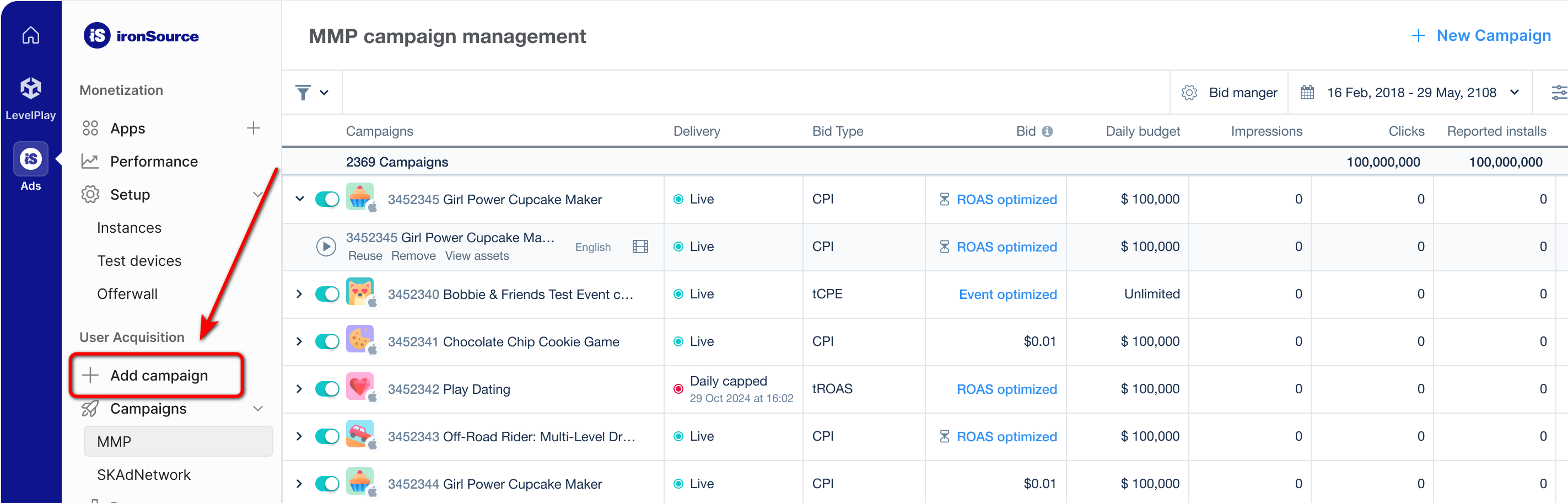
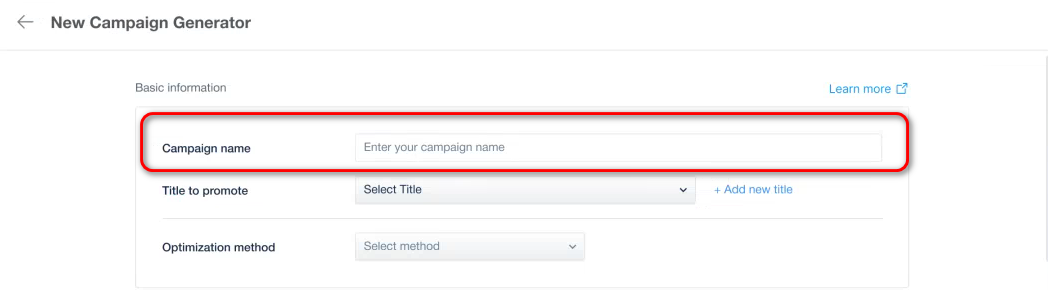
- In the Campaign Name field, enter the naming generated in ZM apps.
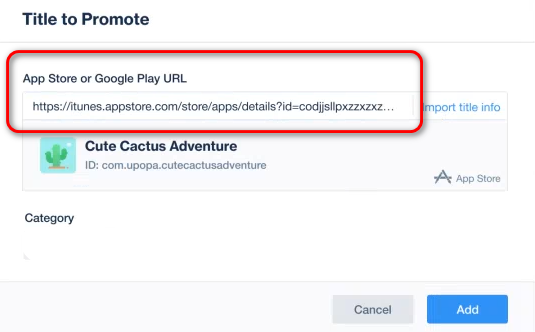
- In Title to Promote, add the link to your app in the store and click Add.
important
When copying an app link from the store, you must include the full URL, including all parameters at the end ("the tail").
For example:
https://apps.apple.com/app/id1234567890?platform=iphone&ppid=abcd1234
If you copy only id1234567890, the app will not be recognized.
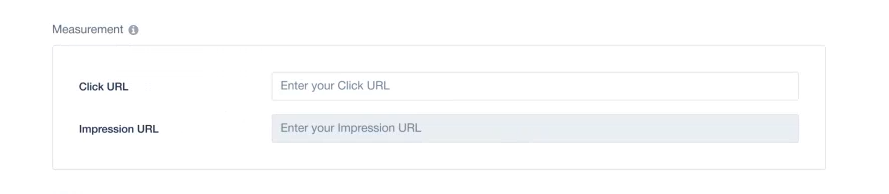
- In the Measurement section, add the links you got from ZM apps support.
- Click URL;
- Impression URL.
- Set other campaign parameters according to your needs.
Done! Setup is complete.