How to Set Up Integration with AppLovin Ads
1. Generate Naming
- Go to the Naming section in the ZM apps menu.
- Add a tracking link and click create naming.
- Creating naming takes just a few seconds – the system will automatically link the URL to your account and generate the required format.
2. Copy the SDK Key
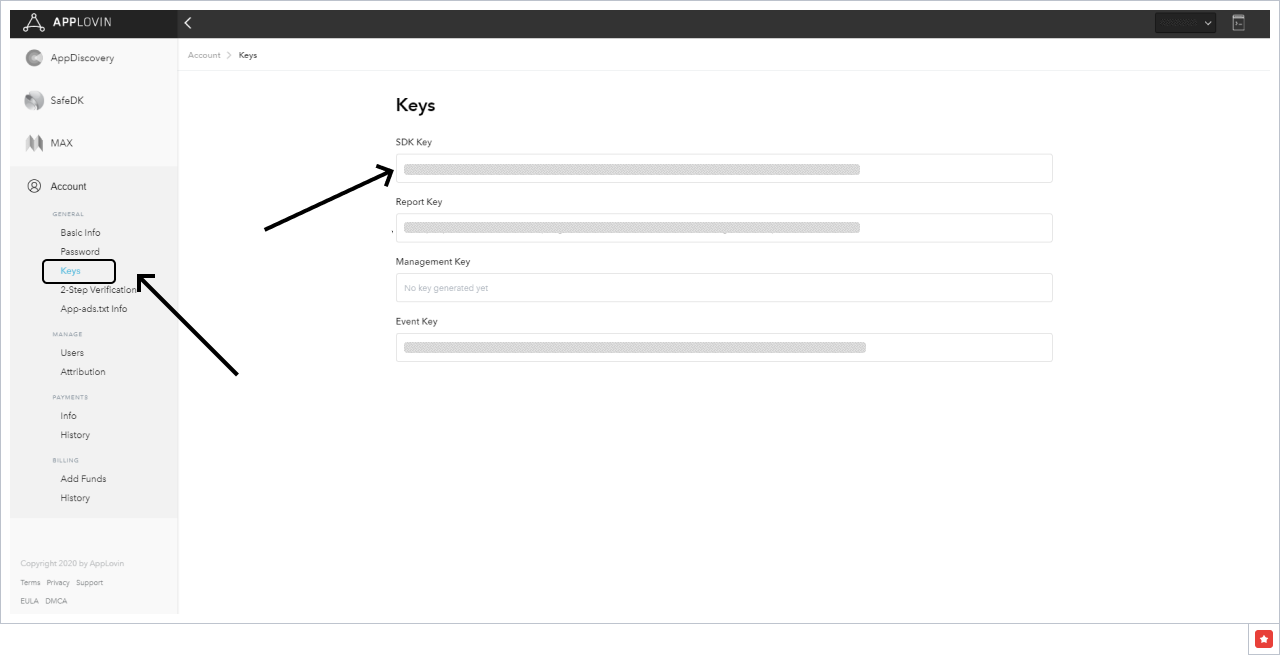
- Log in to your AppLovin account.
- Go to the Keys tab.
- Copy the SDK Key (it is located in the first two fields).
3. Send the Data to ZM apps Support
Send us:
- Naming
- App name or bundle
- SDK Key from the AppLovin dashboard
After that, you will receive two URLs:
- Click URL — for tracking clicks
- Impression URL — for tracking impressions
4. Create a Campaign
-
Go to campaign creation in AppLovin Ads.
-
In the Campaign Name field, enter your naming.
-
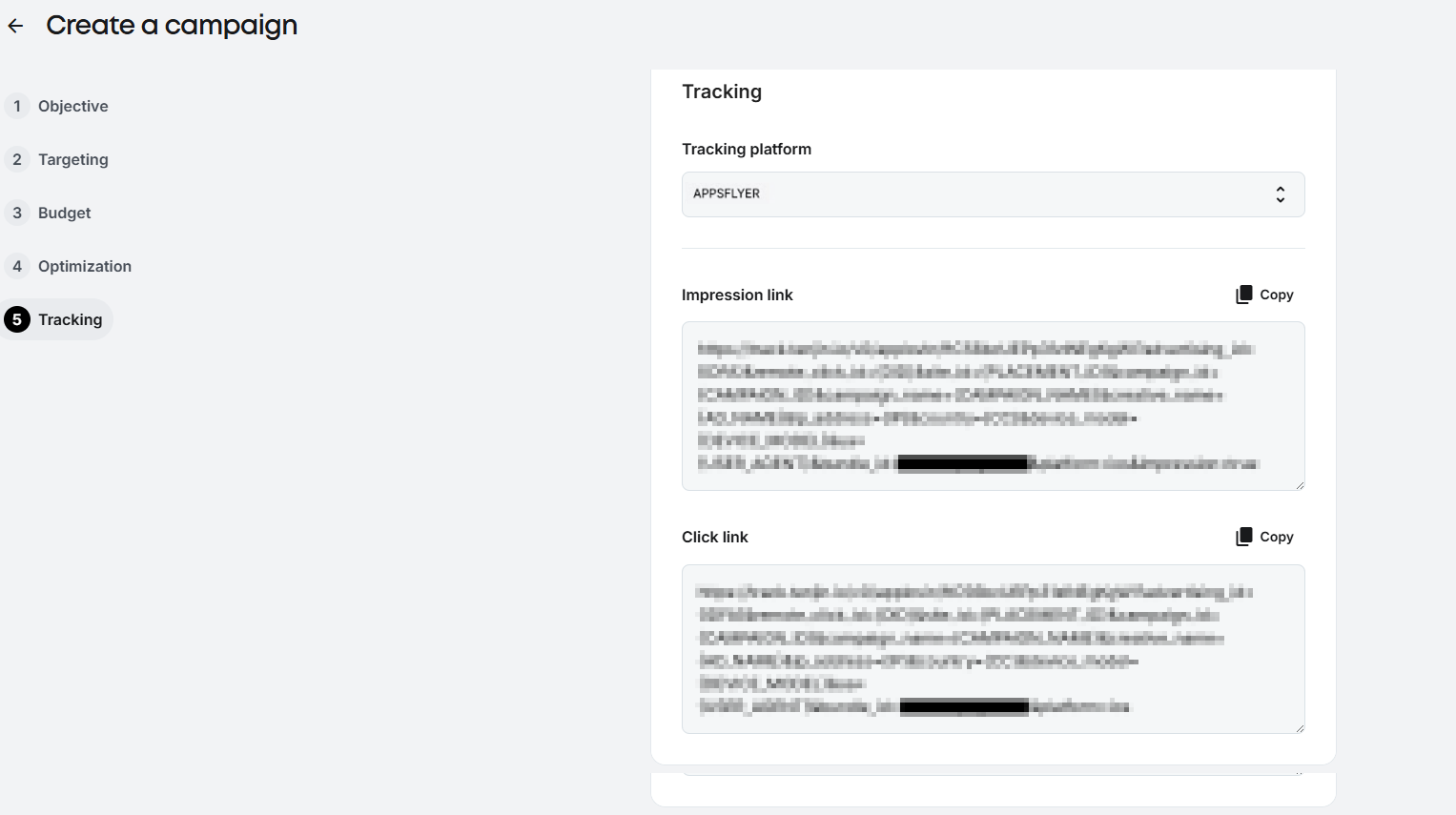
In the Tracking section, add the provided URLs:
- Click URL — for clicks
- Impression URL — for impressions
- Configure the remaining campaign settings according to your goals.
Done! Setup is complete.