How to Set Up Integration with Bigo Ads
1. Generate Naming
- Go to the Naming section in the ZM apps menu.
- Add a tracking link and click Create Naming.
- The system will automatically connect the link to your account and generate the required format.
2. Send Data to ZM apps Support
Please send us:
- Naming in the format
inapp://.... - Application name or bundle.
- The name of the integrated service — Bigo Ads.
You will receive two links — Click URL and Impression URL. These links must be added to your application settings in Bigo Ads.
3. Add the Application in Bigo Ads
- Log in to your Bigo Ads account.
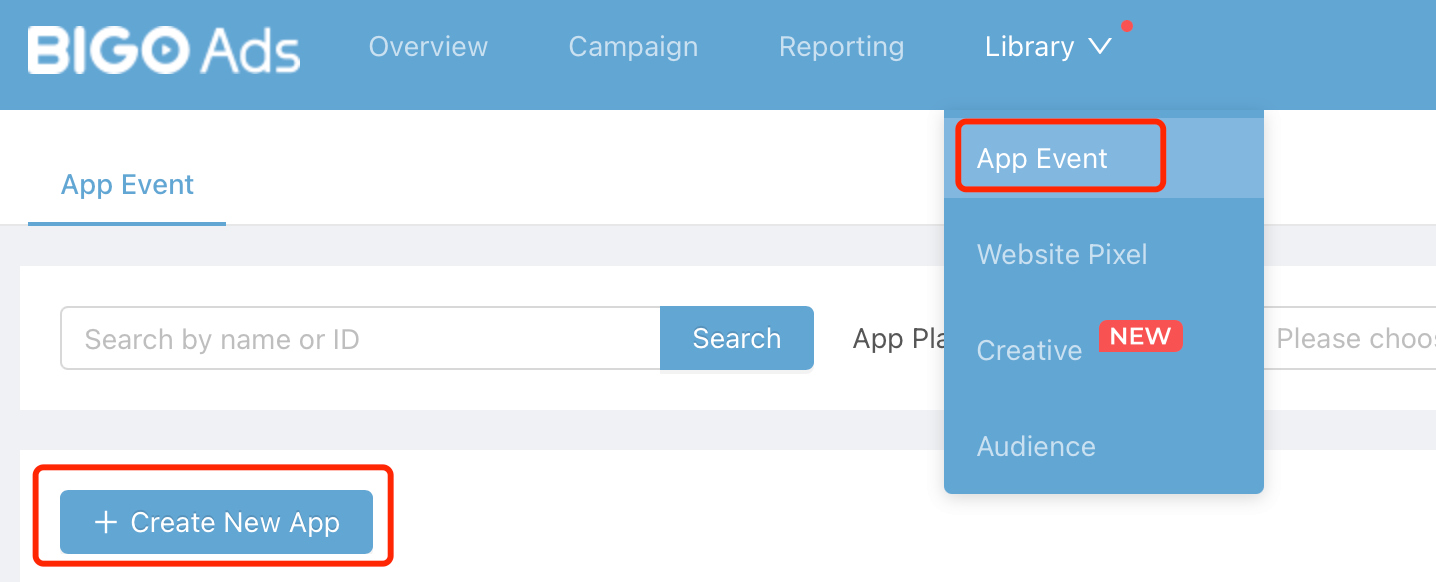
- In the top menu, open Library → App Event.
- Click + Create New App.
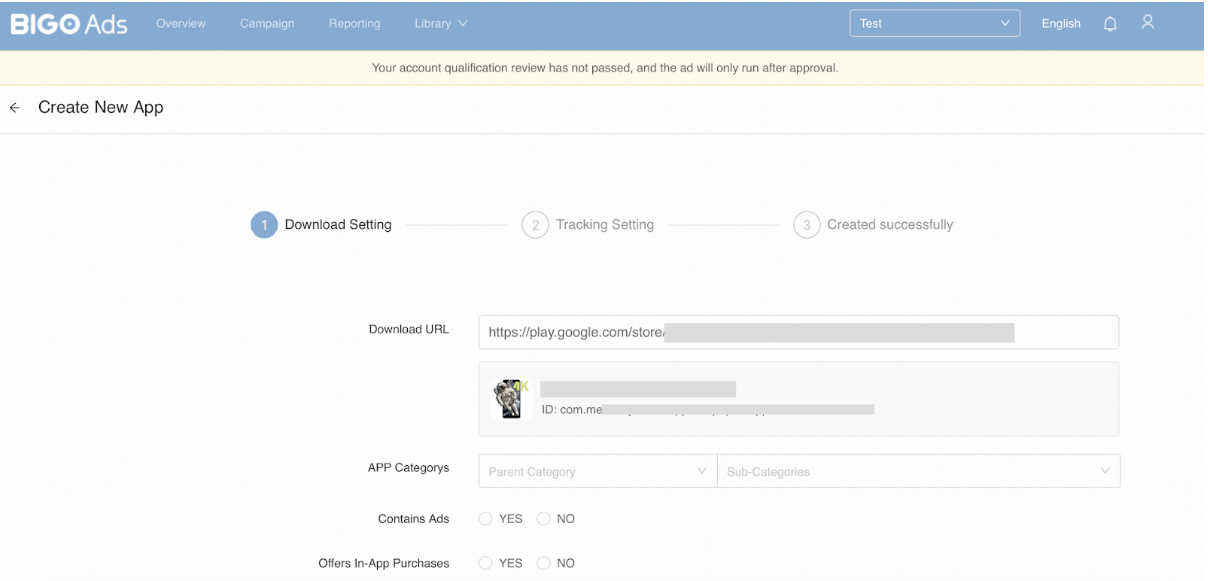
- In the Download Setting section, fill in the application details:
- Download URL — link to the application in the store.
- APP Categorys — application category and subcategory.
- Contains Ads — whether the application contains ads.
- Offers In-App Purchases — whether the application has in-app purchases.
Important
When copying the application link from the store, you must use the full URL, including all parameters at the end.
Example:
https://apps.apple.com/app/id1234567890?platform=iphone&ppid=abcd1234
If you copy only id1234567890, the application will not be recognized.
4. Add Click and Impression URLs
- Click Next to go to the tracking settings.
- In the Select Third-party tracking partner section, select Appsflyer.
- Paste the links received from ZM apps support:
- Click Tracking URL.
- Impression Tracking URL.
5. Create a Campaign
- Go to the Campaign section and click Create.
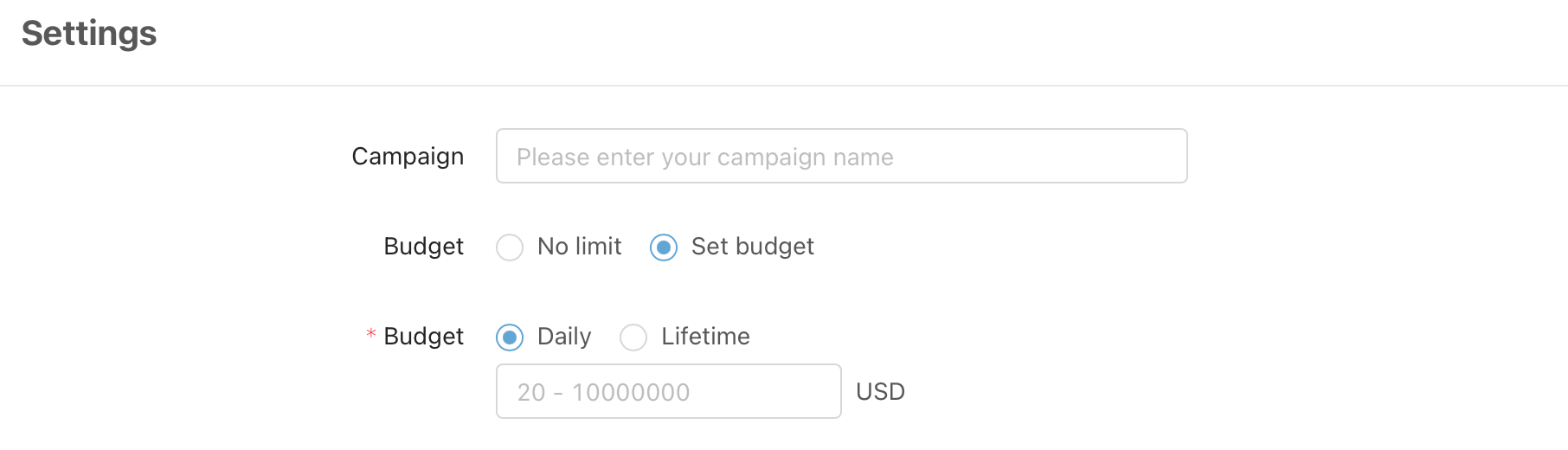
- In the Campaign Name field, enter the naming generated in ZM apps.
⚠️ The campaign name must contain only the naming value. Do not add extra words, dates, or comments — this will break correct data tracking.
- Select the previously added application from the list.
- Configure the remaining campaign settings (goal, audience, budget, creatives) according to your needs.
Done! The setup is complete.
After adding the links and creating the campaign, check the campaign status and test clicks/impressions to make sure events are being sent to ZM apps.