Connecting Google Analytics
To connect analytics, you need to provide ZM apps support with the following data:
- your domain,
- measurement ID,
- API key (secret key).
To obtain this data, follow the steps below.
1. Create an Account
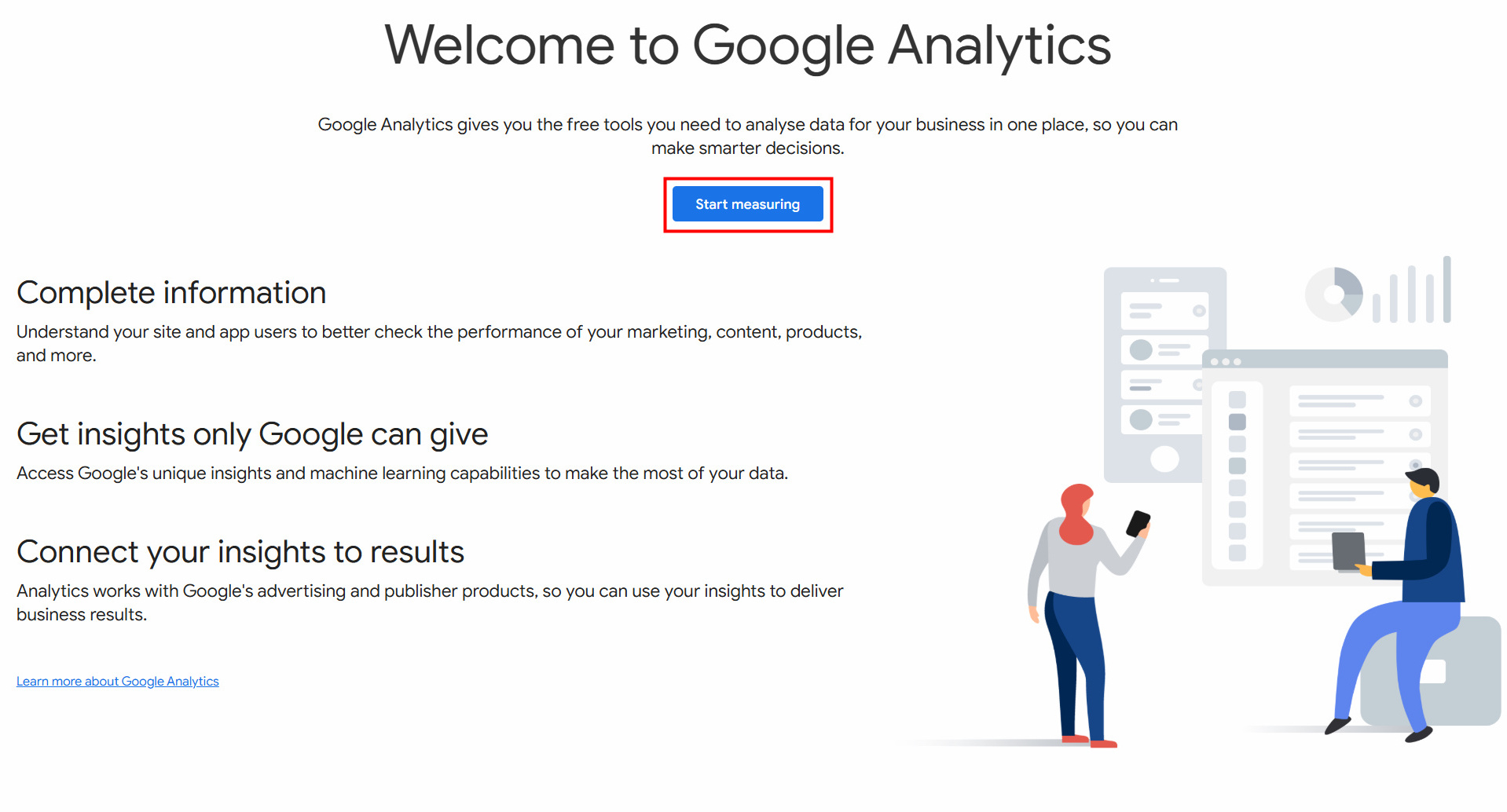
- Go to Google Analytics and click "Start Measuring".
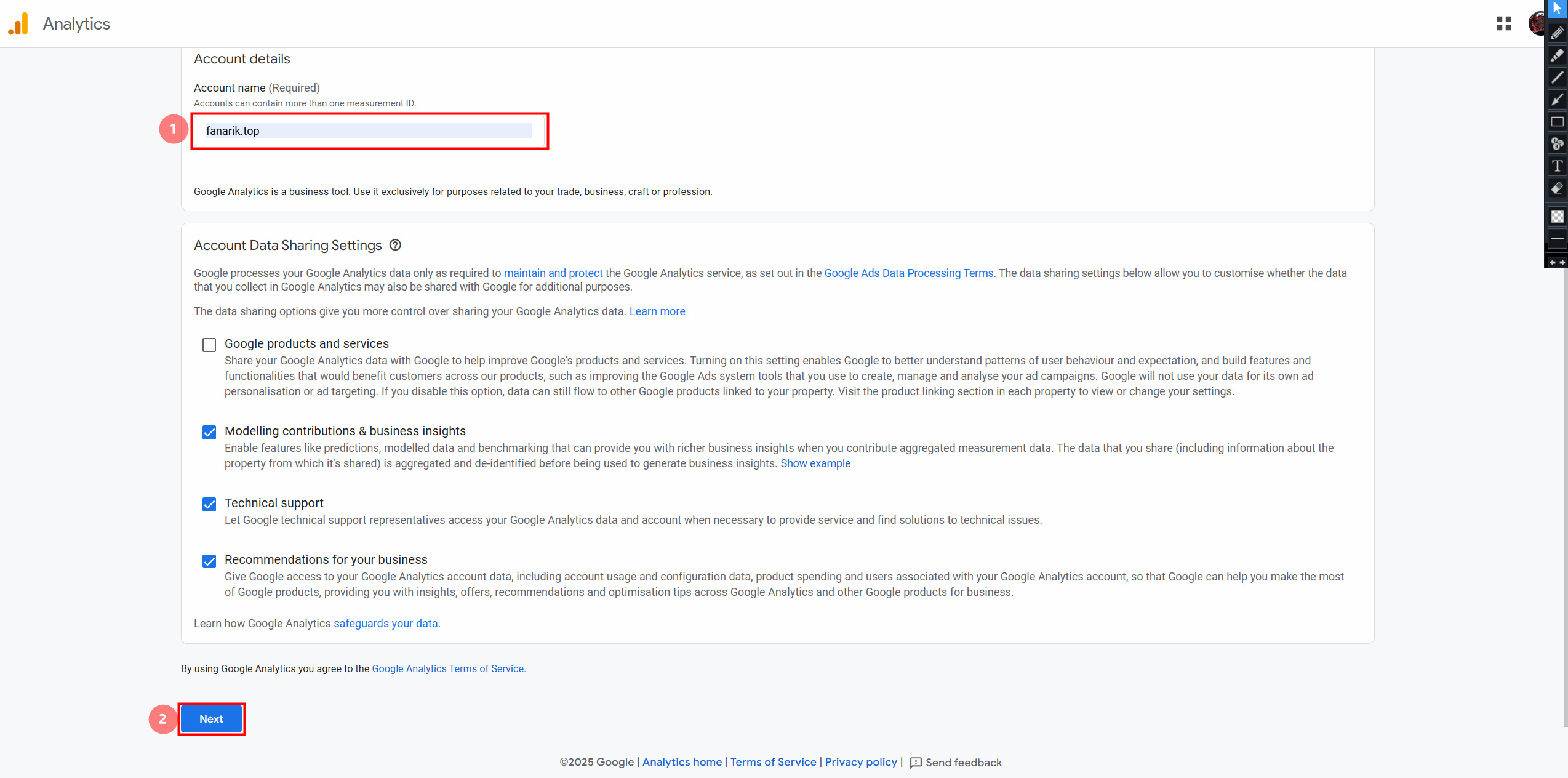
- Enter the account name.
- Click "Next".
2. Create a Property
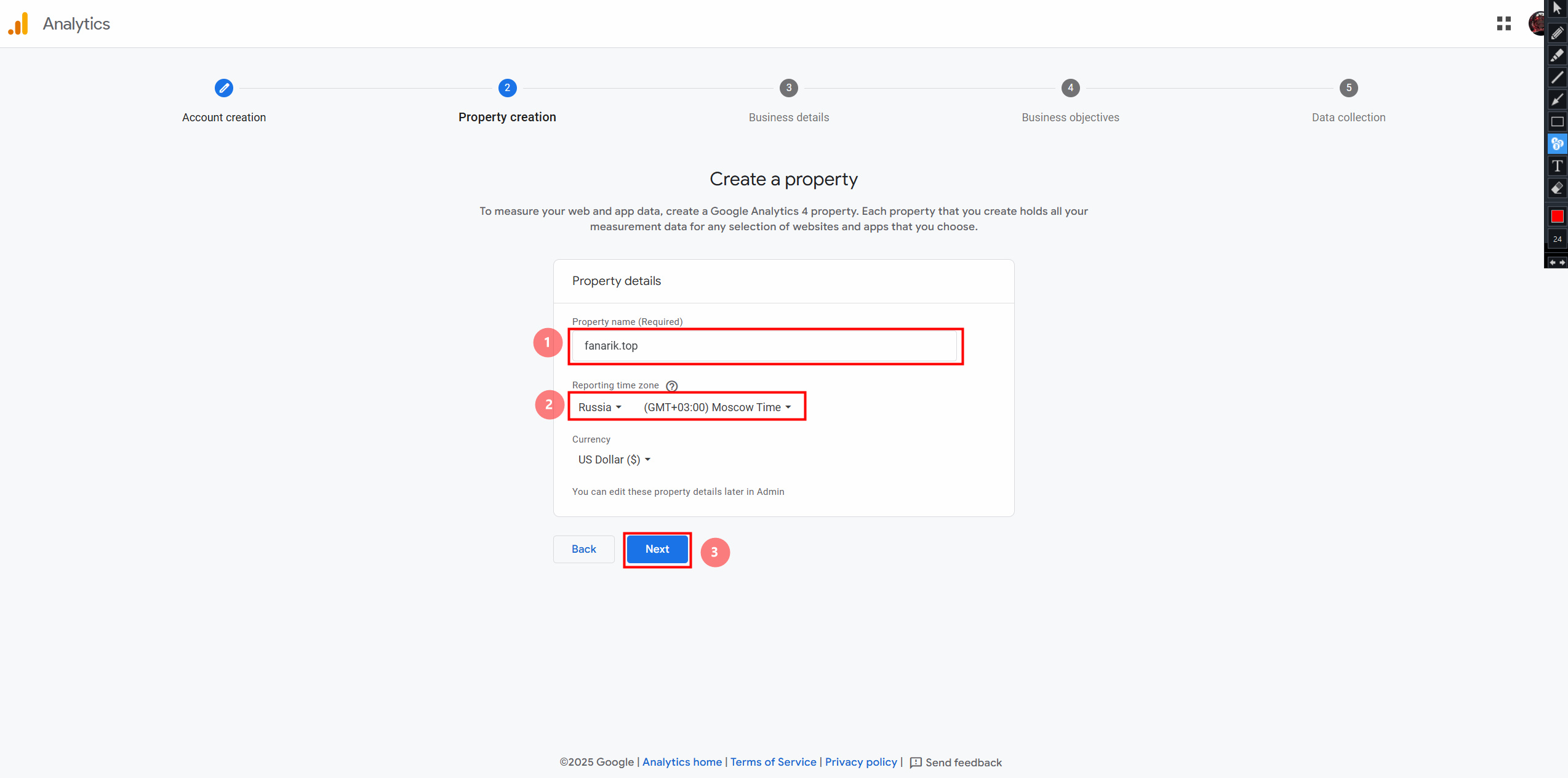
- Enter the property name.
- Select your time zone.
- Click "Next".
3. Enter Business Information
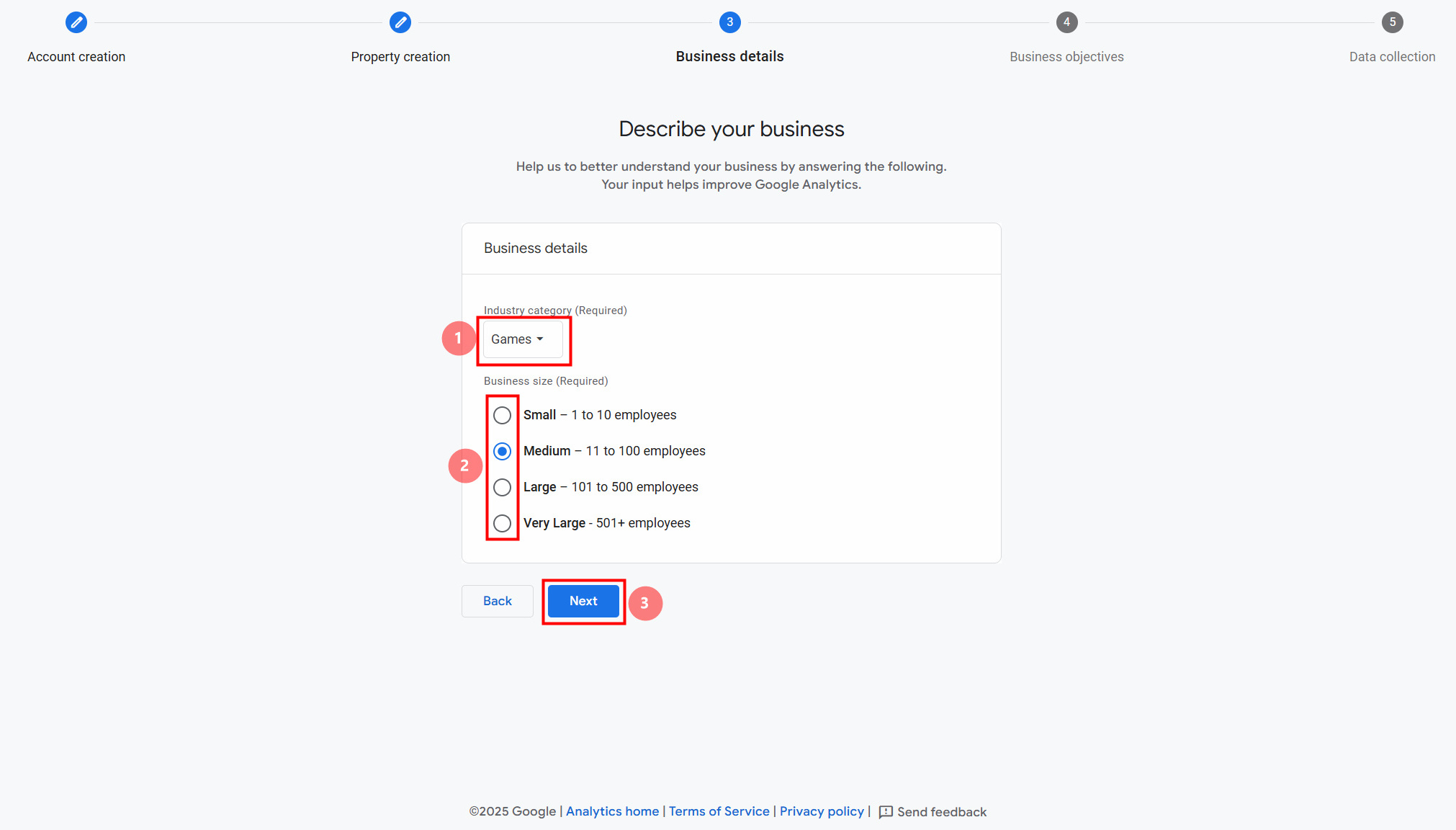
- Choose your industry — "Games".
- Enter company size.
- Click "Next".
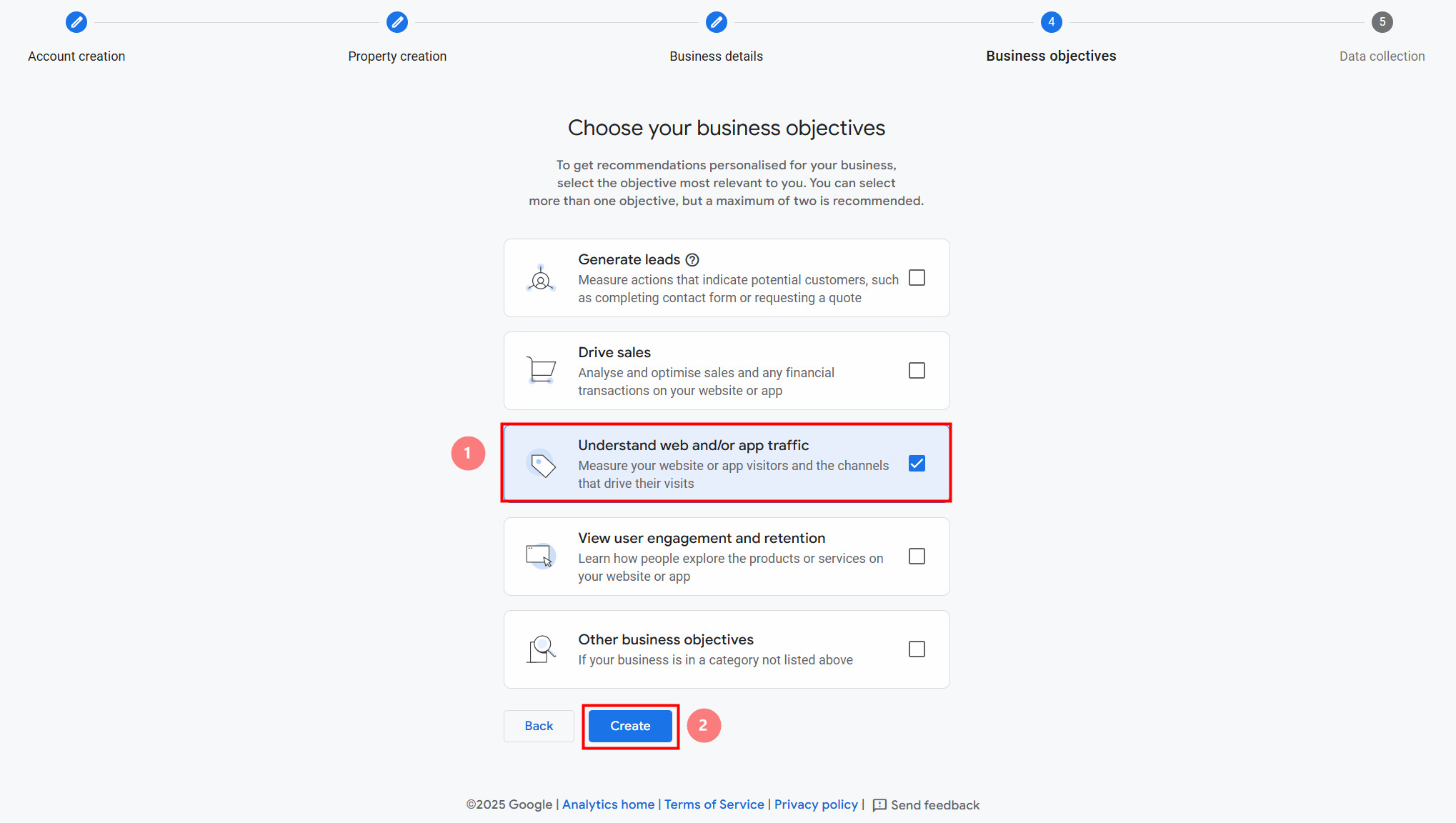
4. Choose Your Goal
- Select "Understand web and/or app traffic".
- Click "Create".
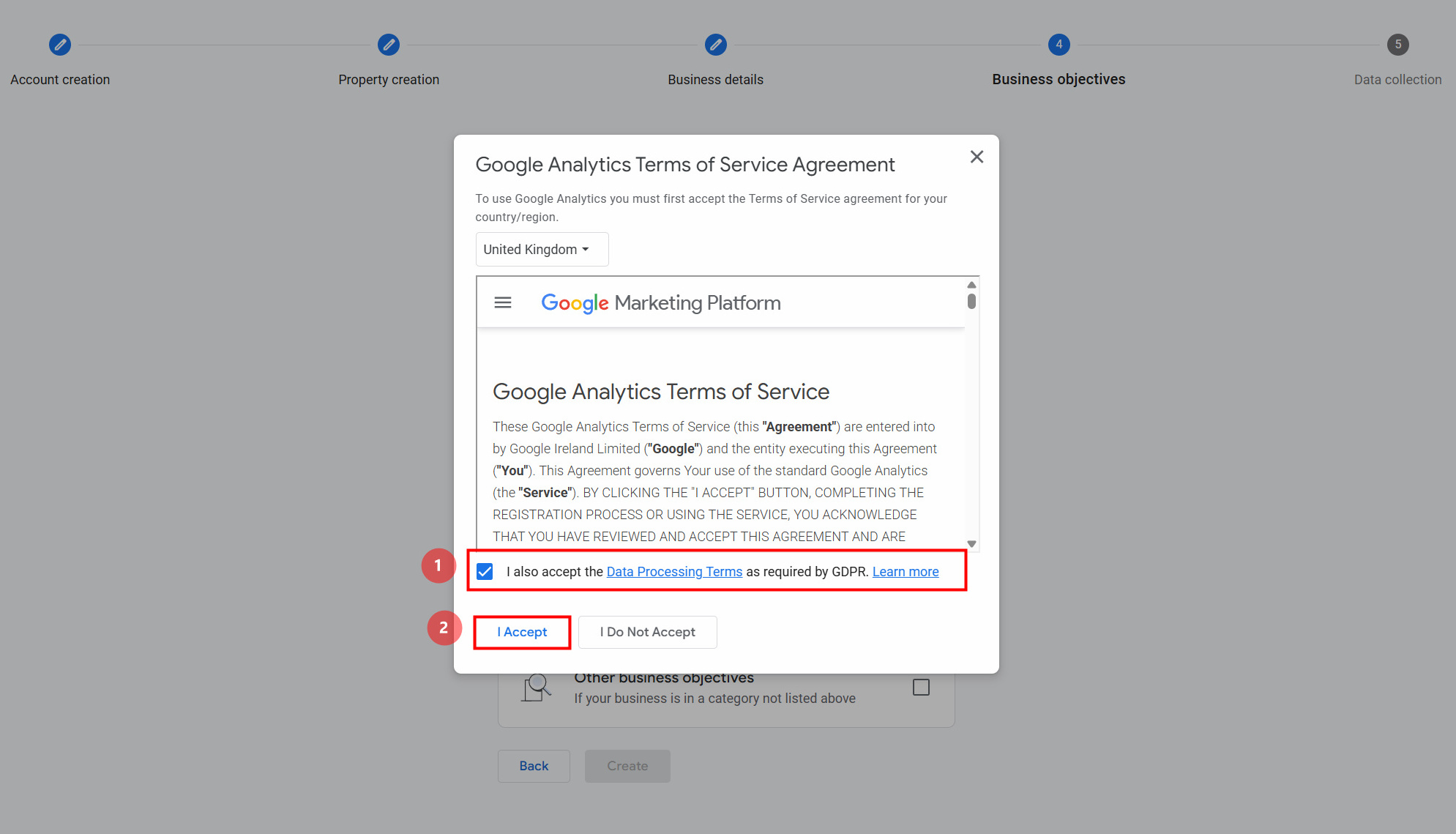
5. Accept the Agreement
- Check the box.
- Click "I Accept".
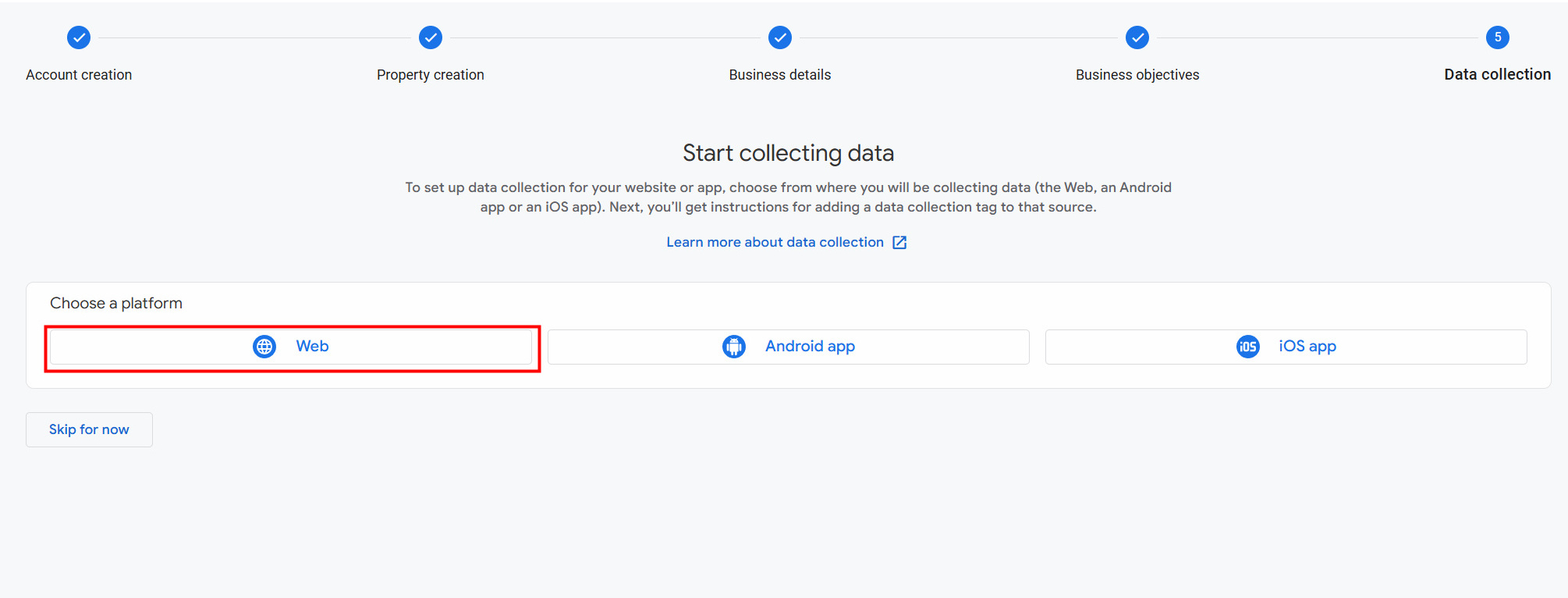
6. Set Up a Data Stream
- Choose the platform — "Web".
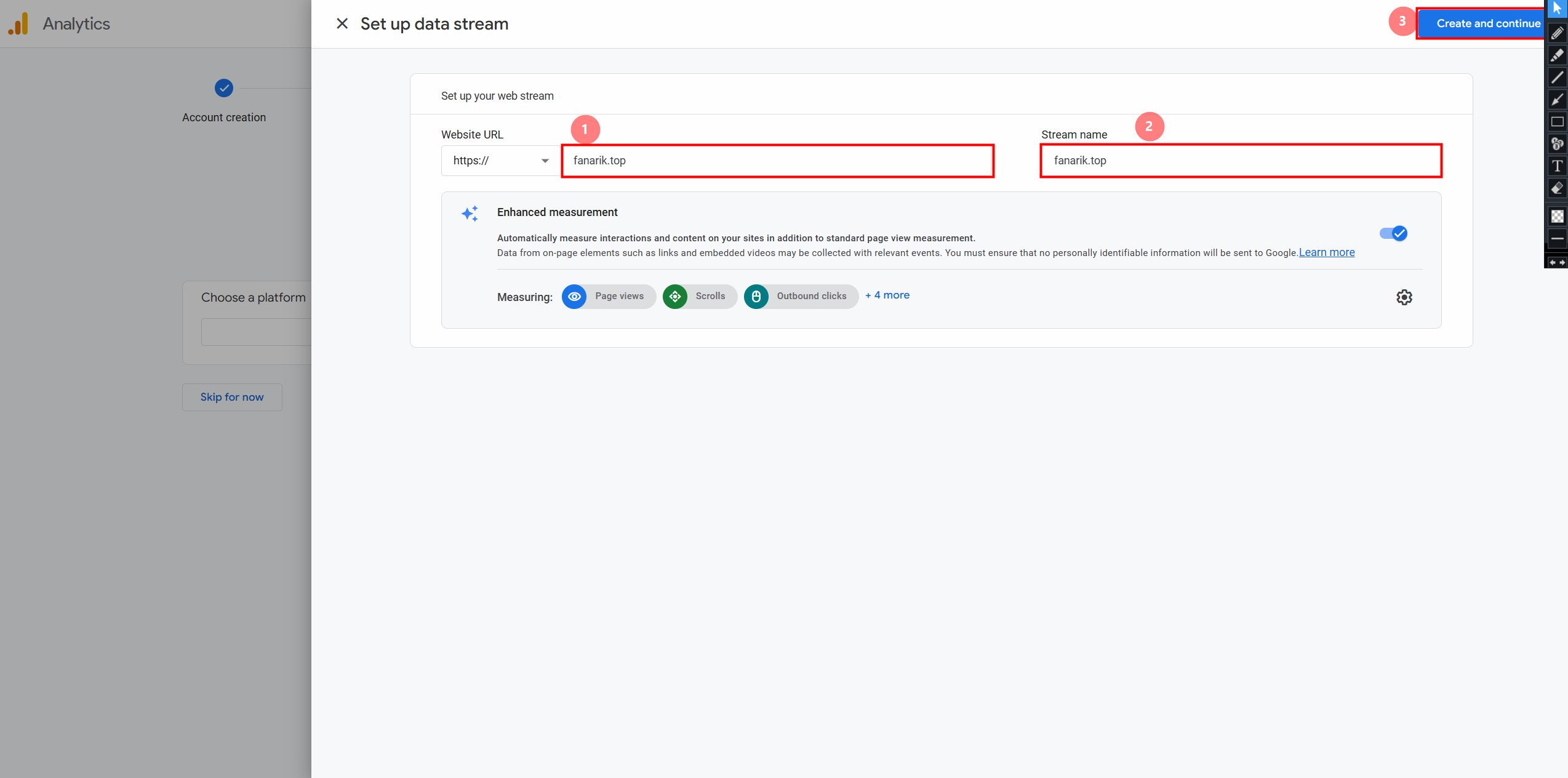
- Enter your domain URL.
- Enter a stream name.
- Click "Create and Continue".
7. Set Up the Tag
- Close the setup popup.
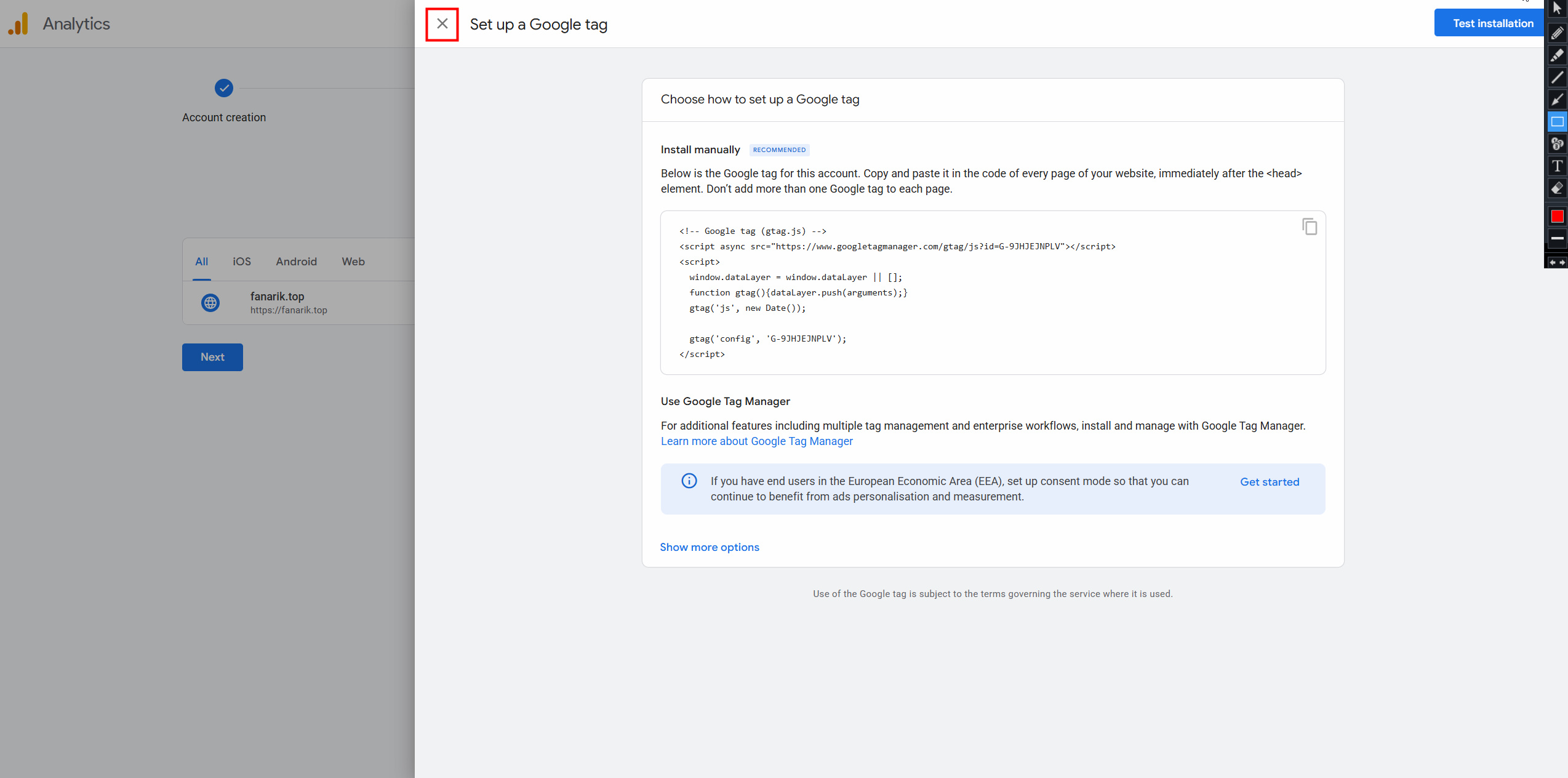
- Go to "Tag Settings".
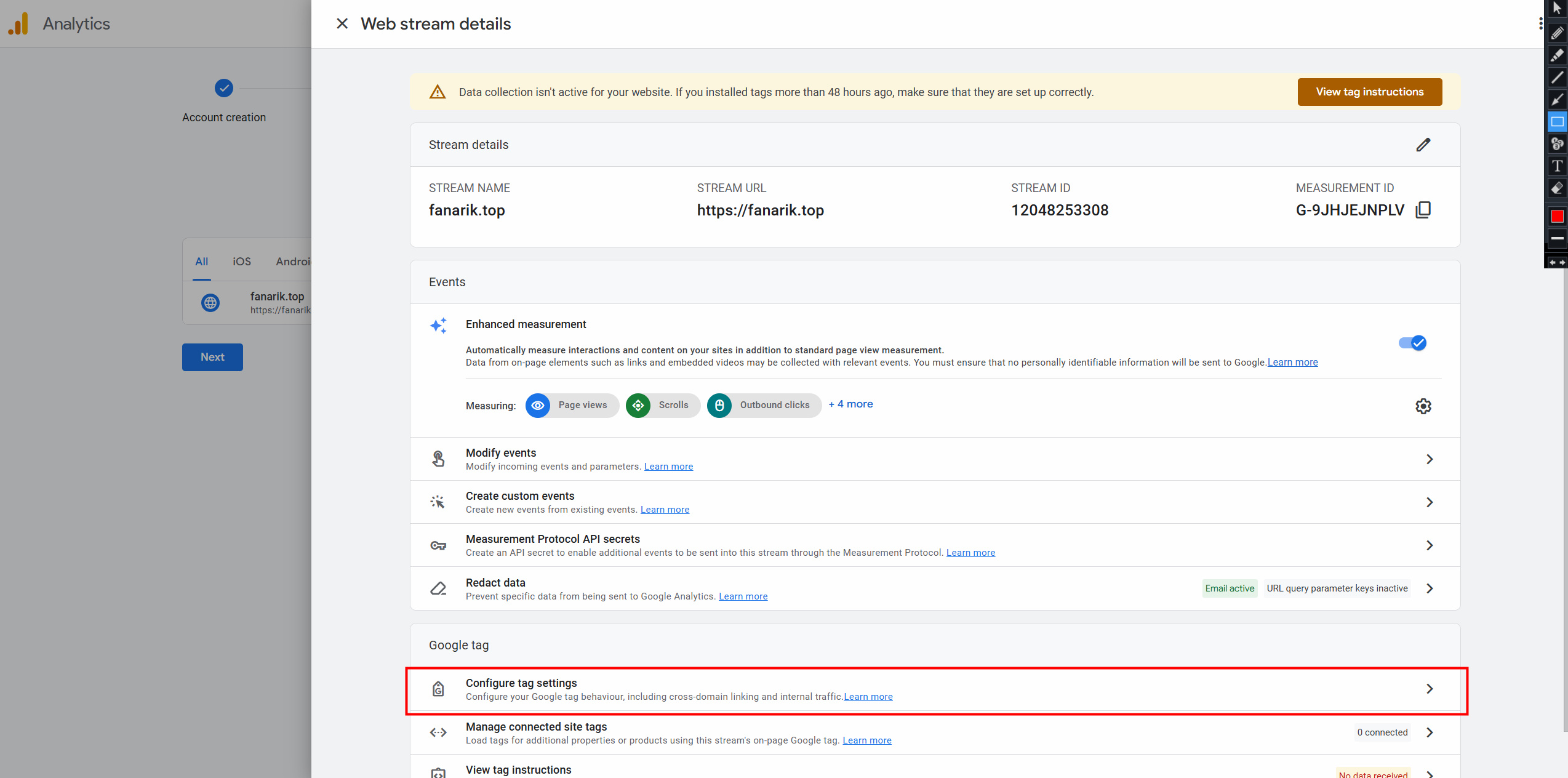
- Click "Show more".
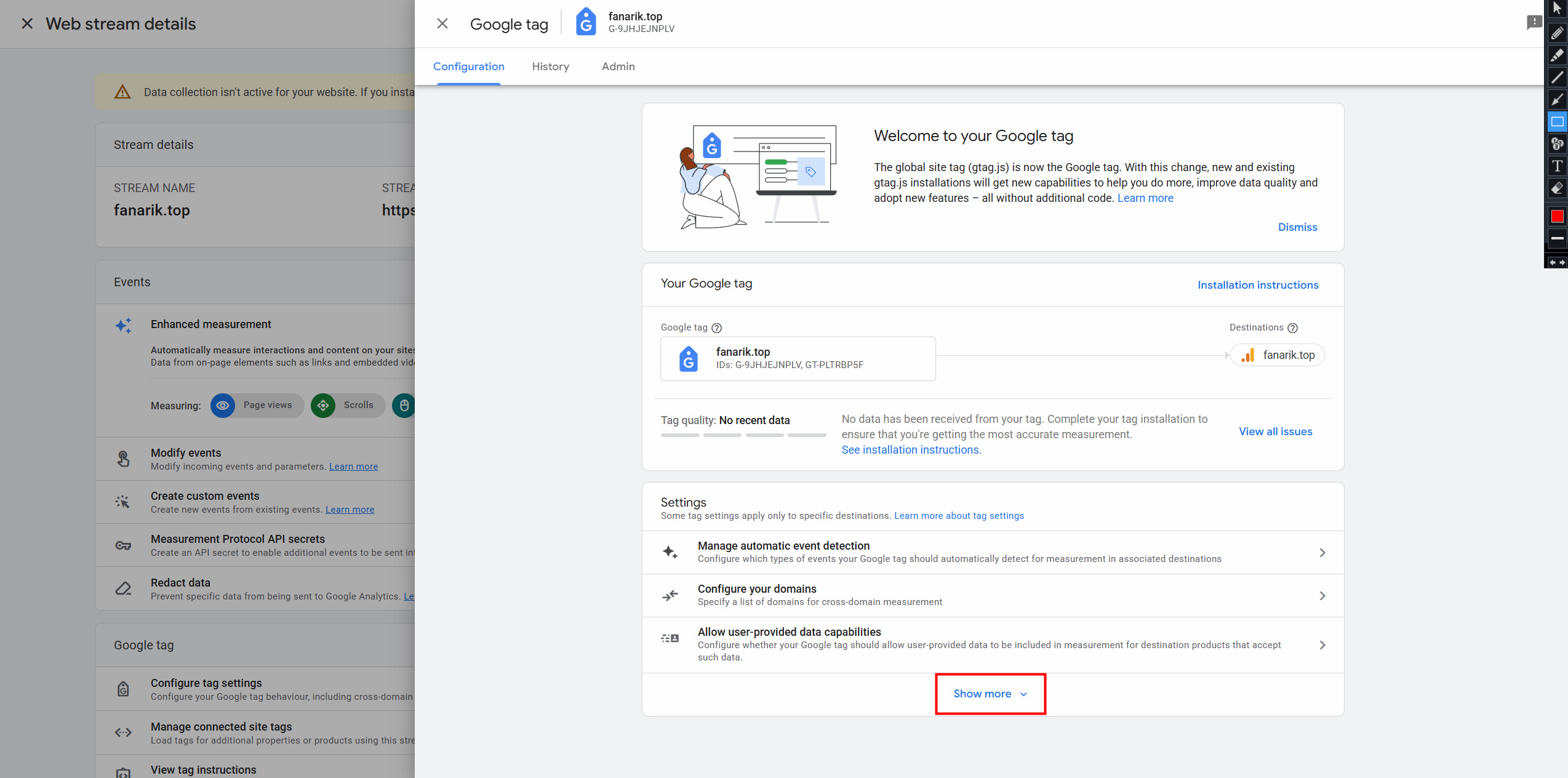
- Turn on the "Collect Universal Analytics Events" switch.
- Click outside the active window to return to Analytics settings.
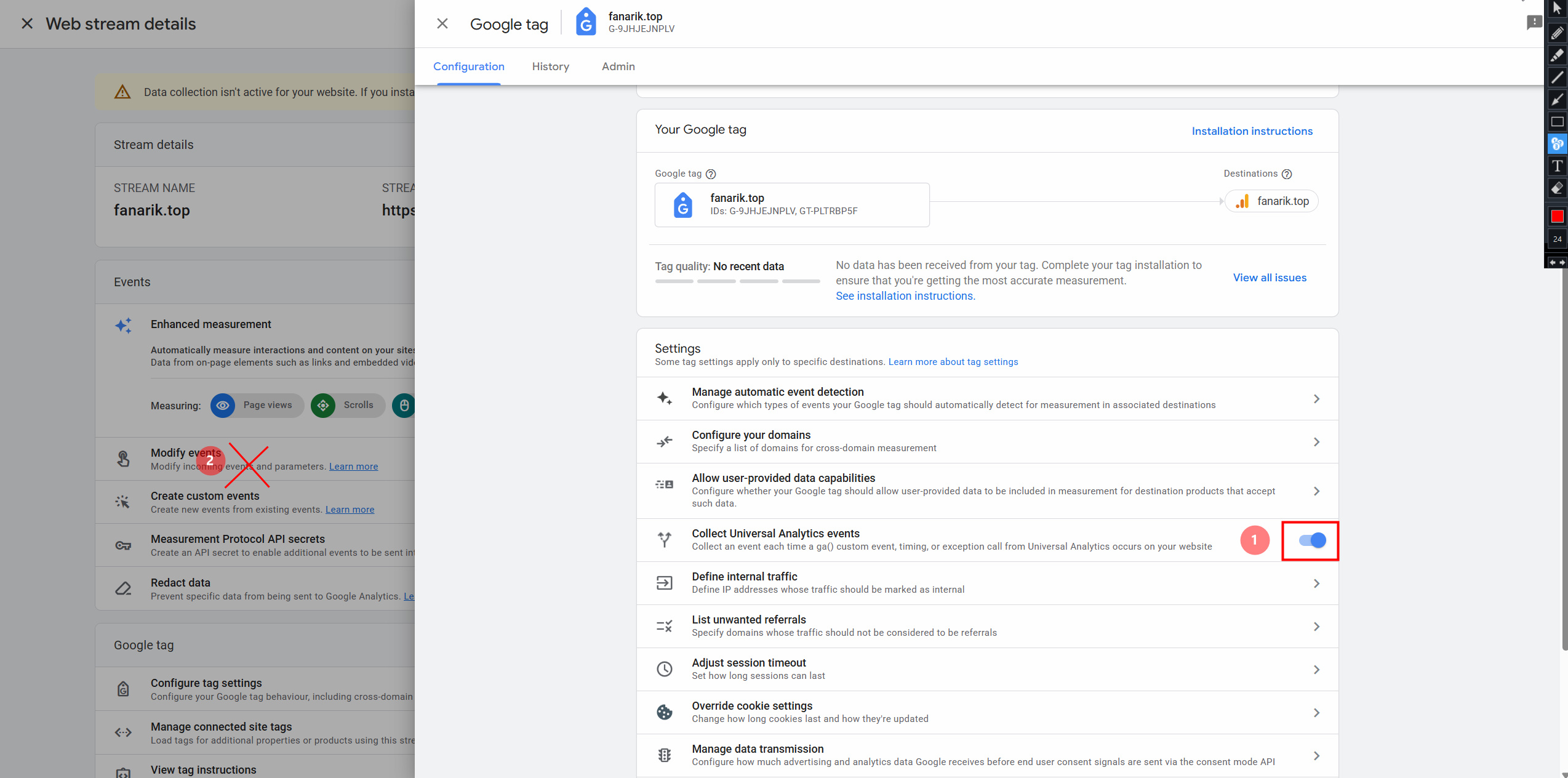
8. Create an API Key for Measurement Protocol
- Open the data stream.
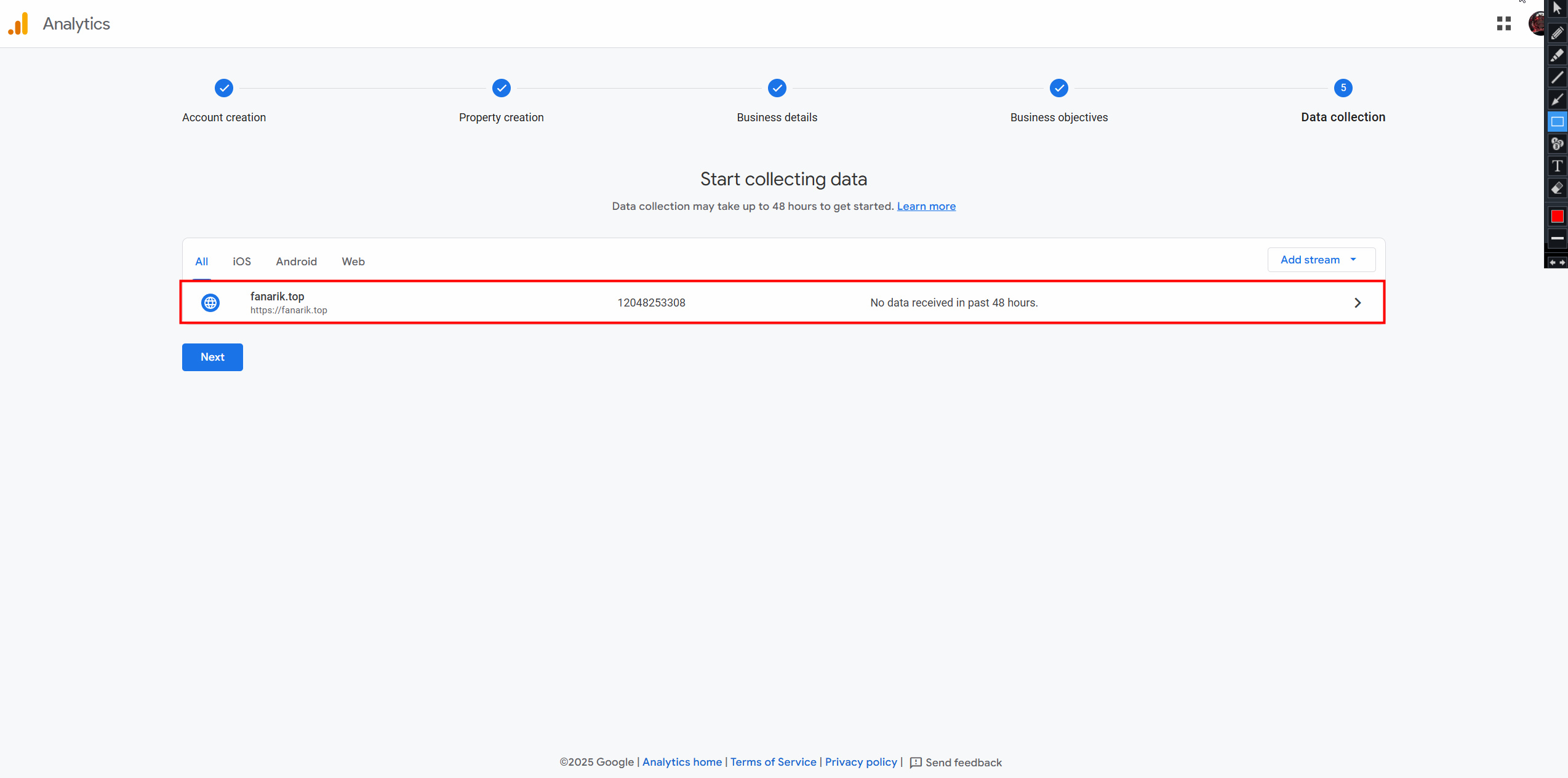
- Click "Measurement Protocol API Secret".
- Click "Review Terms" and accept.
- Click "Create".
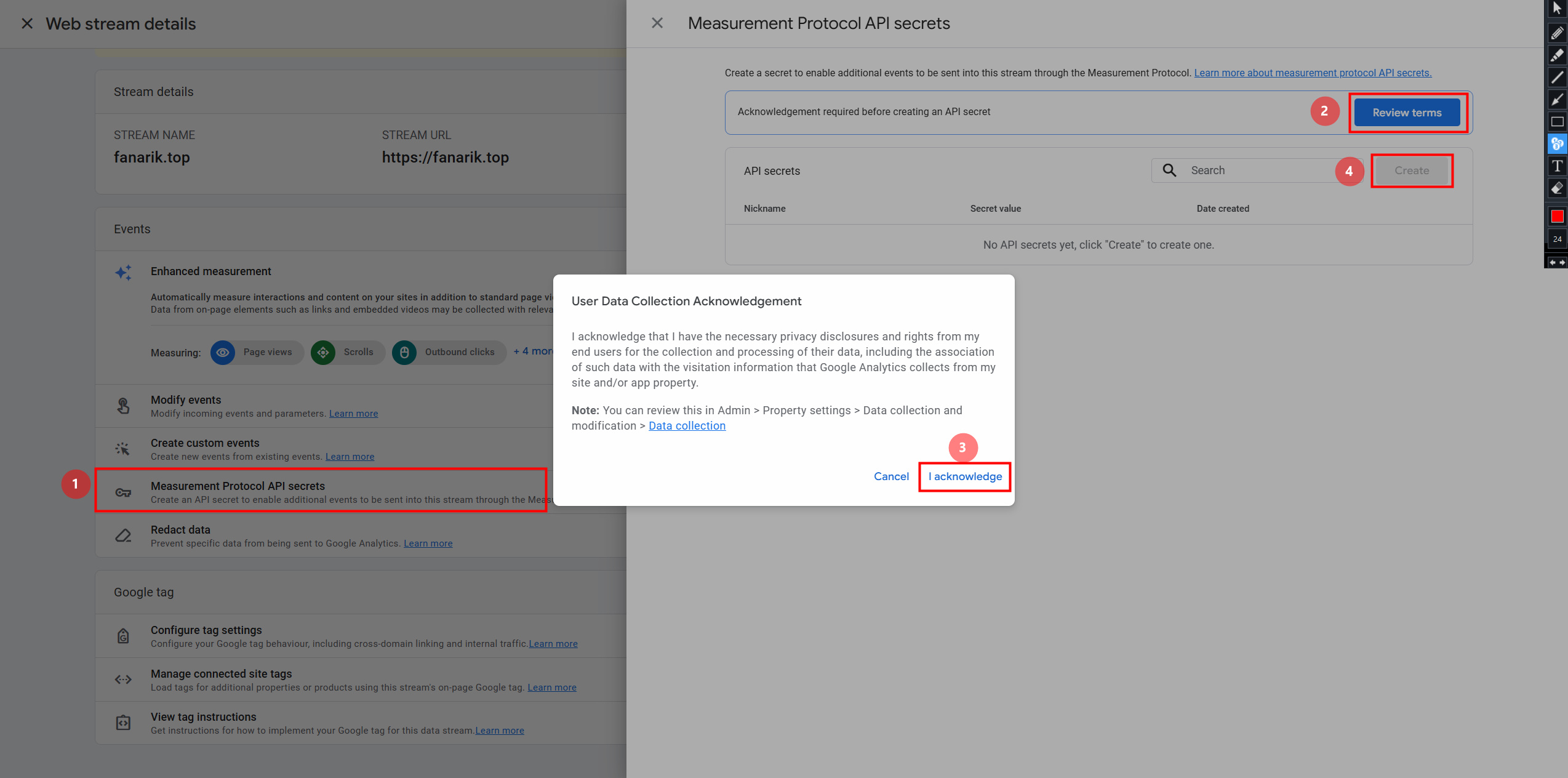
- Enter a nickname.
- Click "Create".
- Close the modal.
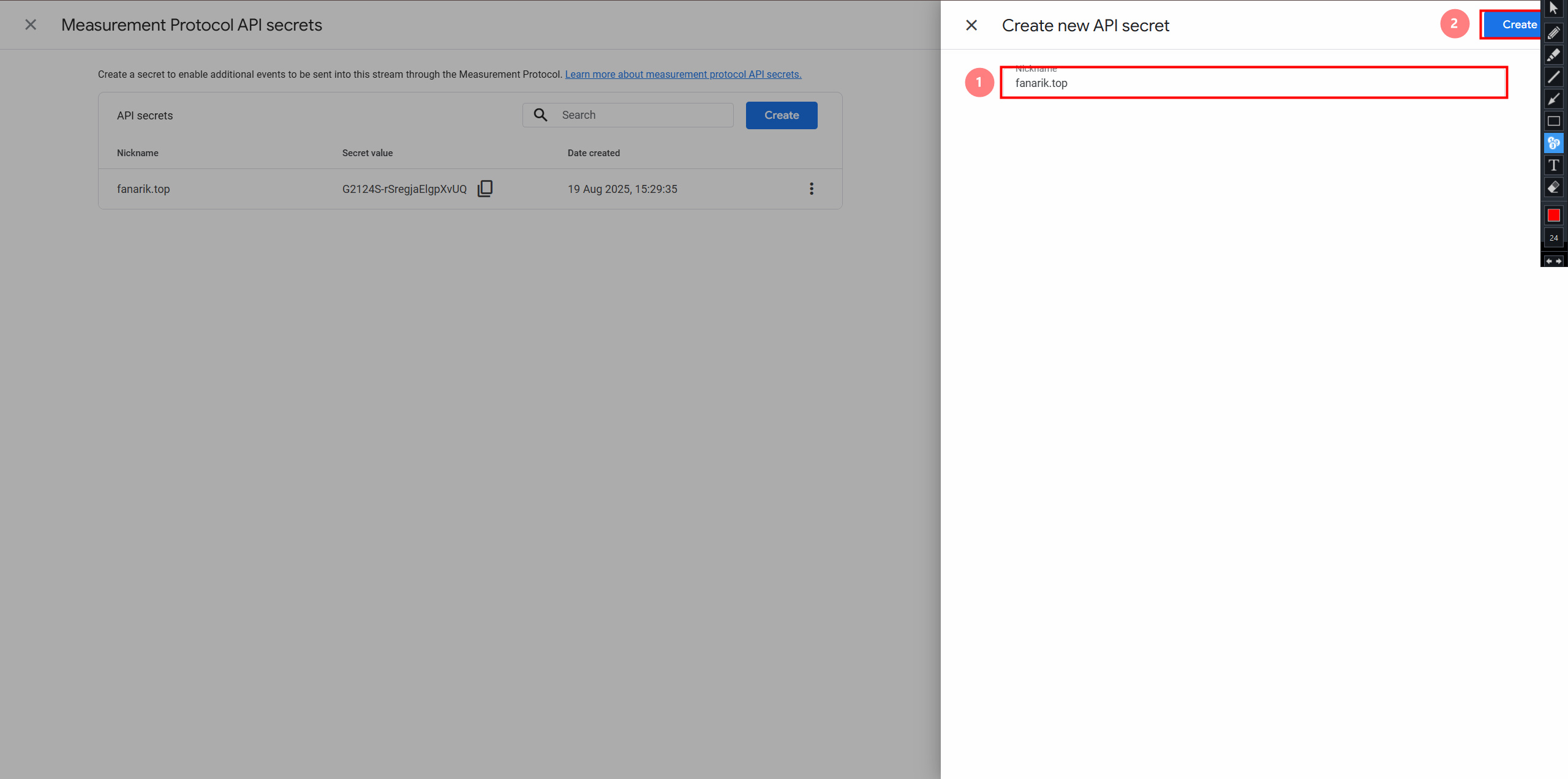
- Copy the secret key (API key).
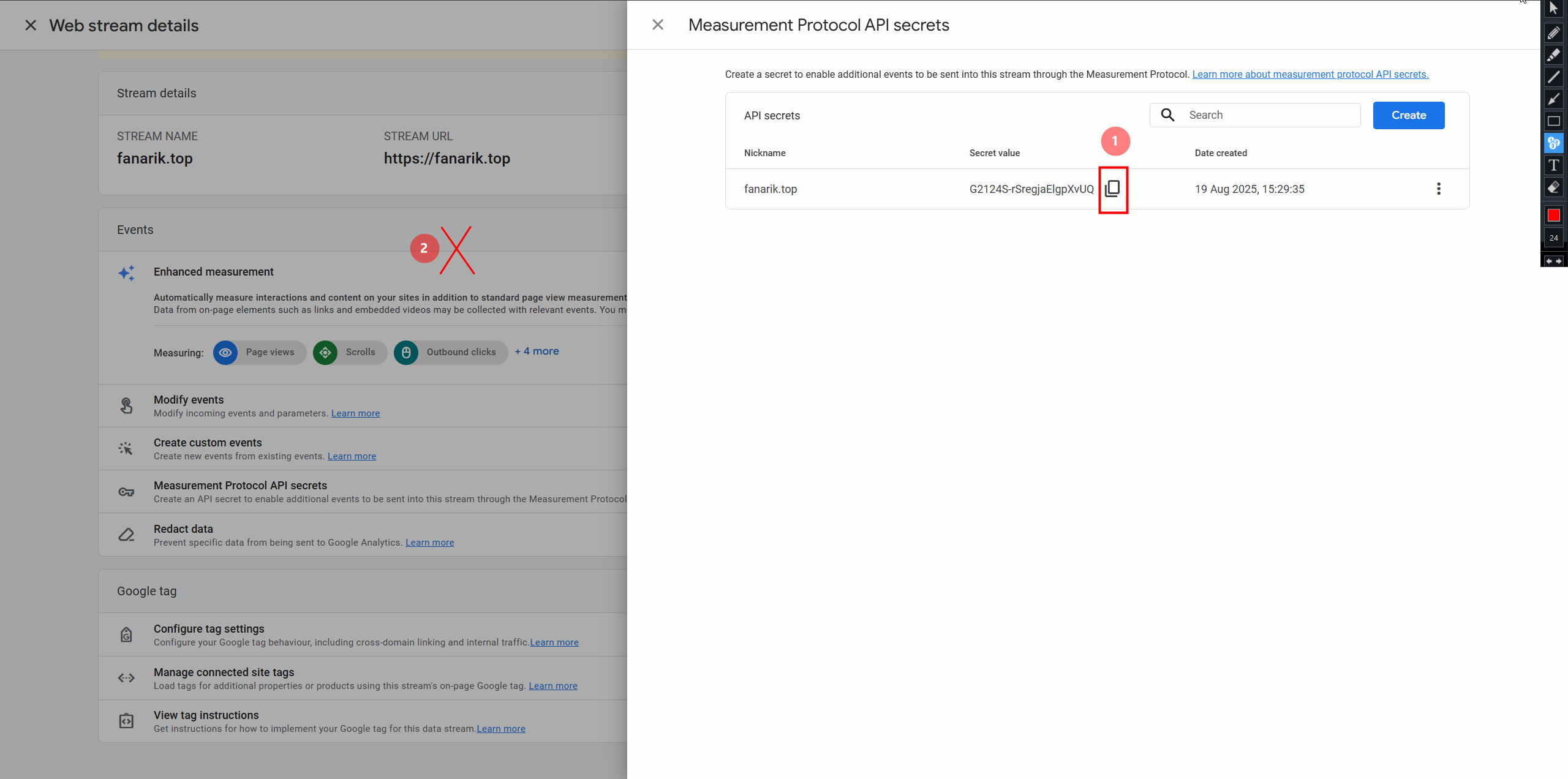
- Copy the measurement ID.
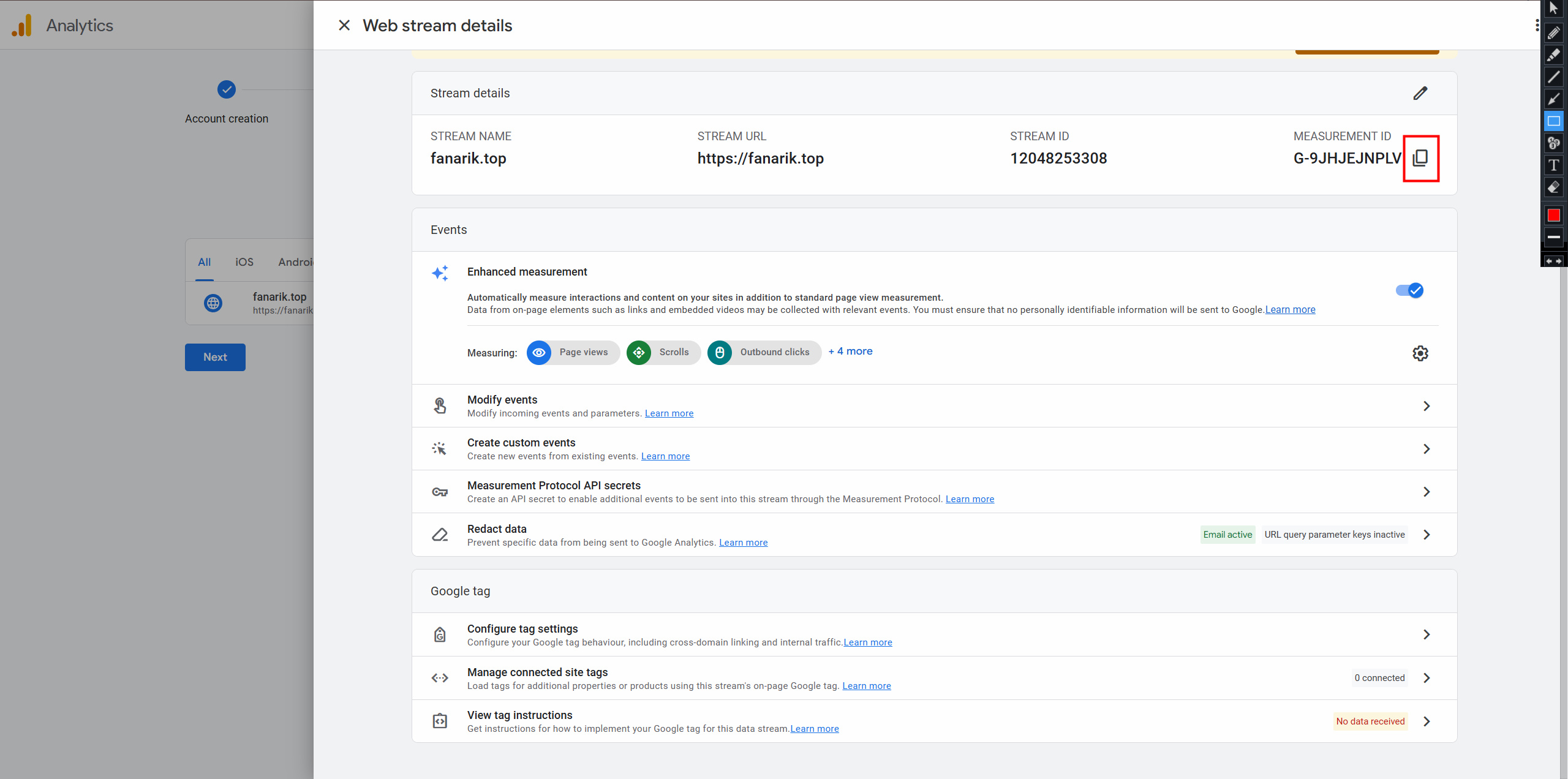
Send Data to ZM apps support
Send us:
- Your flow domain,
- Measurement ID,
- API key (secret key).
This data will be added to the database for correct integration.
9. Create an Event
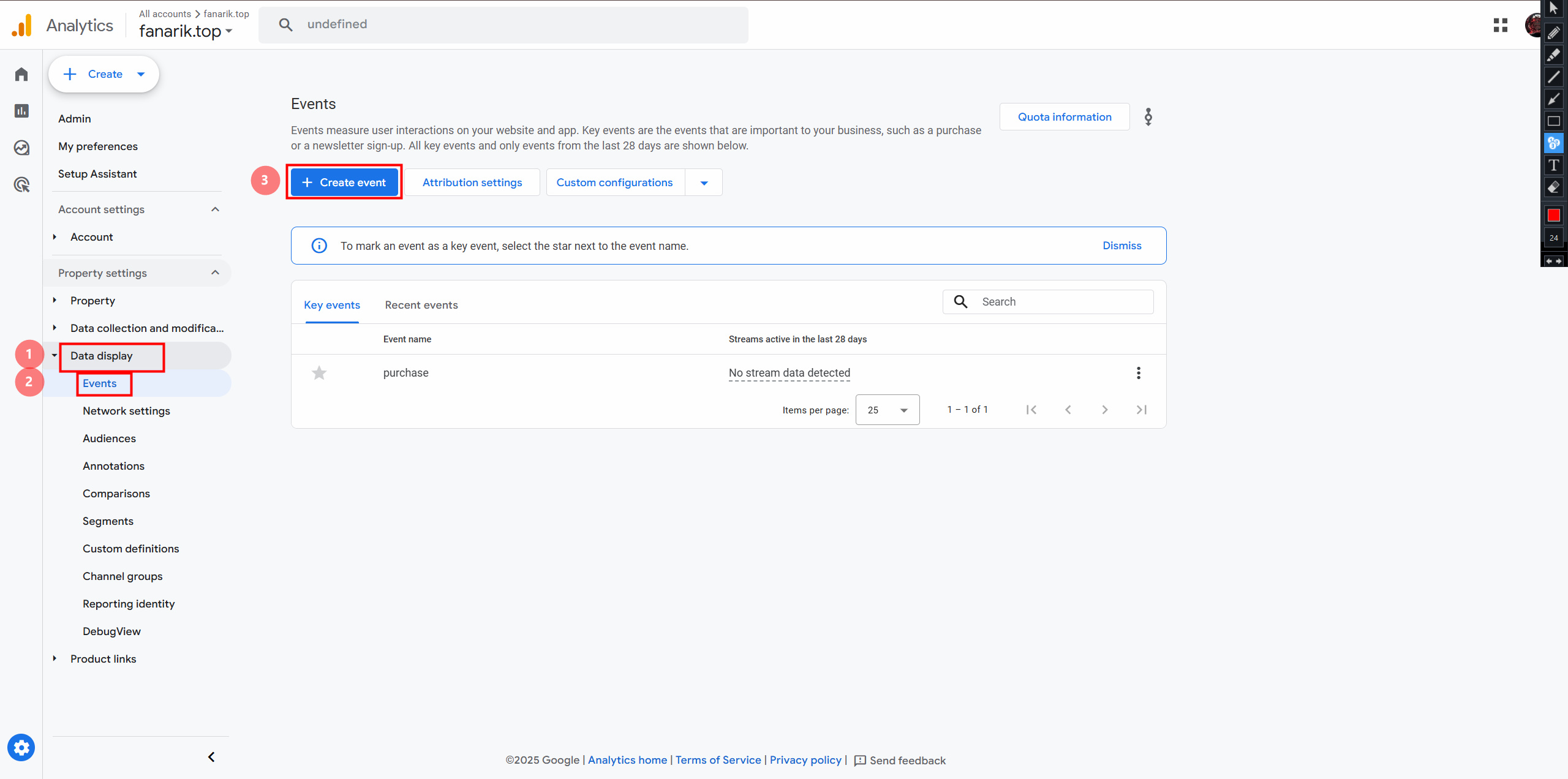
- Open "Data Display".
- Go to "Events".
- Click "Create Event".
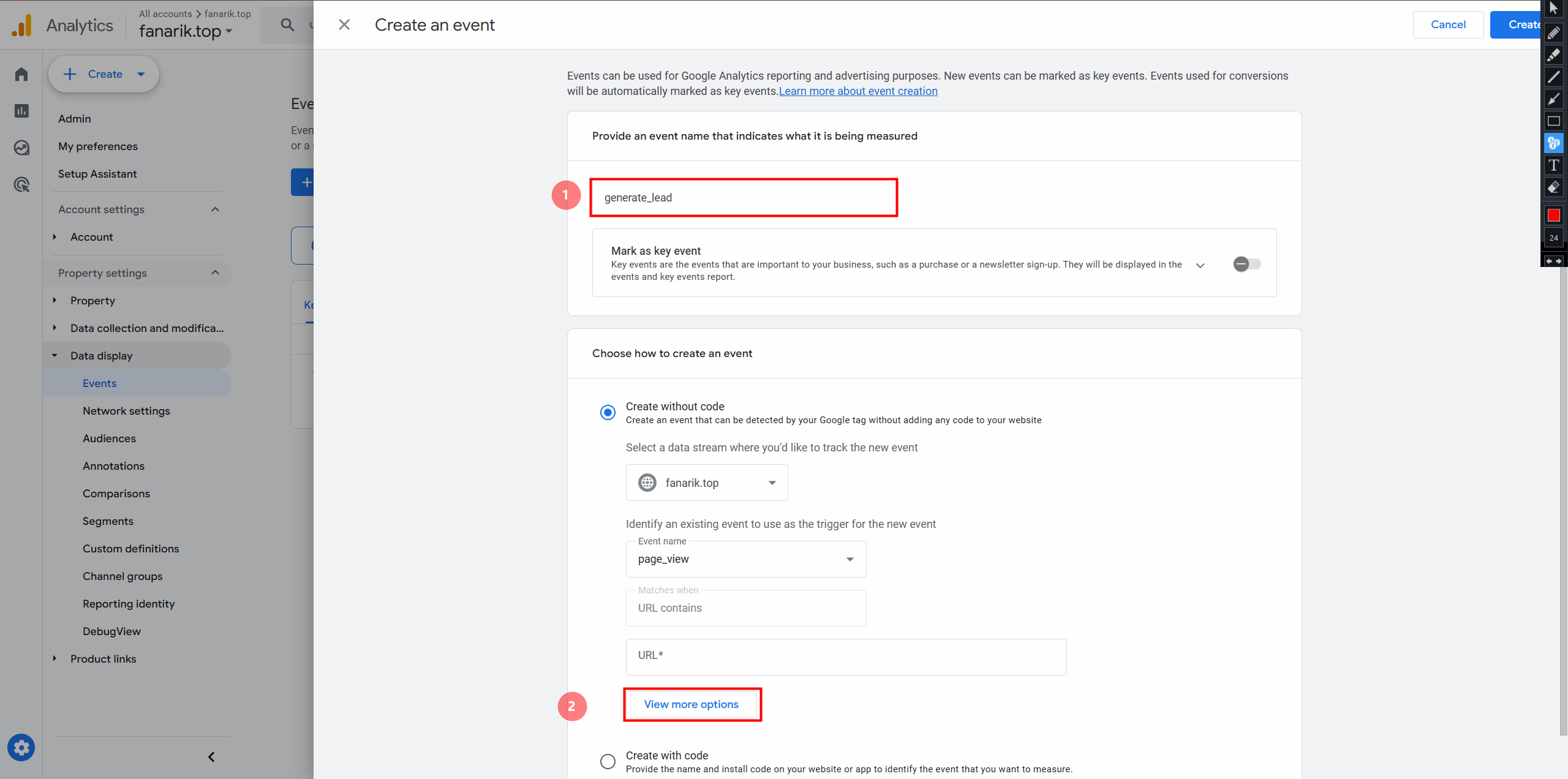
- Enter the install event name.
- Click "View more options".
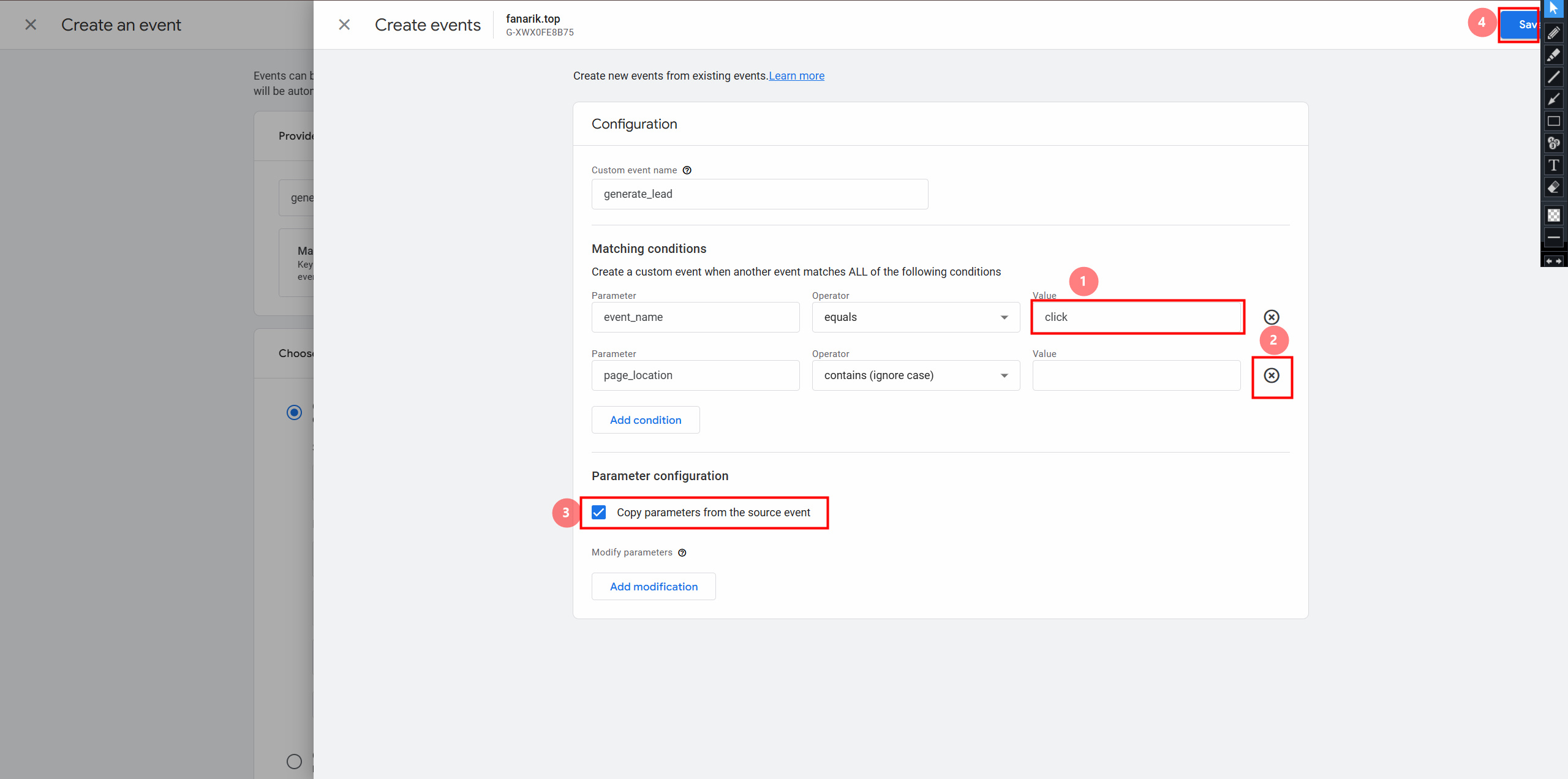
- In the "Value" field, enter
click. - Remove extra events.
- Check "Copy parameters from the source event".
- Click "Save".
- Click "Create".
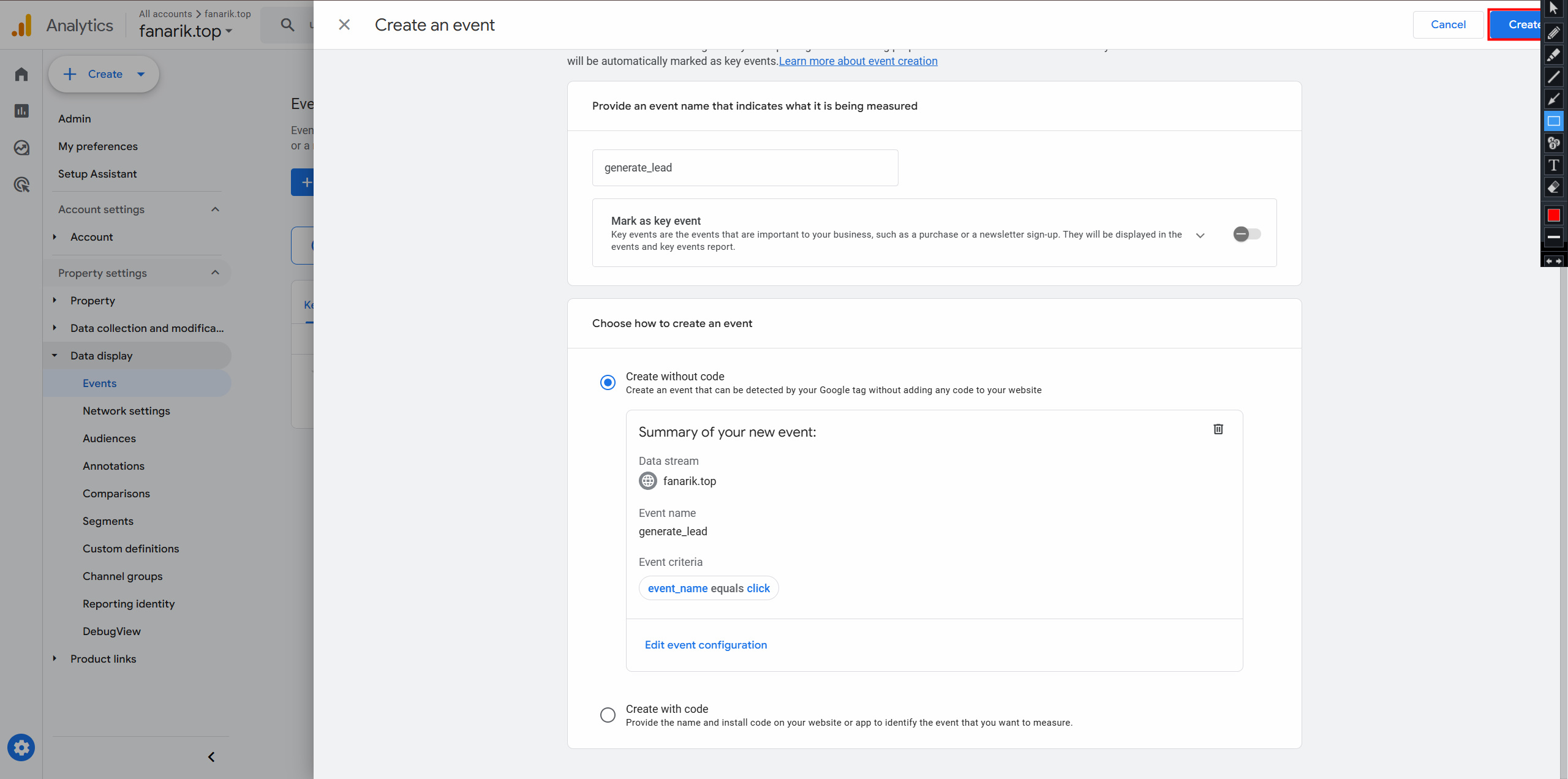
The event will not appear in the list immediately.
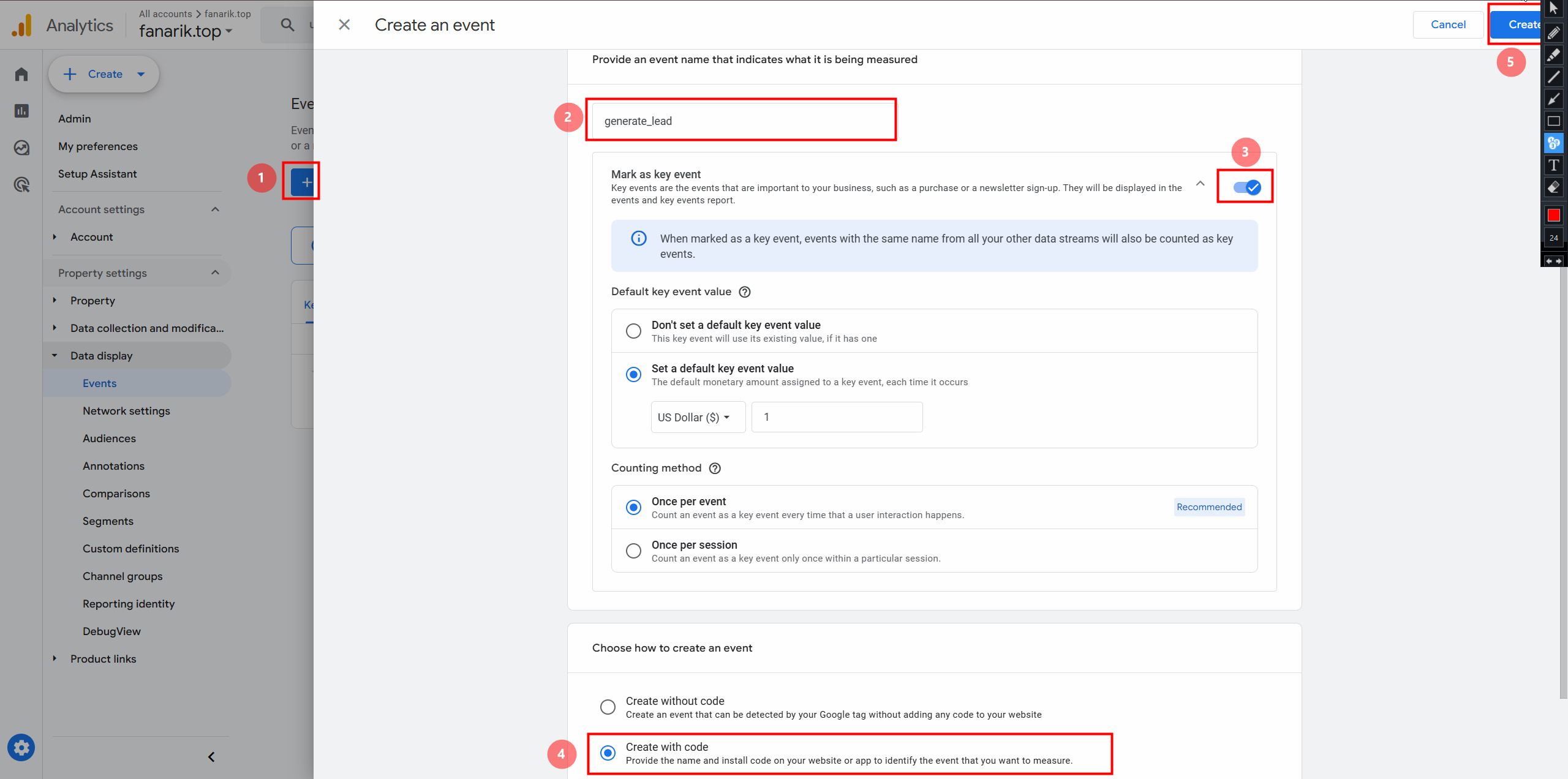
10. Create Key Events
- Click "Create Event".
- Enter the event name:
page_view— view,generate_lead— install,sign_up— registration,purchase— already created in Analytics.
- Turn on "Mark as default key event".
- Select "Create with code".
11. Check Events
- Open "Reports".
- Go to "Realtime Overview".
- Scroll down to the stream stats block.
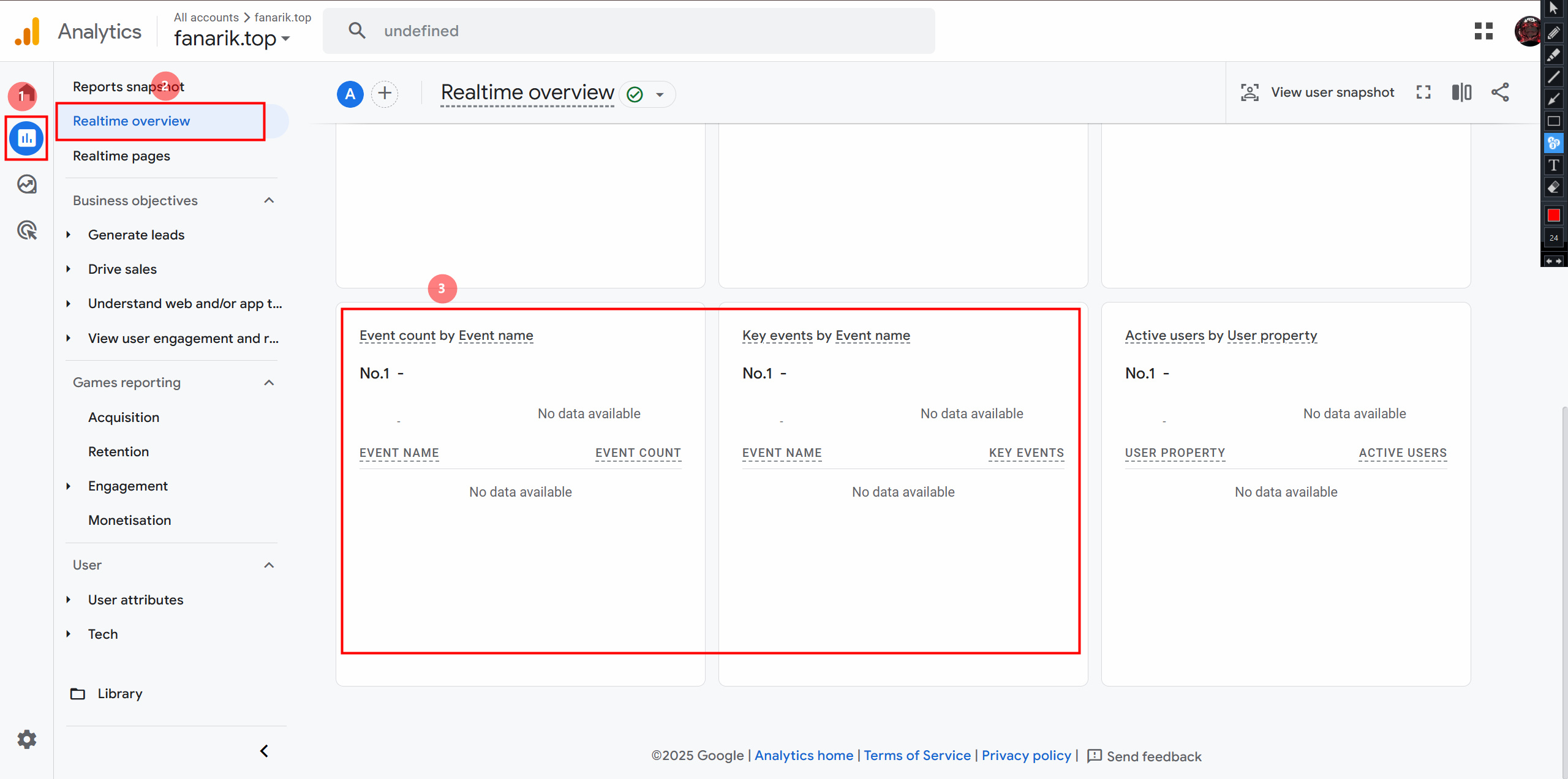
Integration is complete. If events show in the realtime reports, Google Analytics is set up correctly.