Setting Up Google Ads UAC via Subaccount Sharing
To connect your Google Ads account to the ZM apps application, follow the steps below:
We use several methods to share access with Google Ads.
The technical support specialist will let you know which method will be used in your case.
The Subaccount method completely replaces all existing events in your account with events from the manager account. Please only provide clean Customer IDs (without any events configured). Otherwise, your previous events will become temporarily unavailable during the sharing period!
1. Prepare the naming in your dashboard.
Learn how to create naming and configure postbacks here.
2. Send your Google Ads Customer ID to the technical support chat.
We will share it via our manager account and send you an invitation.
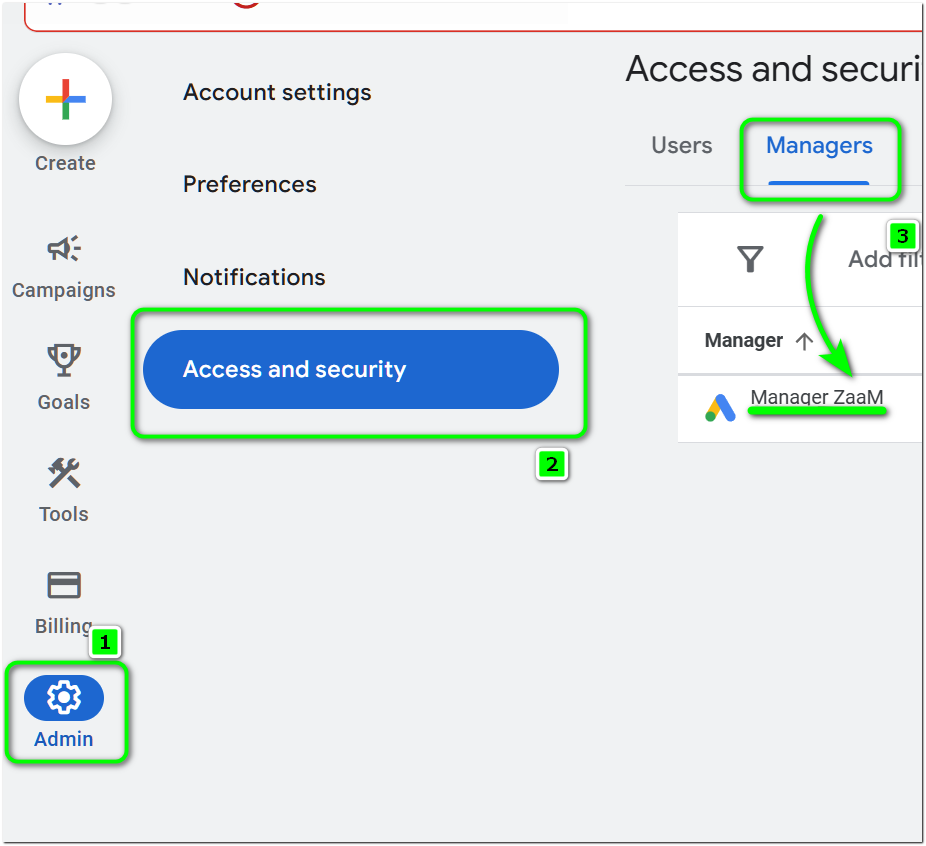
3. Accept the invitation from the manager account.
- Go to Admin → Access and Security
- In the Managers tab, accept the invitation from the ZM apps (ZaaM) manager account
4. Wait for event connection.
After accepting the invitation, let the support team know in the chat.
We will connect your event system to the manager account, and you will be able to launch campaigns for our app.