Setting Up Google Ads UAC via Data Manager Sharing
Follow the steps below to link your Google Ads account with your ZM apps and configure event sharing.
We use several methods to set up sharing with Google Ads.
Our support team will let you know in the chat which method applies to your case.
1. Prepare naming in your dashboard.
Learn how to create naming and configure postbacks here.
2. Send your Google Ads Customer ID to our support chat.
We will share it via Data Manager and send you an invitation.
3. Go to Tools → Data Manager → Third-party app analytics.
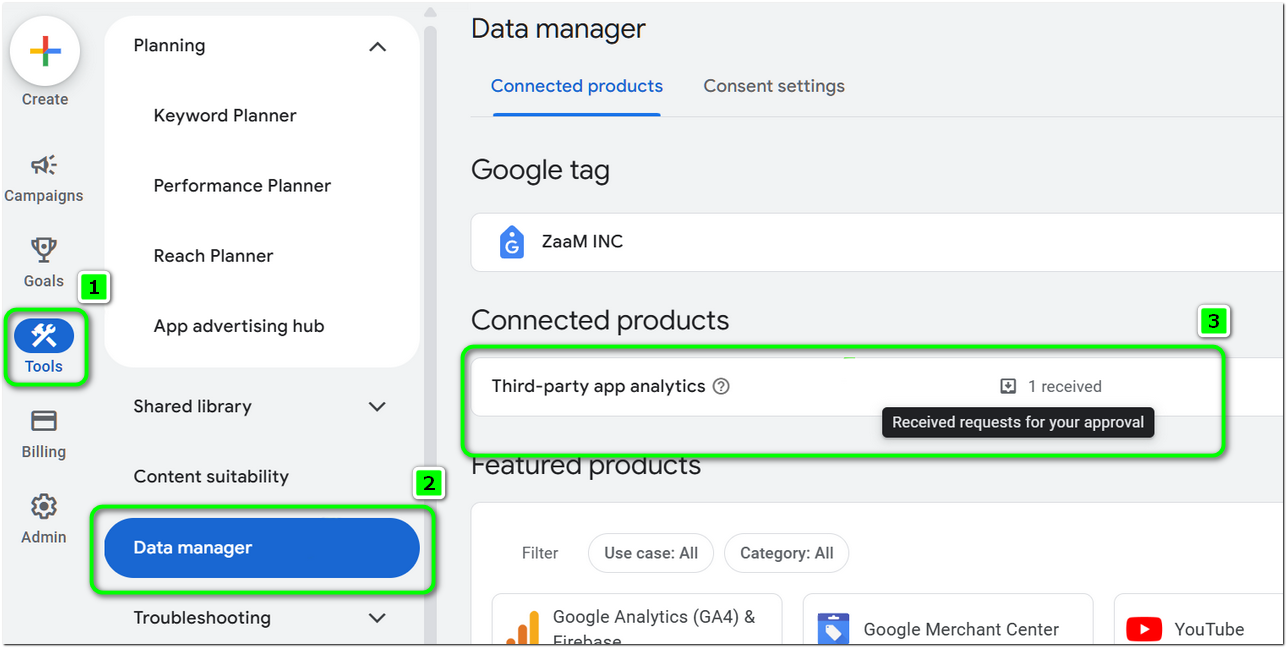
You will see our invitation.
4. Click Manage & link.
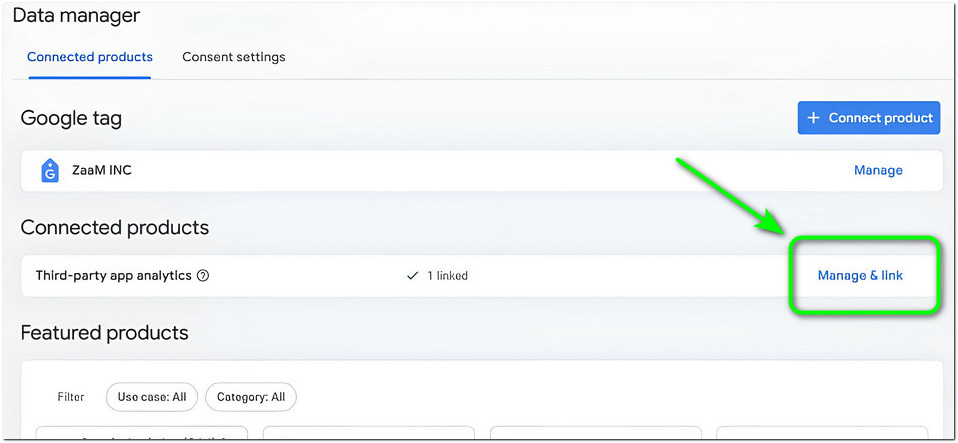
A window with the shared app will open.
5. Click Accept link.
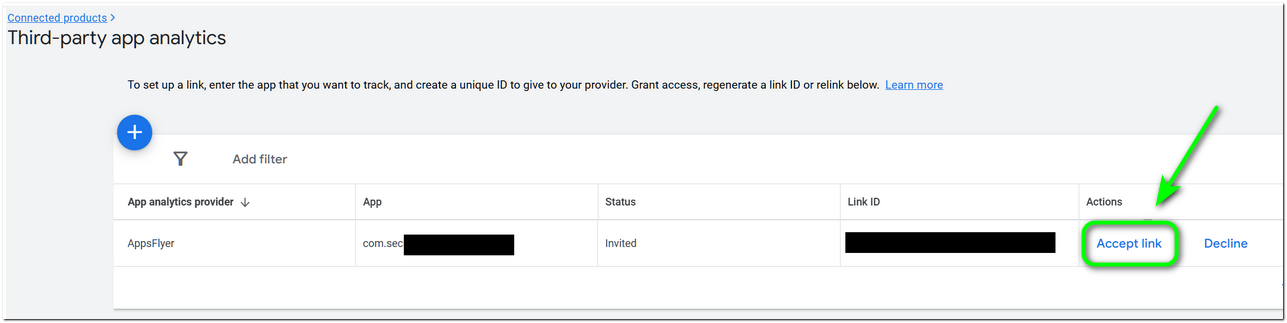
The app will be linked to our account.
6. Request event forwarding.
After accepting the invitation, let our support team know and ask to set up event sharing for the app.
We will forward the events, and they should appear in your account within 1–2 hours.
7. Add events.
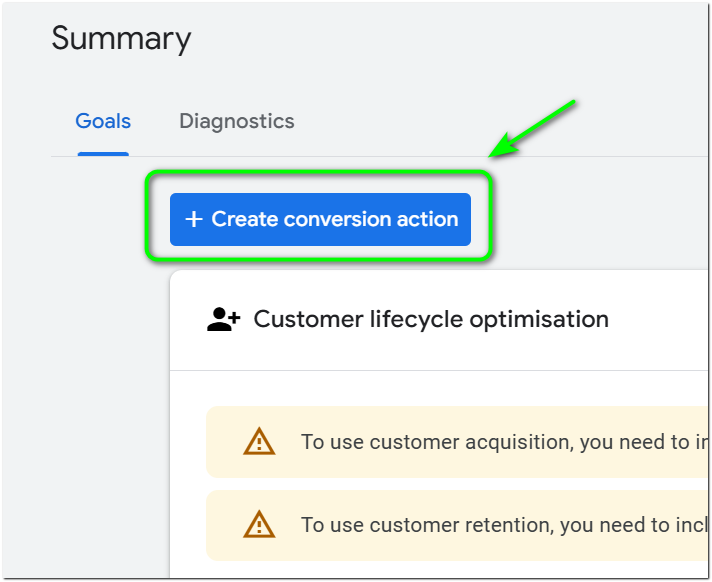
- Go to Goals → Conversions → Summary
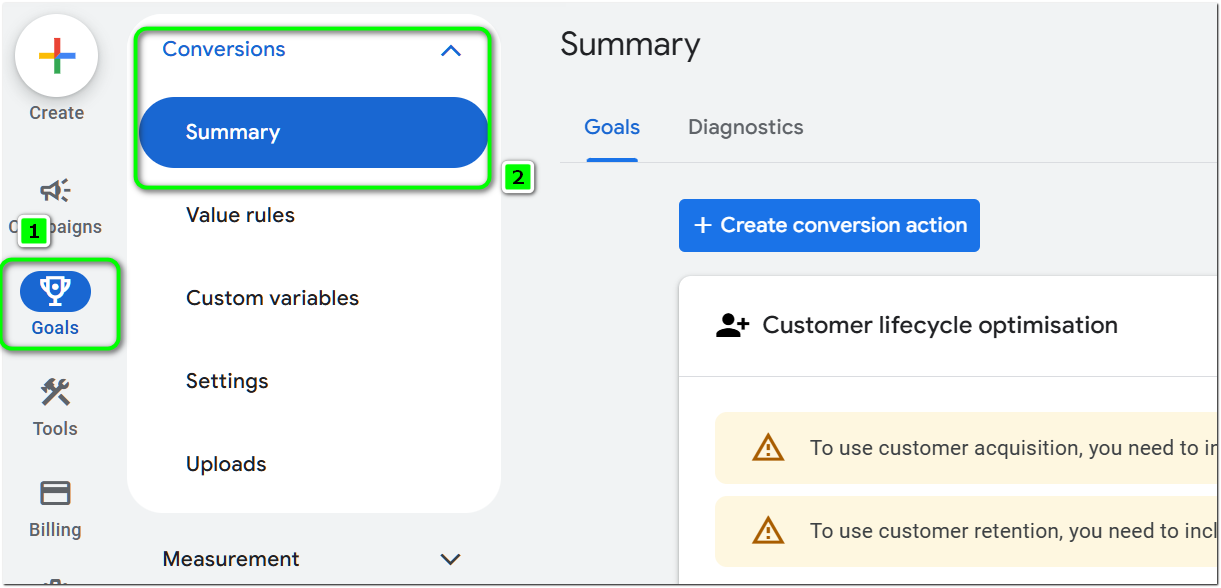
- Click Create conversion action
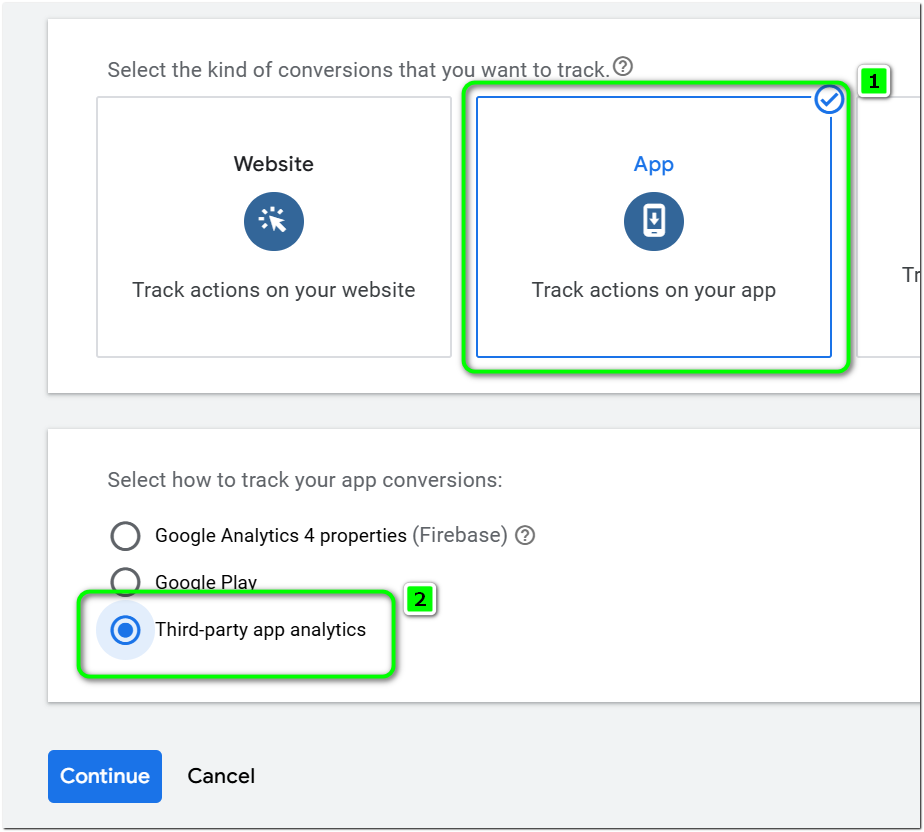
- Select App → Third-party analytics
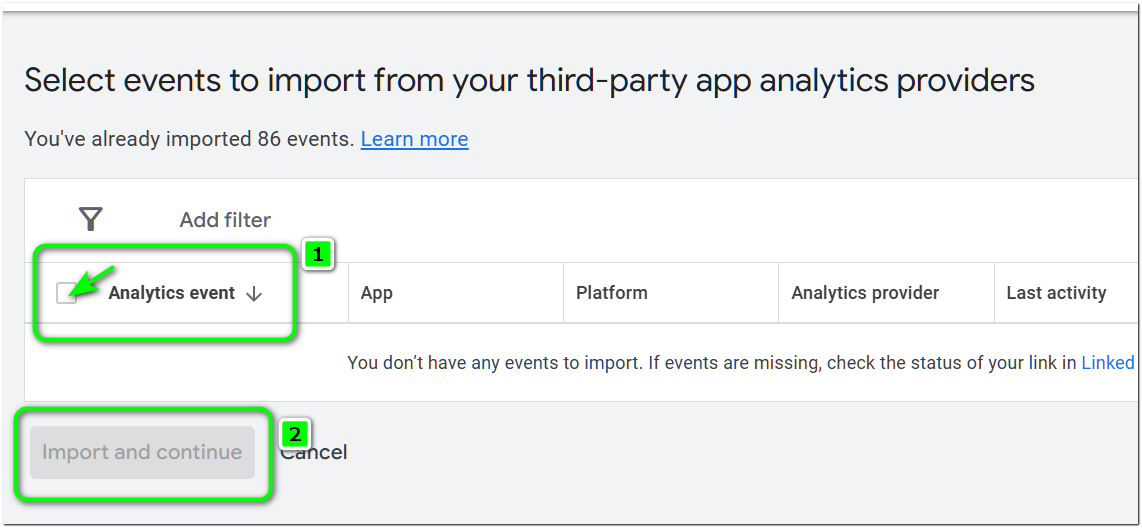
On the final screen, you will see the events (sometimes they appear with a short delay, up to a few hours).
- Check the events you want to use and click Import and continue to add them to your account.
Done! The integration is now complete, and you can launch your campaign.