Facebook Sharing
The Naming section in ZM apps is designed to generate unique naming and configure access to Android applications for advertising platforms. Sharing enables connecting the app to Facebook advertising accounts and launching campaigns with proper tracking attribution.
Configuration is done through a unique deep link and linking to the appropriate ad accounts.
If you are setting up sharing not for Facebook, the process differs. For details, see – our guide.
Configure the Sharing
- Go to the Naming section in the ZM apps menu.

- Сlick Create.

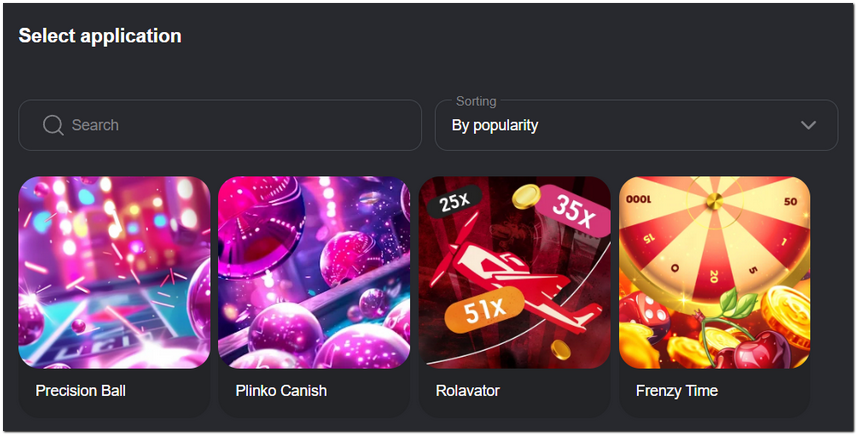
- Select the application for sharing. Use the search or sorting options to find the right one.
- Provide a link to the offer or tracker where the traffic will be directed.
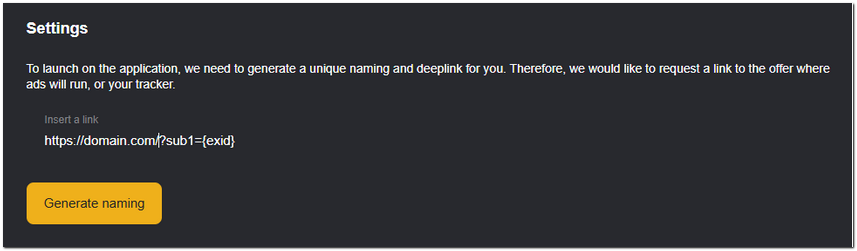
Please note: the link can only be set once.
To change the link after creating the naming, first update it in the tracker. Then send the new link to our support team so we can update it in the system.
Contact Support
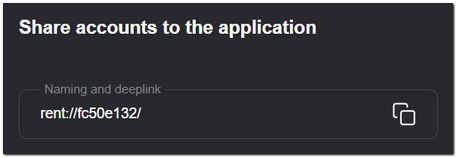
- Once you select an application, the system will automatically generate a unique deep link.
Passing Parameters
You can embed dynamic parameters in the naming to track where the traffic is coming from and which campaign it corresponds to.
https://domain.com/{subX}?sub1={exid}&sub3={sub3}&sub4={sub4}&sub5={sub5}
where:
{subX}– a dynamic parameter in the link body that will be replaced with the campaign ID or another label.{exid}– a unique identifier.{sub3},{sub4},{sub5}– additional parameters if you need to pass more data.
Once the link is ready, you can specify the campaign key in the naming.
It is important to remember that parameters must not be duplicated in both the body and the tail of the link. If the {subX} parameter is already specified in the body, it should not be repeated in the tail.
rent://YOUR_NAMING_HERE/subX={campaignid}/sub3={sub3}/sub4={sub4}/sub5={sub5}
- Add accounts – IDs of ad accounts that will be used for sharing.
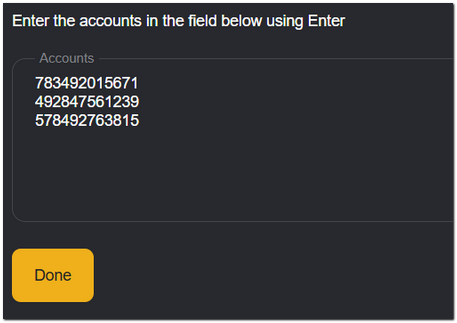
- Click Done and save the settings.
All set up. The system will initiate the sharing process. Typically it takes around five minutes. Once completed, you will receive a notification in Telegram.
How to Check the Status
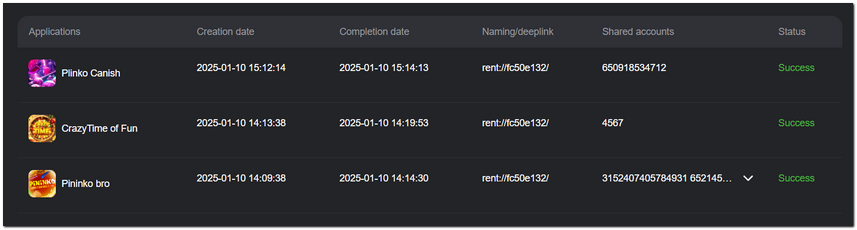
The sharing status and a list of linked accounts are displayed in the summary table within the Naming section.
Possible statuses:
- In progress – the sharing process is ongoing.
- Success – the process is complete, and the data is available.
- Error – an issue occurred; check your settings or contact support.