Create and configure a new a new flow without an app
This guide will help you create a flow without selecting an app using a direct link to an offer. Follow these steps:
1. Go to the Flows section in the left menu of ZM apps and click Create

-
Select the domain type:
- Random domain — the system will automatically select an available domain.
- New domain — you can order a domain with a specific name.
Learn more about domain types and how to work with them
here.
2. Choose the Offer Link flow type

3. Select a pixel
You can:
- Select an existing pixel from the list.
- Create a new pixel directly while setting up the flow.
- Continue without a pixel — in this case, events will not be sent to the source.

More about creating and editing pixels here.
When creating a flow, the selected pixel is automatically added to the final link’s parameters.
If you need to manually add an extra Facebook or Tiktok pixel, follow these steps:
- Make sure the needed pixel is saved in the My Pixels section.
- Add this parameter to the final link:
&pixel_fb=ID of the required pixel(same macro for FB and TT)
Example:
https://example.com/?sub1={sub1}&pixel_fb=12344321234
4. Set up GEO and Whitepage
- If you don't need GEO cloaking, choose No cloaking and go to the next step.
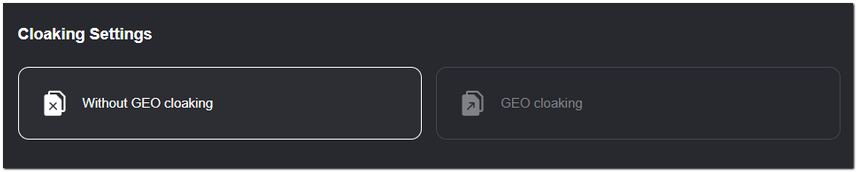
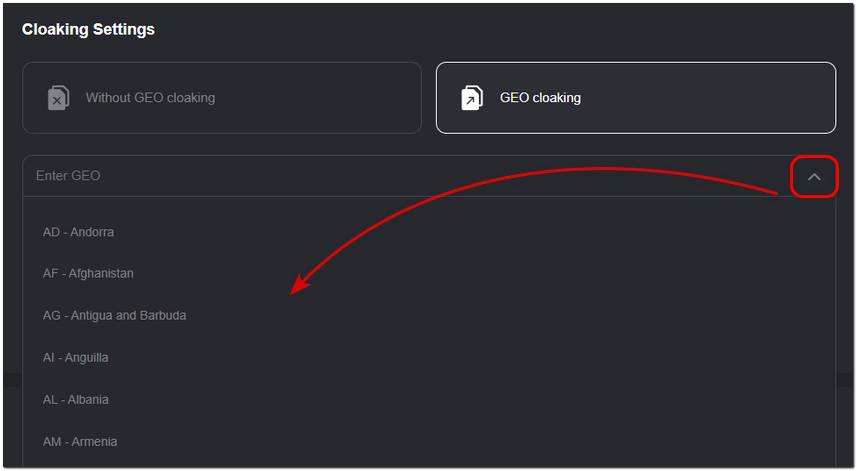
- To set up cloaking, choose GEO cloaking.
-
In the dropdown, choose the regions where your ad should be shown. Users from other regions will see the whitepage.
-
To use your own whitepage instead of the standard one from ZM apps, enter the URL in the Whitepage Source field.

- If needed, add a comment to the flow.

5. Set up the pre-landing page
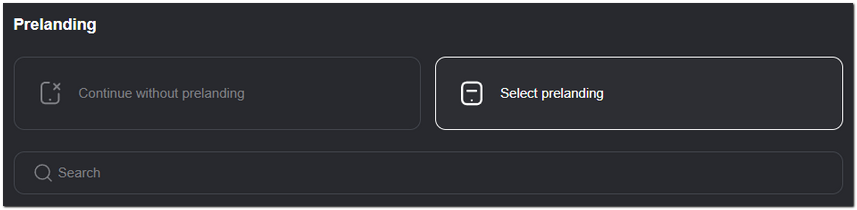
- If you don’t need a pre-landing page, click Continue without pre-landing.

- Click Choose pre-landing to add a ready-made one.
6. Set Up Offer/Tracker
- Paste the offer or tracker link in the URL field.

Ensure the link is correctly formatted. For more information, refer to the Integration Instructions.
7. Complete the Setup
- Review the details in the Check your information section and click Finish.
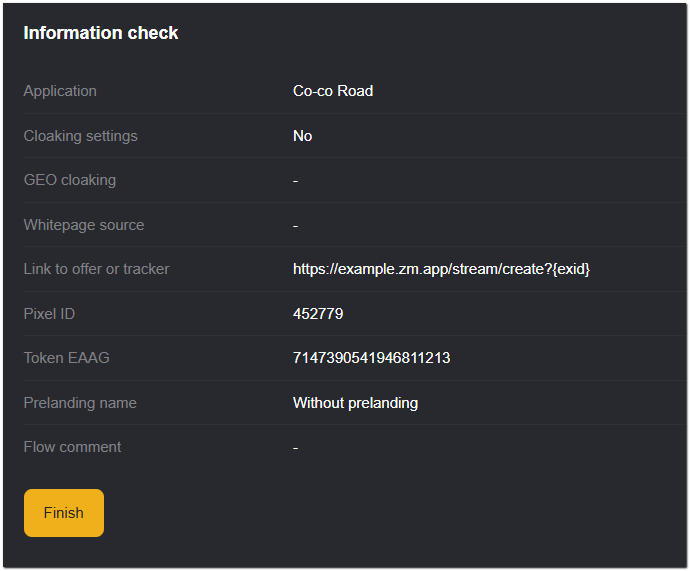
After completing the setup, you will receive the final link for traffic redirection. Copy it for further use.
If you are working with TikTok traffic and using TikTok Pixel, make sure to add ?ttclid=__CLICKID__ as the first parameter in the final URL.
Without it, events will not be properly tracked by the pixel.
Example: https://example708.info?ttclid=__CLICKID__
Done! Your flow is set up. It will now appear in My Flows.